
Milesight UF51 5G CPE Router User Guide





D. Click “Status > Cellular” to view the status of the cellular connection. If it shows “Connected”, it
means SIM1 has dialed up successfully. On the other hand, you can check the status of indicator. If it
keeps light up statically, it means the SIM has dialed up successfully.
E. Open your preferred browser on PC, then type any available web address into address bar and see if it
is able to visit Internet via UF51.
6.3 Wi-Fi Configuration
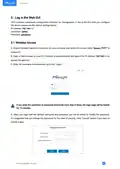
A. Go to “Network” → “Interface” → “WLAN” and select “Client” mode.
B. Click “Scan” to search for Wi-Fi access point. Select the available one and click “Join Network”.
C. Type the key of Wi-Fi.
20

| General | Details |
|---|---|
| Name | Milesight UF51 5G CPE Router User Guide |
| Make | Milesight |
| Language | English |
| Filetype | PDF (Download) |
| File size | 0.6 MB |
 (1 votes, average: 5.00 out of 5)
 Loading...
If you have any questions regarding Milesight UF51 5G CPE Router User Guide, please ask here and describe the problem in detail.
Milesight UR35 Dual SIM Router User Guide

Milesight UR75 UltraSeries Router User Guide

Milesight Lite Cellular Router User Guide

Milesight Routers Installation Guide

Milesight UR32S CCTV Router Owner’s Manual


inseego FW2000e Wavemaker 5G Outdoor CPE Router Owner’s Manual

TELTONIKA Networks QSG RUT956 Cellular Router Instruction Manual

TP-Link ER7212PC Omada Gigabit VPN Router with PoE+ Ports and Controller Ability Installation Guide

Asustek Computer RT-AX57 Wireless AX3000 Dual Band Gigabit Router User Guide

wis network WIS-N300-LTE 4G LTE Router User Guide

NORDIC M1R-DH2-12 Corded Router User Manual

Spectrum 20240729 WiFi 6E Router User Guide

NETGEAR AX6 Stream Wi-Fi Router User Manual

TP-Link AX3000 Wi-Fi 6 Air Router Installation Guide

ASUS TUF-AX5400 TUF Gaming Wi-Fi 6 Router User Guide