×
- 1. Ambient Pm Monitor (Gsm/wifi Connectivity → Contact)
- 2. Getting Started:know Your Ambient Pm Monitor (Gsm Connectivity → Wifi Connectivity → Adding The Monitor In The Aqi App → Installation Process → How To Log In/sign Up? → Safety Guide)
- 3. Whats Inside (The Box → Ambient Pm Monitor → Junction Box → Usb Wifi Dongle → Aluminium Clamp → Screws)
- 4. Getting Started: Know Your Device (General Information About The Product That Explains The Basic Functionalities Of The Device.)
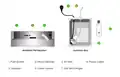
- 5. Ambient Pm Monitor (Junction Box → Push Button → Micro Usb Inlet → Power Socket → Air Inlet → Usb Wifi Dongle)
- 6. Gsm Connectivity
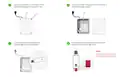
- 7. Open The Junction Box (Unplug The Usb Dongle → Open The Dongle → Insert The Sim Card → Orientation Of The Sim Card)
- 8. Insert The Sim In The Dongle (Place The Usb Dongle Back In The Junction Box → Screw The Junction Box To Close It → Plug The Power Cable Into The Power Socket → Connect The Micro Usb Cable To Your Monitor → Establish A Gsm Connection → Proceed To Add The Monitor In The Aqi App)
- 9. Wificonnectivity
- 10. Turn The Monitor Upside Down And Find The Micro Usb Cable Inlet. Connect The Micro Usb Cable (included In The Box) To The Monitor And Switch…
- 11. Now Go To Your Mobile's Wifi Settings And Search For 'air Monitor_(your Device Id)'. Connect To It Using The Password : '12345678'.
- 12. A Pop-up And/or A Notification Might Appear (if Not Then Move To Step 8).
- 13. Once You Are Connected, A Wifi Configuration Screen Will Appear On Your Mobile. Click On 'configure Wifi' From The List.
- 14. Choose Your Preferred Wifi Network You Wish Your Device To Connect To. Enter The Credentials And Click On The 'save' Button.
- 15. Adding The Monitor In The Aqi App (Upon Successfully Establishing A Gsm Or Wifi Connection)
- 16. Download And Install The Aqi App (Grant Necessary Permissions → Sign Up For Creating A New Account → Log In If You Already Have An Account)
- 17. Choose Your Device (My Devices → Add)
- 18. Scan The Qr Code Or Manually Enter The Device Id. Then Click 'next'. Add All The Necessary Details And Then Click On The 'setup' Button.
- 19. Device Addition (Device Status Verification → Device Details Editing → Online Connection Confirmation → Device Offline Notification)
- 20. Installation Process
- 21. Wall Mounting
- 22. How To Log In/sign Up? (Access Control → Track Monitored Data → Personalize The Experience → Facilitate Communication Between Users And Devices)
- 23. Install The Aqi App On Your Smartphone (Open The App And Click On 'my Devices' From The Top Right Corner Of The Screen)
- 24. Addthenecessarydetails.clickonthecheckboxafterreadingallthetermsandconditionsandprivacypolicies.thenclickonthe'signup'button.
- 25. Your Account Is Created. You Will Be Redirected To 'my Devices' Section Where You Can Add Different Devices.
- 26. Enter Your Credentials (Add Devices → Check Data Remotely)
- 27. Safety Guide
- 28. Read And Follow The User Manual Before Using The Device. (Avoid Exposing The Device To Extremely High Temperatures, And Humidity. → When Connecting To The Wifi Network And The Aqi App, Kindly Read The Instructions Carefully. → It Is Important To Only Use Prana Air Repair Services To Fix The Device. → Accessories: The User Has The Option To Use An Alternative Adapter (with The Same Power Rating) And Usb Cable. → Note: The User Can Opt For An Alternative 5v/2.5a Adapter.)
- 29. Safety And Maintenance
- 30. Make Sure To Turn On The Device Properly. (The Device Is Not Waterproof. Please Keep It And All The Accessories Dry. → If The Air Quality Monitor Is Not Functioning Properly, Do Not Attempt To Repair It Yourself. → Store The Air Quality Monitor In A Cool, Dry Place When Not In Use. → Do Not Drop, Shake, Or Knock The Device. Violent Usage May Damage The Screen Or The Internal Circuit.)
- 31. Service Guidelines
- 32. Warranty Terms (Sending And Retrieving The Device For Repair)
- 33. C. Warranty Description
- 34. Visit Us : Www.pranaair.com
×
Prana Air Ambient Lite GSM Router Instruction Manual
| General | Details |
|---|---|
| Name | Prana Air Ambient Lite GSM Router Instruction Manual |
| Make | Prana Air |
| Language | English |
| Filetype | PDF (Download) |
| File size | 2.74 MB |
If you have any questions regarding Prana Air Ambient Lite GSM Router Instruction Manual, please ask here and describe the problem in detail.


Urocomm UROZETTA 2 4G LTE Mobile Router User Manual

BLAST u4 Wi-Fi Wireless Router User Guide

Cudy LT18 4G LTE Dual Band WiFi 6 Gigabit Cellular Hotspot Router Installation Guide

DIGITAL YACHT 4GXtream NMEA 0183 3G or 4G Router Instruction Manual

TELTONIKA RUTX14 CAT12 Cellular IoT Router User Guide

NETGEAR RS280 Nighthawk Tri-Band WiFi Router User Guide

NETGEAR R6300 WiFi Router Instruction Manual

STRONG 4G LTE Wi-Fi Router Installation Guide

Draytek Vigor167 Modem Router User Guide

ASUS ExpertWiFi EBM68 AX7800 Tri Band WiFi Router User Guide
Table of Contents
- 1. Ambient Pm Monitor - Gsm/wifi Connectivity →
- 2. Getting Started:know Your Ambient Pm Monitor - Gsm Connectiv... →
- 3. Whats Inside - The Box →
- 4. Getting Started: Know Your Device - General Information Abou... →
- 5. Ambient Pm Monitor - Junction Box →
- 6. Gsm Connectivity →
- 7. Open The Junction Box - Unplug The Usb Dongle →
- 8. Insert The Sim In The Dongle - Place The Usb Dongle Back In ... →
- 9. Wificonnectivity →
- 10. Turn The Monitor Upside Down And Find The Micro Usb Cable In... →
- 11. Now Go To Your Mobile's Wifi Settings And Search For 'air Mo... →
- 12. A Pop-up And/or A Notification Might Appear (if Not Then Mov... →
- 13. Once You Are Connected, A Wifi Configuration Screen Will App... →
- 14. Choose Your Preferred Wifi Network You Wish Your Device To C... →
- 15. Adding The Monitor In The Aqi App - Upon Successfully Establ... →
- 16. Download And Install The Aqi App - Grant Necessary Permissio... →
- 17. Choose Your Device - My Devices →
- 18. Scan The Qr Code Or Manually Enter The Device Id. Then Click... →
- 19. Device Addition - Device Status Verification →
- 20. Installation Process →
- 21. Wall Mounting →
- 22. How To Log In/sign Up? - Access Control →
- 23. Install The Aqi App On Your Smartphone - Open The App And Cl... →
- 24. Addthenecessarydetails.clickonthecheckboxafterreadingallthet... →
- 25. Your Account Is Created. You Will Be Redirected To 'my Devic... →
- 26. Enter Your Credentials - Add Devices →
- 27. Safety Guide →
- 28. Read And Follow The User Manual Before Using The Device. - A... →
- 29. Safety And Maintenance →
- 30. Make Sure To Turn On The Device Properly. - The Device Is No... →
- 31. Service Guidelines →
- 32. Warranty Terms - Sending And Retrieving The Device For Repai... →
- 33. C. Warranty Description →
- 34. Visit Us : Www.pranaair.com →