×
- 1. Ambient Pm Monitor (Gsm/wifi Connectivity → Contact)
- 2. Getting Started:know Your Ambient Pm Monitor (Gsm Connectivity → Wifi Connectivity → Adding The Monitor In The Aqi App → Installation Process → How To Log In/sign Up? → Safety Guide)
- 3. Whats Inside (The Box → Ambient Pm Monitor → Junction Box → Usb Wifi Dongle → Aluminium Clamp → Screws)
- 4. Getting Started: Know Your Device (General Information About The Product That Explains The Basic Functionalities Of The Device.)
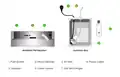
- 5. Ambient Pm Monitor (Junction Box → Push Button → Micro Usb Inlet → Power Socket → Air Inlet → Usb Wifi Dongle)
- 6. Gsm Connectivity
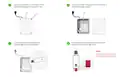
- 7. Open The Junction Box (Unplug The Usb Dongle → Open The Dongle → Insert The Sim Card → Orientation Of The Sim Card)
- 8. Insert The Sim In The Dongle (Place The Usb Dongle Back In The Junction Box → Screw The Junction Box To Close It → Plug The Power Cable Into The Power Socket → Connect The Micro Usb Cable To Your Monitor → Establish A Gsm Connection → Proceed To Add The Monitor In The Aqi App)
- 9. Wificonnectivity
- 10. Turn The Monitor Upside Down And Find The Micro Usb Cable Inlet. Connect The Micro Usb Cable (included In The Box) To The Monitor And Switch…
- 11. Now Go To Your Mobile's Wifi Settings And Search For 'air Monitor_(your Device Id)'. Connect To It Using The Password : '12345678'.
- 12. A Pop-up And/or A Notification Might Appear (if Not Then Move To Step 8).
- 13. Once You Are Connected, A Wifi Configuration Screen Will Appear On Your Mobile. Click On 'configure Wifi' From The List.
- 14. Choose Your Preferred Wifi Network You Wish Your Device To Connect To. Enter The Credentials And Click On The 'save' Button.
- 15. Adding The Monitor In The Aqi App (Upon Successfully Establishing A Gsm Or Wifi Connection)
- 16. Download And Install The Aqi App (Grant Necessary Permissions → Sign Up For Creating A New Account → Log In If You Already Have An Account)
- 17. Choose Your Device (My Devices → Add)
- 18. Scan The Qr Code Or Manually Enter The Device Id. Then Click 'next'. Add All The Necessary Details And Then Click On The 'setup' Button.
- 19. Device Addition (Device Status Verification → Device Details Editing → Online Connection Confirmation → Device Offline Notification)
- 20. Installation Process
- 21. Wall Mounting
- 22. How To Log In/sign Up? (Access Control → Track Monitored Data → Personalize The Experience → Facilitate Communication Between Users And Devices)
- 23. Install The Aqi App On Your Smartphone (Open The App And Click On 'my Devices' From The Top Right Corner Of The Screen)
- 24. Addthenecessarydetails.clickonthecheckboxafterreadingallthetermsandconditionsandprivacypolicies.thenclickonthe'signup'button.
- 25. Your Account Is Created. You Will Be Redirected To 'my Devices' Section Where You Can Add Different Devices.
- 26. Enter Your Credentials (Add Devices → Check Data Remotely)
- 27. Safety Guide
- 28. Read And Follow The User Manual Before Using The Device. (Avoid Exposing The Device To Extremely High Temperatures, And Humidity. → When Connecting To The Wifi Network And The Aqi App, Kindly Read The Instructions Carefully. → It Is Important To Only Use Prana Air Repair Services To Fix The Device. → Accessories: The User Has The Option To Use An Alternative Adapter (with The Same Power Rating) And Usb Cable. → Note: The User Can Opt For An Alternative 5v/2.5a Adapter.)
- 29. Safety And Maintenance
- 30. Make Sure To Turn On The Device Properly. (The Device Is Not Waterproof. Please Keep It And All The Accessories Dry. → If The Air Quality Monitor Is Not Functioning Properly, Do Not Attempt To Repair It Yourself. → Store The Air Quality Monitor In A Cool, Dry Place When Not In Use. → Do Not Drop, Shake, Or Knock The Device. Violent Usage May Damage The Screen Or The Internal Circuit.)
- 31. Service Guidelines
- 32. Warranty Terms (Sending And Retrieving The Device For Repair)
- 33. C. Warranty Description
- 34. Visit Us : Www.pranaair.com
×
Prana Air Ambient Lite GSM Router Instruction Manual
| General | Details |
|---|---|
| Name | Prana Air Ambient Lite GSM Router Instruction Manual |
| Make | Prana Air |
| Language | English |
| Filetype | PDF (Download) |
| File size | 2.74 MB |
If you have any questions regarding Prana Air Ambient Lite GSM Router Instruction Manual, please ask here and describe the problem in detail.


Digital Alert Systems R232 Multi Port RF Router Installation Guide

REYEE RG-R4 1800M Gigabit Dual-Band Wi-Fi 6 Wireless Router User Manual

SAX1V1R Spectrum WiFi 6 Router User Guide: Troubleshoot & Personalize

GL iNet GL-B3000/Marbel AX3000 Wireless Router User Manual

ASUS RT-AX57 AX3000 Dual Band WiFi Router User Guide

TP-Link TD-W9970 300Mbps Wireless N VDSL ADSL Modem Router User Guide

ASUS RT-AX57GO Dual Band WiFi 6 Router User Guide

unifi DPN-FX3060V Optical Network Router User Manual

ROUTER-MODS MC888 PRO 5G Wireless Router Instruction Manual

FiberHome SR120CC Smart Router User Manual
Table of Contents
- 1. Ambient Pm Monitor - Gsm/wifi Connectivity →
- 2. Getting Started:know Your Ambient Pm Monitor - Gsm Connectiv... →
- 3. Whats Inside - The Box →
- 4. Getting Started: Know Your Device - General Information Abou... →
- 5. Ambient Pm Monitor - Junction Box →
- 6. Gsm Connectivity →
- 7. Open The Junction Box - Unplug The Usb Dongle →
- 8. Insert The Sim In The Dongle - Place The Usb Dongle Back In ... →
- 9. Wificonnectivity →
- 10. Turn The Monitor Upside Down And Find The Micro Usb Cable In... →
- 11. Now Go To Your Mobile's Wifi Settings And Search For 'air Mo... →
- 12. A Pop-up And/or A Notification Might Appear (if Not Then Mov... →
- 13. Once You Are Connected, A Wifi Configuration Screen Will App... →
- 14. Choose Your Preferred Wifi Network You Wish Your Device To C... →
- 15. Adding The Monitor In The Aqi App - Upon Successfully Establ... →
- 16. Download And Install The Aqi App - Grant Necessary Permissio... →
- 17. Choose Your Device - My Devices →
- 18. Scan The Qr Code Or Manually Enter The Device Id. Then Click... →
- 19. Device Addition - Device Status Verification →
- 20. Installation Process →
- 21. Wall Mounting →
- 22. How To Log In/sign Up? - Access Control →
- 23. Install The Aqi App On Your Smartphone - Open The App And Cl... →
- 24. Addthenecessarydetails.clickonthecheckboxafterreadingallthet... →
- 25. Your Account Is Created. You Will Be Redirected To 'my Devic... →
- 26. Enter Your Credentials - Add Devices →
- 27. Safety Guide →
- 28. Read And Follow The User Manual Before Using The Device. - A... →
- 29. Safety And Maintenance →
- 30. Make Sure To Turn On The Device Properly. - The Device Is No... →
- 31. Service Guidelines →
- 32. Warranty Terms - Sending And Retrieving The Device For Repai... →
- 33. C. Warranty Description →
- 34. Visit Us : Www.pranaair.com →