
TP-Link AX1800 Wireless Router User Manual

















Chapter 11
NAT Forwarding
all ports opened. When you are not clear about which ports to open in some special
applications, like IP camera and database software, you can set the PC to be a DMZ
host.
Note:
DMZ is most applicable when you don’t know which ports to open. When it is enabled, the DMZ host is totally exposed
to the internet, which may bring some potential safety hazards. If DMZ is not in use, please disable it in time.
Make the home PC join the internet online game without port
restriction.
I want to:
For example, due to some port restriction, when playing the
online games, you can log in normally but cannot join a team
with other players. To solve this problem, set your PC as a DMZ
with all ports opened.
1. Assign a static IP address to your PC, for example
How can I
do that?
192.168.0.100.
2. Visit http://tplinkwifi.net, and log in with the password you
set for your controller.
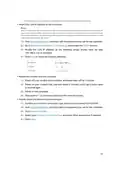
3. Go to Advanced > NAT Forwarding > DMZ and select the
Enable check box to turn on DMZ.
4. Enter the IP address 192.168.0.100 in the DMZ Host IP
Address box.
5. Click Save to make the settings effective.
The configuration is completed. You’ve set your PC as a DMZ
host and now you can join a team to game with other players.
Done!
11. 5. Make Xbox Online Games Run Smoothly by
UPnP
UPnP (Universal Plug and Play) protocol allows the applications or host devices
to automatically find the front-end NAT device and send request to it to open the
corresponding ports. With UPnP enabled, the applications or host devices in the both
sides of NAT device can freely communicate with each other realizing the seamless
46

| General | Details |
|---|---|
| Name | TP-Link AX1800 Wireless Router User Manual |
| Make | TP-Link |
| Language | English |
| Filetype | PDF (Download) |
| File size | 1.49 MB |
 (1 votes, average: 5.00 out of 5)
 Loading...
If you have any questions regarding TP-Link AX1800 Wireless Router User Manual, please ask here and describe the problem in detail.

TP-Link VR300 Archer Modem Router User Guide

TP-Link T150500-2-DT WiFi Router Instruction Manual

TP-Link Archer AX55 Wi-Fi 6 Router Installation Guide

TP-Link Omada ER8411 VPN Router Instructions

TP-Link Configure VDSL Router User Guide

TP-Link Archer BE805 BE19000 Tri-Band Wi-Fi 7 Router User Manual

TP-Link VR600 Wireless DSL Modem Router Installation Guide

TP-Link AX58 Dual Band Gigabit Wi-Fi 6 Router Installation Guide

TP-Link AC750 Wireless Dual Band Router Owner’s Manual

TP-Link AX6000 8-Stream Wi-Fi 6 Router Installation Guide


Cudy LT500-OUTDOOR Outdoor 4G Cat 4 AC1200 Wi-Fi Router Installation Guide

ADDAC System ADDAC809 Chain Router User Guide

time HG8145V5 Router User Guide

hoymiles DTU-Pro-S Wifi Router Installation Guide

Tenda AC3 Wireless AC750 Router Installation Guide

Cisco RV160W Router User Guide

ZTE U30 Air 5g Portable WiFi Mobile WiFi Router User Guide

ASUS ET12 AXE11000 Tri Band WiFi Router User Guide

Cudy WR1300 Gigabit Dual Band Wi-Fi Router Installation Guide

TELTONIKA RUT950 CAT4 LTE Router User Guide