
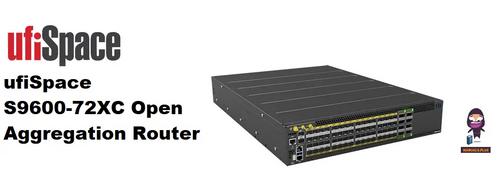
ufiSpace S9600-72XC Router Installation Guide


11 Initial System Setup
Establishing a first‐time serial connection.
To assign an IP address, you must have access to the command line interface (CLI). The CLI is a text‐
based interface that can be accessed through a direct serial connection to the router.
Access the CLI by connecting to the console port. After you assign an IP address, you can access the
system through Telnet or SSH by Putty, TeraTerm or HyperTerminal.
Perform the following steps to access the router through a serial connection:
1. Connect the console cable.
• The console can be connected either with the IOIO port or the micro USB port. If
connecting with USB, drivers will need to be installed.
• To connect the console using the IOIO port, locate the port labelled IOIO, then plug a serial
cable into the console port and connect the other end to the PC or laptop. Cable types may
vary depending on the router model.
Figure 28.
• To connect the console using the micro USB port, locate the port on the front panel of the
router, then connect your computer using the micro USB cable provided in the packaging
contents. Download the suitable driver for your operating system (OS) using the URL below:
vcp‐drivers
Figure 29.
S9600‐72XC Hardware Installation Guide | 24

| General | Details |
|---|---|
| Name | ufiSpace S9600-72XC Router Installation Guide |
| Make | UfiSpace |
| Language | English |
| Filetype | PDF (Download) |
| File size | 0.84 MB |
 (1 votes, average: 5.00 out of 5)
 Loading...
If you have any questions regarding ufiSpace S9600-72XC Router Installation Guide, please ask here and describe the problem in detail.

UfiSpace S9500-30XS Gateway Router Installation Guide

UfiSpace S9600-64X 100G Aggregation Router Installation Guide

UfiSpace S9600-32X 100G Aggregation Router Installation Guide

UfiSpace S9501-28SMT Gateway Router Installation Guide

TP-Link AC1200 Wireless Dual Band Router Installation Guide

TCL HH132V1 Tim Modem Router User Manual

motorola MQ20 Wi-Fi 6E Tri Band Mesh Router User Guide

TP-Link Omada ER605 Gigabit VPN Router User Guide

LINKSYS 750MR7500 Hydra Pro 6E Mesh Router User Guide

TP-Link Archer C80 Wi-Fi 5 Router Instructions

TELTONIKA RUTX11 CAT6 Cellular IoT Router User Guide

Teltonika RUT241 LTE Router Owner’s Manual

SEI ROBOTICS SEI540 ATV STB + Wireless Router User Manual

motorola Q14 Mesh WiFi 6E Router User Guide