
CNC3D QB2 CNC Router User Guide


You’re now ready to run the job! Attach your vacuum hose to the dust shoe turn on the
extraction system, then turn on the spindle by pressing the Green button on the VFD. From
there, all you need to do is highlight the spoilboard job in the list and click “Run SD Job”
1
2
This will start the process of surfacing your spoil board. It may take a long time to complete
this process. If something doesn’t seem right then immediately hit the E‐stop button on your
control box or via our Commander software.
Note: Using the E‐stop on your Nighthawk controller or via our Commander software will
only stop your machine moving but will not stop your spindle. If you want to stop both the
spindle and machine quickly, we recommend using the mechanical E‐stop on your control
box.
Once the job is complete check to see if all the squiggles on the bed have been machined
off. If not, repeat the process again 1mm lower than last time until the entire area is
surfaced.
SOME GREAT NEWS!
The process we have just followed here is basically how every job will be run if streaming
the job. You will be running all future jobs like this. Also keep in mind you can upload jobs to
your Nighthawk controller and run them off your SD card. Saving this handy spoil board job
will make it easy next time you want to freshen up your surface OR after you replace your
spoil board.
QB2 Page 12
QB2 User and Maintenance Guide – Revised 28/09/2022

| General | Details |
|---|---|
| Name | CNC3D QB2 CNC Router User Guide |
| Make | CNC3D |
| Language | English |
| Filetype | PDF (Download) |
| File size | 1.11 MB |
 (1 votes, average: 5.00 out of 5)
 Loading...
If you have any questions regarding CNC3D QB2 CNC Router User Guide, please ask here and describe the problem in detail.


cimetrics B3075 BACnet-IP to BACnet-IP Router User Guide

TCL HH515V 5G Home Station Router User Guide

Hisense HBR6303M WiFi Router User Manual

Teltonika RUT241 LTE Router Owner’s Manual

cradlepoint CTR35 Wireless Router User Guide

HONOR Router 3 WiFi Router Installation Guide
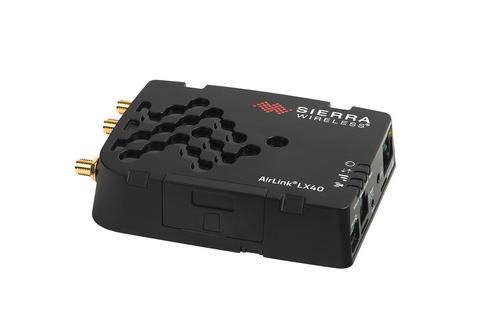
SIERRA WIRELESS AirLink LX40 Enterprise LTE Router User Guide

ASUS RT-BE7200 Dual Band Wi-Fi Router User Guide

Sagemcom SAX2V1S Wave 2 Wireless Router Instruction Manual

Xiaomi AX9000 Router User Manual