
CNC3D QB2 CNC Router User Guide


Things to check before powering on!
We’re almost there! It’s important to do some quick checks to ensure your machine is ready
to go. Sometimes in transport, things can wiggle loose. Here are some things to check.
Check all nuts and bolts on the machine.
Check the green connectors that connect all the wires. They should be firm and
secure. Try giving each wire a slight tug in each screw terminal to make sure
they are definitely secure!
PRO TIP: You can familiarize yourself and follow the maintenance guide at the
bottom of these instructions to check that everything is nice and secure after the
machine has been moved into its home location.
Download and install our CNC3D Commander software if you have a Windows
computer. It can be found here:
Let’s plug it in!
Take the single power plug lead and plug it directly into a wall socket. It is NOT
recommended to run the machine from a power board. Once powered on, your Nighthawk
controller fan will come on and so will the display on your VFD.
You can now either choose to connect to your machine via USB on your PC or wifi via by
directly accessing the Nighthawk controllers web interface.
We highly recommend visiting the user manual for the
Nighthawk controller found here:
QB2 Page 4
QB2 User and Maintenance Guide – Revised 28/09/2022

| General | Details |
|---|---|
| Name | CNC3D QB2 CNC Router User Guide |
| Make | CNC3D |
| Language | English |
| Filetype | PDF (Download) |
| File size | 1.11 MB |
 (1 votes, average: 5.00 out of 5)
 Loading...
If you have any questions regarding CNC3D QB2 CNC Router User Guide, please ask here and describe the problem in detail.


WebStore4 WL4 MIFI-4G-2600 Mifi Mobile 4G Router User Guide

time HG8145V5 Router User Guide

Tenda Dual Band WiFi 6 Router Installation Guide

CaptionCall CR3 Pcs Modem And Router User Manual

TP-Link Archer AX55 Wi-Fi 6 Router Installation Guide
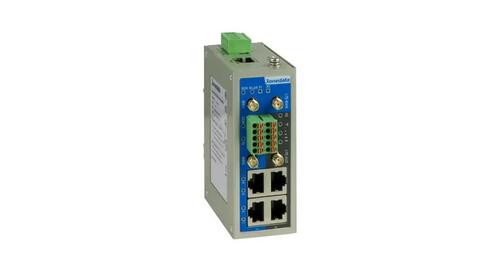
3onedata IRT5300L-5T2D-2P12_36 4G Wireless Router Installation Guide

D-Link AX4800 Mesh Wi-Fi 6 Router Installation Guide

D-Link G415 AX1500 4G Router User Guide

GL iNet GL-B3000/Marbel AX3000 Wireless Router User Manual

NRadio Technologies N300 4G Pocket Size LTE Modem Router User Manual