
Home > FALCON technology > FALCON technology 4G Combo Combined Antenna and Router User Manual
FALCON technology 4G Combo Combined Antenna and Router User Manual



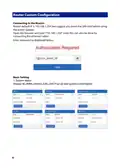




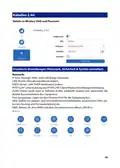


Step 3: Manually setup your “APN” details:
A - Click on “General Settings” located on the blue menu bar
B - Ensure that “4G” is enabled and highlighted “blue”
C - Change the “APN Profile” from “auto” to “manual”
D - Type the Access Point Network (APN) details. Example used is “EE”
D1 - APN: everywhere
D2 - Username: eesecure
D3 - Password: secure
D4 - Authentication type: “PAP”
D5 - PDP Type: “IPv4/IPv6”
Click save to apply changes. Example used is “EE” with reference steps below:
Below is a list of the APN settings for some of the popular UK networks:
Name
APN
Username
eesecure
gg
Password
secure
EE
everywhere
giffgaff
giffgaff.com
p
O2
mobile.o2.co.uk
mobile.sky
o2web
password
Sky Mobile
Three
three.co.uk
Vodafone PAYG
Vodafone
Talkmobile
Virgin Mobile
Tesco Mobile
Smarty
pp.vodafone.co.uk
wap.vodafone.co.uk
talkmobile.co.uk
goto.virginmobile.uk
prepay.tesco-mobile.com
mob.asm.net
wap
wap
wap
wap
wap
wap
tescowap
wap
password
wap
Lebara Internet
uk.lebara.mobi
At the time of printing all details are correct but for any discrepancies please check with your provider
11

| General | Details |
|---|---|
| Name | FALCON technology 4G Combo Combined Antenna and Router User Manual |
| Make | FALCON technology |
| Language | English |
| Filetype | PDF (Download) |
| File size | 0.63 MB |
 (1 votes, average: 5.00 out of 5)
 Loading...
If you have any questions regarding FALCON technology 4G Combo Combined Antenna and Router User Manual, please ask here and describe the problem in detail.


TP-Link AX6600 Tri Band WiFi 6 Router Installation Guide

D-Link DIR-890L AC3200 Ultra Wi-Fi Router Installation Guide

neptronic RPB11 RPB BACnet Router Instruction Manual

TP-Link X50-5G Whole Home Mesh Wi-Fi 6 Router User Guide

Infinite Clouds 110 Wireless Router User Manual

NETGEAR R7450 WiFi Router User Guide

ADVANTECH ICR-2701 Engineering Portal Cellular Router User Guide

TP-Link G36 Gigabit VPN Router Installation Guide

Tenda 4G05 Wi-Fi N300 4G LTE Router Installation Guide

EXPERT4HOUSE 4G Professional Router User Manual