
Helmholz 700-875-LTE11, 700-875-LTE61 REX 100 Router User Guide


The active connection status to the REX 100 is represented by an animated orange connection button.
The number of active connections made using this account is shown with details in the menu bar.
Once the VPN connection to the REX 100 has been established, all the IPv4 packets valid for the applica-
ble LAN network on the system side will be forwarded. The parameters (port, VPN IP, LAN IP etc.) used
for this connection are also shown with details in the status bar at the bottom.
To end the remote access connection, click the Disconnect button and accept the final security query.
8 Tips and tricks
8.1 Checking the device status
The device status website of the REX 100 shows the connection status and the active configuration data
of the router. To this purpose, the REX 100 must be accessible in the LAN, meaning that the TCP/IP ad-
dress of a PC must be in the same IP subnet. To this purpose, enter the LAN IP address of the REX 100 into
the address bar of a browser.
Authenticate yourself with the standard
user:
helmholz and the
router
password:
QuickStart Guide REX 100 | Version 14 | 22.01.2025
19

| General | Details |
|---|---|
| Name | Helmholz 700-875-LTE11, 700-875-LTE61 REX 100 Router User Guide |
| Make | Helmholz |
| Language | English |
| Filetype | PDF (Download) |
| File size | MB |
 (1 votes, average: 5.00 out of 5)
 Loading...
If you have any questions regarding Helmholz 700-875-LTE11, 700-875-LTE61 REX 100 Router User Guide, please ask here and describe the problem in detail.

Helmholz 700-875-WIF51 REX 100 Router User Guide

Helmholz LTE11 Router Owner’s Manual


xiaomi RB02 AC1200 Gigabit Router User Manual

DrayTek Vigor2762 Series ADSL2-2+ and VDSL2 Router User Guide

TRANSLITE GLOBAL TL-HWR-13 Dual Band Wireless Router Owner’s Manual

Siretta GPS 5G NR Router User Guide

TRANSLITE GLOBAL TL-HWR-13 Dual Band Smart Wireless Router Owner’s Manual

TP-Link BE220_V1 Dual Band Wi-Fi 7 Router Installation Guide
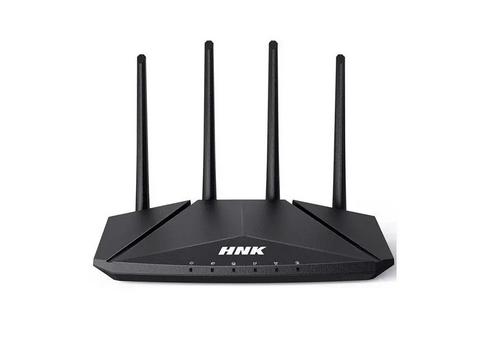
HNK RAX1810 Smart Wi-Fi Router User Manual

UBIQUITI NETWORKS ER-12 10 Port Gigabit Router User Guide

verizon CR1000 Router Instructions

TP-Link AX58 Dual Band Gigabit Wi-Fi 6 Router Installation Guide