
TP-Link Archer AX20 AX1800 WiFi 6 WiFi Router User Guide








Chapter 11
NAT Forwarding
How can I do that?
1. Assign a static IP address to your PC, for example 192.168.0.100.
2. Visit http://tplinkwifi.net, and log in with your TP-Link ID or the password you set for
the router.
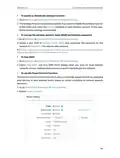
3. Go to Advanced > NAT Forwarding > DMZ and tick to enable DMZ.
4. Click VIEW CONNECTED DEVICES and select your PC. The Device IP
Address will be automatically filled in. Or enter the PC’s IP address 192.168.0.100
manually in the DMZ Host IP Address field.
5. Click SAVE.
Done!
The configuration is completed. You’ve set your PC to a DMZ host and now you can
make a team to game with other players.
11. 4. Make Xbox Online Games Run Smoothly by
UPnP
The UPnP (Universal Plug and Play) protocol allows applications or host devices
to automatically find the front-end NAT device and send request to it to open the
corresponding ports. With UPnP enabled, the applications or host devices on the
local network and the internet can freely communicate with each other thus realizing
the seamless connection of the network. You may need to enable the UPnP if you
want to use applications for multiplayer gaming, peer-to-peer connections, real-time
communication (such as VoIP or telephone conference) or remote assistance, etc.
Tips:
•
•
•
UPnP is enabled by default in this router.
Only the application supporting UPnP protocol can use this feature.
UPnP feature needs the support of operating system (e.g. Windows Vista/ Windows 7/ Windows 8, etc. Some of
operating system need to install the UPnP components).
For example, when you connect your Xbox to the router which has connected to
the internet to play online games, UPnP will send request to the router to open the
62

| General | Details |
|---|---|
| Name | TP-Link Archer AX20 AX1800 WiFi 6 WiFi Router User Guide |
| Make | TP-Link |
| Language | English |
| Filetype | PDF (Download) |
| File size | 1.24 MB |
 (1 votes, average: 5.00 out of 5)
 Loading...
If you have any questions regarding TP-Link Archer AX20 AX1800 WiFi 6 WiFi Router User Guide, please ask here and describe the problem in detail.

TP-Link VR300 Archer Modem Router User Guide

TP-Link T150500-2-DT WiFi Router Instruction Manual

TP-Link Archer AX55 Wi-Fi 6 Router Installation Guide

TP-Link Omada ER8411 VPN Router Instructions

TP-Link Configure VDSL Router User Guide

TP-Link Archer BE805 BE19000 Tri-Band Wi-Fi 7 Router User Manual

TP-Link AX6000 8-Stream Wi-Fi 6 Router Installation Guide

TP-Link VR600 Wireless DSL Modem Router Installation Guide

TP-Link AX58 Dual Band Gigabit Wi-Fi 6 Router Installation Guide

TP-Link AC750 Wireless Dual Band Router Owner’s Manual


TP-Link TL-WR3002X AX3000 Wi-Fi 6 Portable Router User Guide

TP-Link BE7200 Dual Band Wi-Fi 7 XGS PON Router Installation Guide

D-Link DIR-825 Xtreme N Dual Band Gigabit Router Instruction Manual

FRITZ!Box 6860 5G Outdoor Router User Guide

TP-Link EC223-G5 Aginet AC1200 MU-MIMO Wi-Fi Router User Manual
TP-Link T150500-2-DT WiFi Router Instruction Manual

TELTONIKA RUTX14 CAT12 Cellular IoT Router User Guide

DrayTek Vigor2766 Series Fast Security Router User Guide

GL iNet GL-B3000 Marble AX3000 Wireless Router User Guide

Iconnect 7621 WiFi 6 Router User Manual