
TP-Link Archer AX20 AX1800 WiFi 6 WiFi Router User Guide








Chapter 13
Customize Your Network Settings
2. Click VIEW CONNECTED DEVICES and select the you device you want to reserve an
IP for. Then the MAC Address will be automatically filled in. Or enter the MAC address
of the client device manually.
3. Enter the IP address to reserve for the client device.
4. Click SAVE.
13. 4. Set Up a Dynamic DNS Service Account
Most ISPs assign a dynamic IP address to the router and you can use this IP address
to access your router remotely. However, the IP address can change from time to time
and you don’t know when it changes. In this case, you might apply the DDNS (Dynamic
Domain Name Server) feature on the router to allow you and your friends to access your
router and local servers (FTP, HTTP, etc.) using a domain name without checking and
remembering the IP address.
Note: DDNS does not work if the ISP assigns a private WAN IP address (such as 192.168.1.x) to the router.
1. Visit http://tplinkwifi.net, and log in with your TP-Link ID or the password you set for
the router.
2. Go to Advanced > Network > Dynamic DNS.
3. Select the DDNS Service Provider: TP-Link, NO-IP or DynDNS. It is recommended
to select TP-Link so that you can enjoy TP-Link’s superior DDNS service. Otherwise,
please select NO-IP or DynDNS. If you don’t have a DDNS account, you have to
register first by clicking Register Now.
Note: To enjoy TP-Link’s DDNS service, you have to log in with a TP-Link ID. If you have not logged in with one, click
log in.
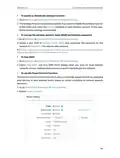
4. Click Register in the Domain Name List if you have selected TP-Link, and enter the
Domain Name as needed.
76

| General | Details |
|---|---|
| Name | TP-Link Archer AX20 AX1800 WiFi 6 WiFi Router User Guide |
| Make | TP-Link |
| Language | English |
| Filetype | PDF (Download) |
| File size | 1.24 MB |
 (1 votes, average: 5.00 out of 5)
 Loading...
If you have any questions regarding TP-Link Archer AX20 AX1800 WiFi 6 WiFi Router User Guide, please ask here and describe the problem in detail.

TP-Link VR300 Archer Modem Router User Guide

TP-Link T150500-2-DT WiFi Router Instruction Manual

TP-Link Archer AX55 Wi-Fi 6 Router Installation Guide

TP-Link Omada ER8411 VPN Router Instructions

TP-Link Configure VDSL Router User Guide

TP-Link Archer BE805 BE19000 Tri-Band Wi-Fi 7 Router User Manual

TP-Link VR600 Wireless DSL Modem Router Installation Guide

TP-Link AX58 Dual Band Gigabit Wi-Fi 6 Router Installation Guide

TP-Link AC750 Wireless Dual Band Router Owner’s Manual

TP-Link AX6000 8-Stream Wi-Fi 6 Router Installation Guide


hitron CODA5x1xQ Series Cable Modem Router User Guide

GL Technologies 2AFIW-X2000 Wi-Fi 6 4G LTE CAT 12 Router User Guide

Cudy WR3600E BE3600 Gigabit WiFi 7 Router Installation Guide

cradlepoint CTR35 Wireless Router User Guide

ASUS RT-AX57 Dual Band WiFi Router User Guide

ASUS RT-AX89X Dual-band Wi-Fi Router Instruction Manual

MERCURY 6220 Wireless Dual-Band Router Instructions

LUXUL ABR-5000 Epic 5 Gigabit Router User Guide

Ruijie E4 Networking Router Instruction Manual

D-Link DWR-960 Wi-Fi Router Instruction Manual