
TP-Link Archer AX20 AX1800 WiFi 6 WiFi Router User Guide








Chapter 7
USB Settings
1 ) Open the Windows Explorer (or go to Computer, only for Windows
users) or open a web browser.
2 ) Type the server address in the address bar:
Type in ftp://<WAN IP address of the router>:<port number> (such
as ftp://59.40.2.243:21). If you have specified the domain name
of the router, you can also type in ftp://<domain name>:<port
number> (such as ftp://MyDomainName:21)
Computer
3 ) Press Enter on the keyboard.
4 ) Access with the username and password you set in To Set Up
Authentication for Data Security.
Tips:
You can also access the USB disk via a third-party app for network files management, which can
resume broken file transfers.
Use a third-party app for network files management.
Tablet
Tips:
Click Set Up a Dynamic DNS Service Account to learn how to set up a domain name for you router.
7. 1. 3.
Customize the Access Settings
By default, all the network clients can access all folders on your USB disk. You can
customize your sharing settings by setting a sharing account, sharing specific contents
and setting a new sharing address on the router’s web management page.
1. Visit http://tplinkwifi.net, and log in with your TP-Link ID or the password you set for
the router.
2. Go to Advanced > USB > USB Storage Device.
•
To Customize the Address of the USB Storage Device
You can customize the server name and use the name to access your USB storage
device.
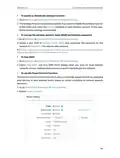
1. In the Access Method session, make sure Samba for Windows is ticked, and enter a
Network/Media Server Name as you like, such as MyShare, then click Save.
34

| General | Details |
|---|---|
| Name | TP-Link Archer AX20 AX1800 WiFi 6 WiFi Router User Guide |
| Make | TP-Link |
| Language | English |
| Filetype | PDF (Download) |
| File size | 1.24 MB |
 (1 votes, average: 5.00 out of 5)
 Loading...
If you have any questions regarding TP-Link Archer AX20 AX1800 WiFi 6 WiFi Router User Guide, please ask here and describe the problem in detail.

TP-Link Archer AX55 Wi-Fi 6 Router Installation Guide

TP-Link VR300 Archer Modem Router User Guide

TP-Link T150500-2-DT WiFi Router Instruction Manual

TP-Link Omada ER8411 VPN Router Instructions

TP-Link Configure VDSL Router User Guide

TP-Link Archer BE805 BE19000 Tri-Band Wi-Fi 7 Router User Manual

TP-Link VR600 Wireless DSL Modem Router Installation Guide

TP-Link AX58 Dual Band Gigabit Wi-Fi 6 Router Installation Guide

TP-Link AC750 Wireless Dual Band Router Owner’s Manual

TP-Link AX6000 8-Stream Wi-Fi 6 Router Installation Guide


NETGEAR R6700AX 4 Stream WiFi 6 Router Instructions

LINOVISION IOT-R32 Wholesale Rugged and Versatile Cellular Router User Guide

porodo PD-4GCPMF-BK 4G/LTE Home and Outdoor Portable Router Instruction Manual

Asustek Computer RT-AX57 Wireless AX3000 Dual Band Gigabit Router User Guide

Cudy WR2100 Gigabit Dualband WLAN Mesh Router Installation Guide

WAVLINK AC1200 WiFi AP/Router Specifications

RV WI-FI 2024 V3 DishyDock Router User Manual

cradlepoint AER1600 LTE Router User Guide

wis network 5G CPE Pro -Home Router User Guide

NOKIA ONT G-1426G-A Dual Band Wi-Fi 6 Mesh Router User Guide