
Home > WIND telecom > WIND telecom Surf-i TD-LTE 4G Wireless Router User Manual
WIND telecom Surf-i TD-LTE 4G Wireless Router User Manual
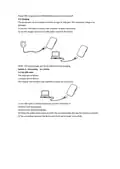

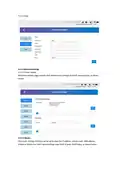





Remark:
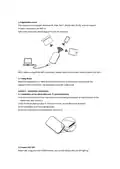
1) About the client WPS process operation, please refer to the client’s instructions.
2) WPS function will automatically shut down after 2 minutes, if you need a connection to be
established through the WPS, please press the WPS button again.
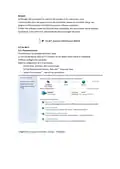
3.3 How to obtain the SSID and password
The SSID and password of the devices will be posted on the lable as normal, if not you can obtain
the SSID and password through the way as bellow.
1) Obtain via Web
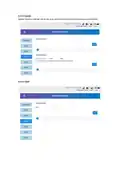
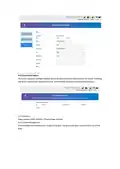
Enter to the Web UI, Enter to settings WLAN settings -- Basic settings, you will see the
information of SSID and KEY.
2) Double click the WPS Button
3) Double click the device WPS Button, you can see the information of SSID and KEY on the LCD.
Section 4 - Managing the Web UI page
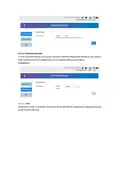
Web UI management interface can help users to manage the device effecticely.
This chapter will show you how to manage the page.
4.1 Login
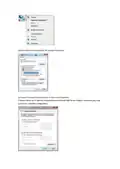
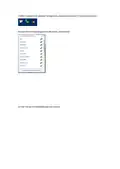
1) Enable the connection between Client Terminal and device.
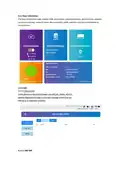
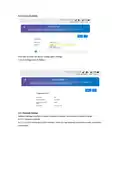
3) In the subsequent pop-up login window, enter the default password”admin”, click Login, you
can enter the Web UI management page.
Remark: you are advised to use the following browsers: IE (7.0 or higher), Firefox (3.0 or higher),
Opera (10.0 or higher), Safari (4.0 or higher) or Chrome (5.0 or higher),
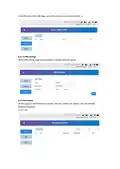
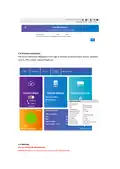
4.2 Web UI Introduction

| General | Details |
|---|---|
| Name | WIND telecom Surf-i TD-LTE 4G Wireless Router User Manual |
| Make | WIND telecom |
| Language | English |
| Filetype | PDF (Download) |
| File size | 0.56 MB |
 (1 votes, average: 5.00 out of 5)
 Loading...
If you have any questions regarding WIND telecom Surf-i TD-LTE 4G Wireless Router User Manual, please ask here and describe the problem in detail.


TP-Link AX5400 Multi Gigabit Wi-Fi Router User Guide

Cudy WR3000H 2.5G Mesh WiFi 6 Router Installation Guide

Mercury TD-W8960 Modem Router User Manual

Imou AX3000 300 Mbps Wi-Fi 4G LTE Router User Guide

GL iNet X3000NR 5G NR Wi-Fi 6 Router User Guide

SKYWORTH R6215 Wi-Fi 6 Mesh Router Installation Guide

TP-Link ER706W Wi-Fi Gigabit VPN Router User Guide

ASUS ZenWiFi BD4 Be3600 Dual Band Wi-Fi Router User Guide

TP-Link TL-WR3002X Wi-Fi 6 Portable Router Installation Guide

TELTONIKA RUTM30 Compact 5G Router User Guide