
ADVANTECH ICR-3200 Cellular Router Instruction Manual















































ICR-3200
2.2 HTTPS Certificate for the GUI
There is the self-signed HTTPS certificate in the router. Because the identity of this cer-
tificate cannot be validated, a message can appear in the web browser. To solve this, upload
your own certificate, signed by Certification Authority, to the router. If you want to use your
own certificate (e.g. in combination with the dynamic DNS service), you need to replace the
/etc/certs/https_cert and /etc/certs/https_key files in the router. This can be done easily in the
GUI on HTTP configuration page, see Chapter 4.17.3.
If you decide to use the self-signed certificate in the router to prevent the security mes-
sage (domain disagreement) from pop up every time you log into the router, you can take the
following steps:
• Add the DNS record to your DNS system: Edit /etc/hosts (Linux/Unix OS) or
C:\WINDOWS\system32\drivers\etc\hosts (Windows OS) or configure your own DNS
server. Add a new record with the IP address of your router and the domain name
based of the MAC address of the router (MAC address of the first network interface seen
in Network Status in the Web interface of the router.) Use dash separators instead of
colons. Example: A router with the MAC address 00:11:22:33:44:55 will have a domain
name 00-11-22-33-44-55.
• Access the router via the new domain name address (E.g. https://00-11-22-33-44-55).
If you see the security message, add an exception so the next time the message will
not pop up (E.g. in Firefox Web browser). If there is no possibility to add an exception,
export the certificate to the file and import it to your browser or operating system.
Note: You will have to use the domain name based on the MAC address of the router and
it is not guaranteed to work with every combination of an operating system and a browser.
2.3 Valid Characters
If the router is configured through the web interface, avoid entering forbidden characters
into any of the input forms (not just for password). Valid and forbidden characters are specified
below. Please note that the "space" character may not be allowed for some forms as well.
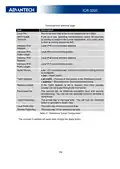
Valid characters are:
Forbidden characters are:
8

| General | Details |
|---|---|
| Name | ADVANTECH ICR-3200 Cellular Router Instruction Manual |
| Make | Advantech |
| Language | English |
| Filetype | PDF (Download) |
| File size | 3.17 MB |
 (1 votes, average: 5.00 out of 5)
 Loading...

ADVANTECH ICR-2701 Engineering Portal Cellular Router User Guide

ADVANTECH ICR-2531 LTE Router User Manual

advantech ICR-3831 RAILWAY 4G LTE ROUTER & GATEWAY User Guide

ADVANTECH SL302 SmartStart LTE Router User Manual

ADVANTECH ICR-2431 LTE Router User Manual

ADVANTECH ICR-2041 LTE Router User Manual


NETGEAR BE17000 Nighthawk WiFi 7 Tri-Band Router Owner’s Manual

hitron CGNM-2250 Cable Modem Router User Guide

RYOBI RTR18 Trim Router Instruction Manual

Tenda 4G06V1.0 4G LTE and VoLTE Router User Guide

WAVLINK AC1200 Dual Band Wi-Fi Extender/AP User Guide

ASUS ZenWiFi Pro ET12 AXE11000 Tri Band Router User Guide

ASUS BE14000 Tri Band WiFi Router User Guide

SEALEY CP20VTR Cordless Trimming Router Instruction Manual

Taiko Audio Extreme Router User Guide

Sagemcom FAST 5295 WiFi Router Instructions