
Cudy AC1200 Dual Band Unlocked 4G LTE Modem Router Installation Guide




EN
Quick Installation
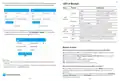
1. Insert the Micro SIM card into the slot until you hear a click.
Customize The 4G Router
1. Connect the router via ethernet cable or Wi-Fi. Network name and
password is printed on the bottom of the router.
4G LTE Wi-Fi Router
Wi-Fi: Cudy-XXXX
Password: XXXXXXXX
LAN1
LAN2
LAN3
LAN4/WAN
Micro SIM
WPS RESET POWER
Note: For LT450 and LT500, the device will create two WiFi signals, 2.4GHz WiFi network name
is Cudy-XXXX, 5GHz WiFi network name is Cudy-XXXX-5G.
in the address bar, use admin as password to login.
1
2
Micro SIM
SIM card requirement
+
+
Micro SIM
card
Nano SIM
card
Micro SIM
card adapter
Empty SIM
card adapter
Nano SIM
card
Standard
SIM card
Auto
Password
Size: Use a micro SIM card, or manually convert a nano SIM card using the SIM card
adapter.
Note: To prevent damage, do not insert a nano SIM card directly, and do not insert an
empty SIM card adapter or any other object into the slot.
Log In
Direction: With the gold contacts facing down, gently slide the SIM card into the slot.
3. Below page would pop up if your SIM card needs PIN to unlock. Please
enter your PIN and click Save & Apply, then wait 15 seconds to connect
to the Internet.
2. Connect power adapter and turn on the router. Waiting for 2 minutes
for it to start.
3. Check the status of the system LED.
4G Settings
If the system LED turns to solid blue, means connect to 4G network successfully.
The SIM is locked, please enter the PIN code. You have
3 attempts at most for entering the PIN code.
If the system LED turns to solid purple, means connect to 2/3G network.
PIN
Save & Apply
If the system LED turns to solid red, please follow the instructions of Customize
the 4G Router.
— 1 —
— 2 —

| General | Details |
|---|---|
| Name | Cudy AC1200 Dual Band Unlocked 4G LTE Modem Router Installation Guide |
| Make | Cudy |
| Language | English |
| Filetype | PDF (Download) |
| File size | 1.65 MB |
 (1 votes, average: 5.00 out of 5)
 Loading...
If you have any questions regarding Cudy AC1200 Dual Band Unlocked 4G LTE Modem Router Installation Guide, please ask here and describe the problem in detail.

Cudy X6 AX1800 1800mbps Dual Band Wi-Fi 6 Router Installation Guide

Cudy WR1200 AC1200 Dual Band Wi-Fi Router Installation Guide

Cudy WR1200 Dual Band Wi-Fi Router Installation Guide

Cudy WR300 Multi Mode WiFi Router Installation Guide

Cudy TR3000 AX3000 2.5G Wi-Fi 6 Mini VPN Router Installation Guide

Cudy X6 AX1800 Dual Band Gigabit Wi-Fi 6 Mesh Router Installation Guide

Cudy WR3000E Gigabit Mesh WiFi 6 Router Installation Guide

Cudy AC1200 4G LTE Wi-Fi Router Instruction Manual

Cudy LT450 4G LTE AC1200 Dual Band WiFi Router User Manual

Cudy WR1300 Gigabit Dual Band Wi-Fi Router Installation Guide


Urant U20 Wireless Router Installation Guide

D-Link DIR-2660 AC2600 Mesh Wifi Router Installation Guide
Cudy AC1200 4G LTE Wi-Fi Router Instruction Manual

TP-Link RJ45 Modem Router Owner’s Manual

TELTONIKA Networks RUT956 4G LTE Router User Guide

xiaomi RA67 AX1800 Mi Router User Manual

LANCOM SYSTEMS 1790-4G+ High-Performance VPN Router Installation Guide

ASUS RT-BE88U Dual Band WiFi 7 Gaming Router User Guide

AKYPACH A2 Wood Router Instruction Manual

ASUS RT-AX86U Pro Wireless-AX5700 Dual-Band Gigabit Router User Guide