
inhandgo CR202 InHand Networks Portable 4G Router User Manual

This page displays the traffic statistics on the dialing interface, including the statistics on the
traffic received in the latest month, traffic transmitted in the latest month, traffic received on the
last day, traffic transmitted on the last day.
3.9.4 Alarm
Choose Status >> Alarm to go to the "Alarm" page to view all alarms generated in the system
since power-on. You can clear or confirm the alarms.
The alarms have the following states:
Raise: indicates that the alarm has been generated but not been confirmed.
Confirm: indicates that the alarm cannot be solved currently.
All: indicates all generated alarms.
The alarms are classified into the following levels:
EMERG: The device undergoes a serious error that causes a system reboot.
CRIT: The device undergoes an unrecoverable error.
WARN: The device undergoes an error that affects system functions.
NOTICE: The device undergoes an error that affects system performance.
INFO: A normal event occurs.
3.9.5 WLAN
Choose Status >> WLAN to go to the "WLAN" page to query the WLAN connection status.
This page displays the WLAN connection information, including channel, SSID, BSSID, security,
signal (%), mode, and status.
3.9.6 Network Connections
From navigation tree, select Status >> Network Connections, then enter “Network Connections”
page to see the connections status.
This page shows the basis information of dialup and LAN.
3 6
WAN includes MAC address, connection type, IP address, netmask, gateway, DNS, MTU, Status
and etc.
Dialup includes connection type, IP address, netmask, gateway, DNS, MTU, status and connection
time.
LAN includes connection type, MAC address, IP address, netmask, gateway, MTU and DNS.
3.9.7 Device Manager
From navigation tree, select Status >> Device Manager, then enter “Device Manager” page to
check the connections status between router and Device Manager.
3.9.8 Route Table
From navigation tree, select Status >> Route Table, then enter “Route Table” page to see router
status.
This page displays the active route table, including destination, netmask, gateway, metric and
interface.
3.9.9 Device List
From navigation tree, select Status >> Device List, then enter “Device List” page to inquire the
device list.
This page displays the device list, including interface, MAC address, IP address, host and lease
(click MAC address to link to IEEE to inquire validity of the address).
3.9.10 Log
From navigation tree, select Status >> Log, then enter “Log” page.
This page displays the logs, including select to see the number of log lines (20/50/....../all), log
level (information, debug and warning), time, module and content. Clear log, download log file,
download system diagnosis record (refresh rate of this page is 5/10/…... 1min by default)
3 7


| General | Details |
|---|---|
| Name | inhandgo CR202 InHand Networks Portable 4G Router User Manual |
| Make | inhandgo |
| Language | English |
| Filetype | PDF (Download) |
| File size | MB |
 (1 votes, average: 5.00 out of 5)
 Loading...
If you have any questions regarding inhandgo CR202 InHand Networks Portable 4G Router User Manual, please ask here and describe the problem in detail.


FRITZ!Box 6860 5G Outdoor Router User Guide

SENWA VOLTE 2AZYA 4G LTE CPE Router User Manual

peplink MAX Transit Pro Router User Manual

Ruijie EG105GWX All-In-One Wireless Router User Manual

cradlepoint S5A037A Enterprise Branch Router User Manual

ReadyNet AX1500M WiFi6 Wireless Router User Guide
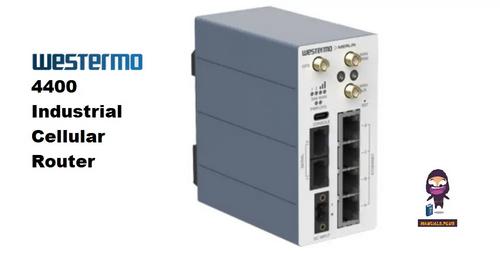
westermo 4400 Cellular Router User Guide

NETGEAR PR460X Multi-Gigabit Dual WAN Pro Router Installation Guide

TP-Link Archer AX23 Wi-Fi 6 Router Installation Guide

Cudy WR1200 AC1200 Dual Band Wi-Fi Router Installation Guide