×
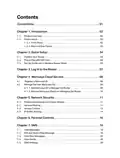
- 1. The Html Code Provided Does Not Contain Any Subheadings Related To Installation/setup/configuration. Therefore, I Will Take The First Senten… (User Guide 300mbps Wireless N 4g Lte Router Mb112-4g 2023 Mercusys 1910080117 Rev1.0.0)
- 2. Ce Mark Warning (Eu Declaration Of Conformity → Rf Exposure Information → Uk Declaration Of Conformity → Korea Warning Statements)
- 3. 安全諮詢及注意事項 (裝電源 → 限用物質含有情況標示聲明書 → 注意 → 請勿將本產品置放於靠近熱源的地方 → 請勿私自拆開機殼或自行維修 → 請使用原)
- 4. Safety Information (Operating Temperature)
- 5. Explanation Of The Symbols On The Product Label (Explanation → Operators Manual)
- 6. Stand-by ('on'/'off' (push-push) → Fuse → Disconnection, All Power Plugs → Switch Of Mini-gap Construction → Switch Of Micro-gap Construction (for Us Version) → Switch Without Contact Gap (semiconductor Switching Device))
- 7. Conventions (Chapter 2. Quick Setup → Position Your Router → Plug & Play With Sim Card → Set Up The Router In Wireless Router Mode → Chapter 3. Log In To The Router → Chapter 5. Network Security)
- 8. Product Overview (Panel Layout → Front Panel)
- 9. Introduction (Set Up The Router In Wireless Router Mode → Wps/reset Button → Ethernet Port 1 → Ethernet Port 2 → Power Socket → Nano Sim Card Slot)
- 10. Quick Setup (Position Your Router → Plug & Play With Sim Card)
- 11. Quick Setup (Set Up The Router In Wireless Router Mode)
- 12. Quick Setup (G/4g Backup)
- 13. Log In To The Router (Set Up The Tcp/ip Protocol → Visit Http://mwlogin.net → Create A Password For Future Logins → If The Login Window Does Not Appear)
- 14. Register A Mercusys Id (Mercusys Cloud Service → Accessing Mercusys Cloud Settings → Initial Setup → Logging In → Activating Mercusys Id → Managing Mercusys Devices)
- 15. Manage The User Mercusys Ids (Add Mercusys Id To Manage The Router)
- 16. Mercusys Cloud Service (Managing The Router → Remove Mercusys Id(s) → Bound Accounts → Settings)
- 17. Protect The Network From Cyber Attacks (Service Filtering)
- 18. Network Security (Access Control)
- 19. Network Security (To Block Specific Device(s))
- 20. Network Security (Ip & Mac Binding)
- 21. Network Security (Ip & Mac Binding → Bind The Connected Device(s) → Bind The Unconnected Device)
- 22. Parental Controls (Control The Time Of Day My Children Or Other Home Network Users Are Allowed To Access The Internet → Enable Parental Controls → Add)
- 23. Parental Controls (Effective Time → Description → Enable Entry → Restriction Type → Blacklist)
- 24. Parental Controls (Whitelist → Add A New Keyword → Enter A Web Address → Block All Internet Browsing Access → Save → Control Your Childrens Internet Access)
- 25. View Messages (Edit And Send A New Message)
- 26. Sms Settings (View Sent Messages → View Drafts)
- 27. Go Toadvanced>sms>sms Settingspage And Enablemessage Center.
- 28. Create A Network For Guests (Customize Guest Network Options)
- 29. Guest Network (Customize Guest Network Options According To Your Needs. → Allow Guests To Access Each Other → Allow Guests To Access My Local Network → Click Save)
- 30. Nat Forwarding (Translate Address And Port By Alg → Pptp Pass-through)
- 31. Nat Forwarding (L2tp Pass-through → Ipsec Pass-through → Ftp Alg → Tftp Alg → H323 Alg → Sip Alg)
- 32. Nat Forwarding (Assign A Static Ip Address To Your Pc → Visit Http://mwlogin.net → Go To Advanced > Nat Forwarding > Virtual Servers → Click Save To Save The Settings)
- 33. Nat Forwarding (Set Up A Dynamic Dns Service Account → Open Ports Dynamically By Port Triggering)
- 34. Nat Forwarding (Dmz Host Ip Address → Make Xbox Online Games Run Smoothly By Upnp → Upnp (universal Plug And Play) → Enable Upnp → Configure External Ports → Save Settings)
- 35. Nat Forwarding (Lan → Wan → Xbox → G Lte Router → Upnp)
- 36. Chapter 10 Specify Your Network Settings (Create A Connection Profile)
- 37. Specifyyournetworksettings (Upgradeyourispinformation)
- 38. Chapter 10 Specifyyournetworksettings (Create Aconnectionprofile → Pin Management)
- 39. Chapter 10 Specify Your Network Settings (Data Settings → Data Limit → Usage Alert → Monthly Data Statistics → Start Date)
- 40. Chapter 10 Specify Your Network Settings (Lan Settings → Change The Lan Ip Address → Use The 4g Lte Router As A Dhcp Server)
- 41. Chapter 10 Specifyyournetworksettings (Selectdhcptoenablethedhcpfunction → Specifytheipaddresspool → Enteravaluefortheaddressleasetime → Reservelanipaddresses)
- 42. Specify Your Network Settings (Wireless Settings → Specify Basic Wireless Settings)
- 43. Chapter 10 Specify Your Network Settings (Enable The Wireless Network 2.4ghz → To Change The Wireless Network Name (ssid) And Wireless Password → To Hide Ssid → To Change The Mode Or Channel → To Change The Security Option)
- 44. Chapter 10 Specify Your Network Settings (Use Wps For Wireless Connection → Method 1 Use The Wps Button → Method 2 Enter The Client Devices Pin On The Router)
- 45. Specifyyournetworksettings (Entertherouterspinonyourclientdevice → Scheduleyourwirelessfunction)
- 46. Specifyyournetworksettings (Setsystemtime → Viewwirelessinformation)
- 47. Chapter 10 Specify Your Network Settings (Advanced Wireless Settings)
- 48. Specifyyournetworksettings (Setupadynamicdnsserviceaccount → Dtiminterval → Groupkeyupdateperiod → Wmm → Shortgi → Apisolation)
- 49. Specifyyournetworksettings (Createstaticroutes)
- 50. Chapter 10 Specify Your Network Settings (Advanced > Network > Static Routing → Network Destination → Subnet Mask → Gateway → Interface)
- 51. Specifyyournetworksettings (Ipv6tunnel → Enableipv6tunnel → Specifyatunnelingmechanism → Savethesettings → Ussd → Gotoadvanced>network>ussd)
- 52. Chapter 10 Specify Your Network Settings
- 53. Set System Time (Configure The System Time Using The Following Methods → Manually → Get From Pc → Get From The Internet → Click Save To Make Your Settings Effective)
- 54. Administrateyournetwork (Controlleds → Daylightsaving → Ledcontrol → Nightmode → Advancedsystemtools → Save)
- 55. Administrate Your Network (Test Internet Connectivity → Update The Firmware)
- 56. Online Upgrade (Local Upgrade → Back Up And Restore Configuration Settings)
- 57. Administrate Your Network (Backup & Restore → Restore Configuration Settings → Reset The Router To Factory Default Settings → Reboot The Router)
- 58. Administrate Your Network (Reboot Manually → Reboot Automatically → Change The Administrator Account)
- 59. Administrateyournetwork (Accountmanagement → Localmanagement → Localmanagementfeature → Advanced>systemtools>administration → Enablelocalmanagementviahttps → Savesettings)
- 60. Administrate Your Network (Remote Management → Enable Remote Management → Enable Remote Management Via Https → Only Allow The Following Ip/mac Address → Click Save To Make The Settings Effective → Set Up A Dynamic Dns Service Account)
- 61. Administrate Your Network (Icmp Ping → System Log)
- 62. Administrate Your Network (To View The System Logs → To Save The System Logs → Save Locally → Save Remotely)
- 63. Administrate Your Network (Cwmp → Enable Cwmp → Inform Message Configuration → Acs Url Configuration → Tr-069 Client Interface Selection)
- 64. Determine Whether To Display Soap Messages On Serial Console Or Not. (Select The Checkbox Connection Request Authentication To Enable Authentication For The Connection Request. → Enter The Username And Password For The Acs Server To Log Into The Router. → Enter The Path, Port, And Url That Connects To The Acs Server. → Click Get Rpc Methods To Get The Methods That Support Cwm P. → Save The Settings.)
- 65. Restore Router To Factory Default Settings (Web Management Page Password → Wireless Network Password → Accessing The Web Management Page → Computer Connection To Router → Ip Address Configuration → Internet Options Settings)
- 66. Lan Settings (Advanced → Restore Advanced Settings)
- 67. Reset The Router To Factory Default Settings (Verify That Your Sim Card Is An Lte Or Wcdma Card → Verify That Your Sim Card Is In Your Isps Service Area → Verify That Your Sim Card Has Sufficient Credit → Check The Lan Connection → Check Your Isp Parameters)
- 68. Check The Pin Settings (Check The Data Limit → Check The Mobile Data → Check The Data Roaming)
- 69. Wireless Zero Configuration (Properties → Startup Type → Automatic → Service Status → Started → Ok)
- 70. Connect To Wireless Network (Advanced Wireless Settings → Wireless Network Name → Ssid Is Not Hided → Authenticating Problem → Password Mismatch → Pin Number For Connection)
- 71. Connecting Using A Security Key Instead (Confirm The Wireless Password On Your Wireless Router/modem → Connect To Wireless Network)
×
MERCUSYS MB112-4G 300Mbps Wireless N 4G LTE Router User Guide
NCC Notice & BSMI Notice:
注意!
取得審驗證明之低功率射頻器材,非經核准,公司、商號或使用者均不得擅自變更頻率、加大
功率或變更原設計之特性及功能。
低功率射頻器材之使用不得影響飛航安全及干擾合法通信;經發現有干擾現象時,應立即停用,
並改善至無干擾時方得繼續使用。
前述合法通信,指依電信管理法規定作業之無線電通信。
低功率射頻器材須忍受合法通信或工業、科學及醫療用電波輻射性電機設備之干擾。
減少電磁波影響,請妥適使用。
安全諮詢及注意事項
• 請使用原
• 清潔本產品之前請先拔掉電源線。請勿使用液體、噴霧清潔劑或濕布進行清潔。
• 注意防潮,請勿將水或其他液體潑灑到本產品上。
• 插槽與開口供通風使用,以確保本產品的操作可靠並防止過熱,請勿堵塞或覆蓋開口。
• 請勿將本產品置放於靠近熱源的地方。除非有正常的通風,否則不可放在密閉位置中。
• 不要私自拆開機殼或自行維修,如產品有故障請與原廠或代理商聯繫。
裝電源
供應器或只能按照本產品
注明的電源
類型使用本產品
。
限用物質含有情況標示聲明書
設備名稱: 300Mbps Wireless N 4G LTE
Router
型號(型式):MB112-4G
Type designation (Type)
Equipment name
限用物質及其化學符號
Restricted substances and its chemical symbols
六價鉻
單元
鉛
多溴聯苯
多溴二苯醚
汞
鎘
Unit
Hexavalent
chromium
Polybrominated Polybrominated
Lead
(Pb)
Mercury
(Hg)
Cadmium
(Cd)
biphenyls
(PBB)
○
diphenyl ethers
(PBDE)
(Cr+6)
○
○
○
○
○
○
○
○
PCB
外殼
○
○
○
電 源
供
應器
○
○
○
○
○
○
○
○
○
○
−
−
其 他 及
其配件
| General | Details |
|---|---|
| Name | MERCUSYS MB112-4G 300Mbps Wireless N 4G LTE Router User Guide |
| Make | MERCUSYS |
| Language | English |
| Filetype | PDF (Download) |
| File size | 1.1 MB |
If you have any questions regarding MERCUSYS MB112-4G 300Mbps Wireless N 4G LTE Router User Guide, please ask here and describe the problem in detail.

MERCUSYS MR90X Dual Band 8 Stream Wi-Fi 6 Router User Guide

MERCUSYS AC12G Wireless Router Installation Guide

MERCUSYS MB110-4G Mbps Wireless N 4G LTE Router Installation Guide

MERCUSYS MW301R Wireless Router Installation Guide

MERCUSYS MB230-4G Wireless 4G LTE Router Installation Guide

MERCUSYS BE3600 Dual-Band Wi-Fi 7 Router Installation Guide

MERCUSYS 300Mbps Enhanced Wireless N Router MW325R User Manual

MERCUSYS MB110-4G LTE Router User Guide

MERCUSYS MB110-4G 300 Mbps Wireless N 4G LTE Router Installation Guide

MERCUSYS EU2_16 Wireless Router Installation Guide


TP-Link X10-4G Deco Router Installation Guide

AIR DVW-642 WiFi Router User Guide

Xiaomi AX3000T Wireless Router User Manual

ioGiant AX1800 Wi-Fi Router Wireless Router Installation Guide

ZYXEL EX5601 Hyperhub Router User Guide

ASUS BT8 ZenWiFi Tri Band WiFi Router User Guide

triton TMNRTR Electric Router Instruction Manual

COMCAST CGA4332COM Advanced WiFi Gateway Router User Guide

TP-Link Archer AXE300 Quad-Band Wi-Fi 6E Router Installation Guide

FLEX FX4221 24V Trim Router Instruction Manual
Table of Contents
- 1. The Html Code Provided Does Not Contain Any Subheadings Rela... →
- 2. Ce Mark Warning - Eu Declaration Of Conformity →
- 3. 安全諮詢及注意事項 - 裝電源 →
- 4. Safety Information - Operating Temperature →
- 5. Explanation Of The Symbols On The Product Label - Explanatio... →
- 6. Stand-by - 'on'/'off' (push-push) →
- 7. Conventions - Chapter 2. Quick Setup →
- 8. Product Overview - Panel Layout →
- 9. Introduction - Set Up The Router In Wireless Router Mode →
- 10. Quick Setup - Position Your Router →
- 11. Quick Setup - Set Up The Router In Wireless Router Mode →
- 12. Quick Setup - G/4g Backup →
- 13. Log In To The Router - Set Up The Tcp/ip Protocol →
- 14. Register A Mercusys Id - Mercusys Cloud Service →
- 15. Manage The User Mercusys Ids - Add Mercusys Id To Manage The... →
- 16. Mercusys Cloud Service - Managing The Router →
- 17. Protect The Network From Cyber Attacks - Service Filtering →
- 18. Network Security - Access Control →
- 19. Network Security - To Block Specific Device(s) →
- 20. Network Security - Ip & Mac Binding →
- 21. Network Security - Ip & Mac Binding →
- 22. Parental Controls - Control The Time Of Day My Children Or O... →
- 23. Parental Controls - Effective Time →
- 24. Parental Controls - Whitelist →
- 25. View Messages - Edit And Send A New Message →
- 26. Sms Settings - View Sent Messages →
- 27. Go Toadvanced>sms>sms Settingspage And Enablemessage Center. →
- 28. Create A Network For Guests - Customize Guest Network Option... →
- 29. Guest Network - Customize Guest Network Options According To... →
- 30. Nat Forwarding - Translate Address And Port By Alg →
- 31. Nat Forwarding - L2tp Pass-through →
- 32. Nat Forwarding - Assign A Static Ip Address To Your Pc →
- 33. Nat Forwarding - Set Up A Dynamic Dns Service Account →
- 34. Nat Forwarding - Dmz Host Ip Address →
- 35. Nat Forwarding - Lan →
- 36. Chapter 10 Specify Your Network Settings - Create A Connecti... →
- 37. Specifyyournetworkse... - Upgradeyourispinform... →
- 38. Chapter 10 Specifyyournetworksettings - Create Aconnectionpr... →
- 39. Chapter 10 Specify Your Network Settings - Data Settings →
- 40. Chapter 10 Specify Your Network Settings - Lan Settings →
- 41. Chapter 10 Specifyyournetworksettings - Selectdhcptoenableth... →
- 42. Specify Your Network Settings - Wireless Settings →
- 43. Chapter 10 Specify Your Network Settings - Enable The Wirele... →
- 44. Chapter 10 Specify Your Network Settings - Use Wps For Wirel... →
- 45. Specifyyournetworksettings - Entertherouterspinonyourclientd... →
- 46. Specifyyournetworkse... - Setsystemtime →
- 47. Chapter 10 Specify Your Network Settings - Advanced Wireless... →
- 48. Specifyyournetworkse... - Setupadynamicdnsserv... →
- 49. Specifyyournetworkse... - Createstaticroutes →
- 50. Chapter 10 Specify Your Network Settings - Advanced > Networ... →
- 51. Specifyyournetworkse... - Ipv6tunnel →
- 52. Chapter 10 Specify Your Network Settings →
- 53. Set System Time - Configure The System Time Using The Follow... →
- 54. Administrateyournetw... - Controlleds →
- 55. Administrate Your Network - Test Internet Connectivity →
- 56. Online Upgrade - Local Upgrade →
- 57. Administrate Your Network - Backup & Restore →
- 58. Administrate Your Network - Reboot Manually →
- 59. Administrateyournetw... - Accountmanagement →
- 60. Administrate Your Network - Remote Management →
- 61. Administrate Your Network - Icmp Ping →
- 62. Administrate Your Network - To View The System Logs →
- 63. Administrate Your Network - Cwmp →
- 64. Determine Whether To Display Soap Messages On Serial Console... →
- 65. Restore Router To Factory Default Settings - Web Management ... →
- 66. Lan Settings - Advanced →
- 67. Reset The Router To Factory Default Settings - Verify That Y... →
- 68. Check The Pin Settings - Check The Data Limit →
- 69. Wireless Zero Configuration - Properties →
- 70. Connect To Wireless Network - Advanced Wireless Settings →
- 71. Connecting Using A Security Key Instead - Confirm The Wirele... →