
MERCUSYS MB112-4G 300Mbps Wireless N 4G LTE Router User Guide






Chapter 10 Specify Your Network Settings
10. 5. LAN Settings
10. 5. 1. Change the LAN IP Address
The router is preset with a default LAN IP 192.168.1.1, which you can use to log in to
its web management page. The LAN IP address together with the Subnet Mask also
defines the subnet that the connected devices are on. If the IP address conflicts with
another device on your local network or your network requires a specific IP subnet,
you can change it.
Follow the steps below to change your IP address.
2. Go to Advanced > Network > LAN Settings page.
3. Type in a new IP Address as needed.
4. Select the Subnet Mask from the drop-down list. The subnet mask together with
the IP address identifies the local IP subnet.
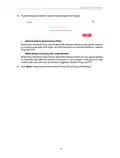
5. You can configure the router’s Second IP and Subnet Mask for LAN interface
through which you can also access the web management page.
6. Leave the rest of the default settings as they are.
7. Click Save to make the settings effective.
10. 5. 2. Use the 4G LTE Router as a DHCP Server
You can configure the router to act as a DHCP server to assign IP addresses to
its clients. To use the DHCP server function of the router, you must configure all
computers on the LAN to obtain an IP Address automatically.
Follow the steps below to configure DHCP server.
2. Go to Advanced > Network > LAN Settings page.
34

| General | Details |
|---|---|
| Name | MERCUSYS MB112-4G 300Mbps Wireless N 4G LTE Router User Guide |
| Make | MERCUSYS |
| Language | English |
| Filetype | PDF (Download) |
| File size | 1.1 MB |
 (1 votes, average: 5.00 out of 5)
 Loading...
If you have any questions regarding MERCUSYS MB112-4G 300Mbps Wireless N 4G LTE Router User Guide, please ask here and describe the problem in detail.

MERCUSYS MR90X Dual Band 8 Stream Wi-Fi 6 Router User Guide

MERCUSYS AC12G Wireless Router Installation Guide

MERCUSYS MB110-4G Mbps Wireless N 4G LTE Router Installation Guide

MERCUSYS MW301R Wireless Router Installation Guide

MERCUSYS MB230-4G Wireless 4G LTE Router Installation Guide

MERCUSYS BE3600 Dual-Band Wi-Fi 7 Router Installation Guide

MERCUSYS 300Mbps Enhanced Wireless N Router MW325R User Manual

MERCUSYS MB110-4G LTE Router User Guide

MERCUSYS MB110-4G 300 Mbps Wireless N 4G LTE Router Installation Guide

MERCUSYS EU2_16 Wireless Router Installation Guide


CaptionCall CR3 Pcs Modem And Router User Manual

NOKIA ONT G-1426G-A Dual Band Wi-Fi 6 Mesh Router User Guide

TP-Link AX3000 WiFi 6 One Mesh Router Instruction Manual

TP-Link Archer MR505 Wireless Dual Band Gigabit Router Installation Guide

TELTONIKA Networks QSG RUT956 Cellular Router Instruction Manual

Antena Gear TX54 5G Cellular Router User Guide
Yeacomm NR610 Outdoor 5g 4g Modem Odu Dual Sim Router Owner’s Manual

BELKIN F9K1001 N150 Wireless Router User Manual

netis AC1200 Wireless Dual Band Router Installation Guide

Falcon FN-4G-300P 4G LTE Portable 300MBPS Router User Manual