×
- 1. The Html Code Provided Does Not Contain Any Subheadings Related To Installation/setup/configuration. Therefore, I Will Take The First Senten… (User Guide 300mbps Wireless N 4g Lte Router Mb112-4g 2023 Mercusys 1910080117 Rev1.0.0)
- 2. Ce Mark Warning (Eu Declaration Of Conformity → Rf Exposure Information → Uk Declaration Of Conformity → Korea Warning Statements)
- 3. 安全諮詢及注意事項 (裝電源 → 限用物質含有情況標示聲明書 → 注意 → 請勿將本產品置放於靠近熱源的地方 → 請勿私自拆開機殼或自行維修 → 請使用原)
- 4. Safety Information (Operating Temperature)
- 5. Explanation Of The Symbols On The Product Label (Explanation → Operators Manual)
- 6. Stand-by ('on'/'off' (push-push) → Fuse → Disconnection, All Power Plugs → Switch Of Mini-gap Construction → Switch Of Micro-gap Construction (for Us Version) → Switch Without Contact Gap (semiconductor Switching Device))
- 7. Conventions (Chapter 2. Quick Setup → Position Your Router → Plug & Play With Sim Card → Set Up The Router In Wireless Router Mode → Chapter 3. Log In To The Router → Chapter 5. Network Security)
- 8. Product Overview (Panel Layout → Front Panel)
- 9. Introduction (Set Up The Router In Wireless Router Mode → Wps/reset Button → Ethernet Port 1 → Ethernet Port 2 → Power Socket → Nano Sim Card Slot)
- 10. Quick Setup (Position Your Router → Plug & Play With Sim Card)
- 11. Quick Setup (Set Up The Router In Wireless Router Mode)
- 12. Quick Setup (G/4g Backup)
- 13. Log In To The Router (Set Up The Tcp/ip Protocol → Visit Http://mwlogin.net → Create A Password For Future Logins → If The Login Window Does Not Appear)
- 14. Register A Mercusys Id (Mercusys Cloud Service → Accessing Mercusys Cloud Settings → Initial Setup → Logging In → Activating Mercusys Id → Managing Mercusys Devices)
- 15. Manage The User Mercusys Ids (Add Mercusys Id To Manage The Router)
- 16. Mercusys Cloud Service (Managing The Router → Remove Mercusys Id(s) → Bound Accounts → Settings)
- 17. Protect The Network From Cyber Attacks (Service Filtering)
- 18. Network Security (Access Control)
- 19. Network Security (To Block Specific Device(s))
- 20. Network Security (Ip & Mac Binding)
- 21. Network Security (Ip & Mac Binding → Bind The Connected Device(s) → Bind The Unconnected Device)
- 22. Parental Controls (Control The Time Of Day My Children Or Other Home Network Users Are Allowed To Access The Internet → Enable Parental Controls → Add)
- 23. Parental Controls (Effective Time → Description → Enable Entry → Restriction Type → Blacklist)
- 24. Parental Controls (Whitelist → Add A New Keyword → Enter A Web Address → Block All Internet Browsing Access → Save → Control Your Childrens Internet Access)
- 25. View Messages (Edit And Send A New Message)
- 26. Sms Settings (View Sent Messages → View Drafts)
- 27. Go Toadvanced>sms>sms Settingspage And Enablemessage Center.
- 28. Create A Network For Guests (Customize Guest Network Options)
- 29. Guest Network (Customize Guest Network Options According To Your Needs. → Allow Guests To Access Each Other → Allow Guests To Access My Local Network → Click Save)
- 30. Nat Forwarding (Translate Address And Port By Alg → Pptp Pass-through)
- 31. Nat Forwarding (L2tp Pass-through → Ipsec Pass-through → Ftp Alg → Tftp Alg → H323 Alg → Sip Alg)
- 32. Nat Forwarding (Assign A Static Ip Address To Your Pc → Visit Http://mwlogin.net → Go To Advanced > Nat Forwarding > Virtual Servers → Click Save To Save The Settings)
- 33. Nat Forwarding (Set Up A Dynamic Dns Service Account → Open Ports Dynamically By Port Triggering)
- 34. Nat Forwarding (Dmz Host Ip Address → Make Xbox Online Games Run Smoothly By Upnp → Upnp (universal Plug And Play) → Enable Upnp → Configure External Ports → Save Settings)
- 35. Nat Forwarding (Lan → Wan → Xbox → G Lte Router → Upnp)
- 36. Chapter 10 Specify Your Network Settings (Create A Connection Profile)
- 37. Specifyyournetworksettings (Upgradeyourispinformation)
- 38. Chapter 10 Specifyyournetworksettings (Create Aconnectionprofile → Pin Management)
- 39. Chapter 10 Specify Your Network Settings (Data Settings → Data Limit → Usage Alert → Monthly Data Statistics → Start Date)
- 40. Chapter 10 Specify Your Network Settings (Lan Settings → Change The Lan Ip Address → Use The 4g Lte Router As A Dhcp Server)
- 41. Chapter 10 Specifyyournetworksettings (Selectdhcptoenablethedhcpfunction → Specifytheipaddresspool → Enteravaluefortheaddressleasetime → Reservelanipaddresses)
- 42. Specify Your Network Settings (Wireless Settings → Specify Basic Wireless Settings)
- 43. Chapter 10 Specify Your Network Settings (Enable The Wireless Network 2.4ghz → To Change The Wireless Network Name (ssid) And Wireless Password → To Hide Ssid → To Change The Mode Or Channel → To Change The Security Option)
- 44. Chapter 10 Specify Your Network Settings (Use Wps For Wireless Connection → Method 1 Use The Wps Button → Method 2 Enter The Client Devices Pin On The Router)
- 45. Specifyyournetworksettings (Entertherouterspinonyourclientdevice → Scheduleyourwirelessfunction)
- 46. Specifyyournetworksettings (Setsystemtime → Viewwirelessinformation)
- 47. Chapter 10 Specify Your Network Settings (Advanced Wireless Settings)
- 48. Specifyyournetworksettings (Setupadynamicdnsserviceaccount → Dtiminterval → Groupkeyupdateperiod → Wmm → Shortgi → Apisolation)
- 49. Specifyyournetworksettings (Createstaticroutes)
- 50. Chapter 10 Specify Your Network Settings (Advanced > Network > Static Routing → Network Destination → Subnet Mask → Gateway → Interface)
- 51. Specifyyournetworksettings (Ipv6tunnel → Enableipv6tunnel → Specifyatunnelingmechanism → Savethesettings → Ussd → Gotoadvanced>network>ussd)
- 52. Chapter 10 Specify Your Network Settings
- 53. Set System Time (Configure The System Time Using The Following Methods → Manually → Get From Pc → Get From The Internet → Click Save To Make Your Settings Effective)
- 54. Administrateyournetwork (Controlleds → Daylightsaving → Ledcontrol → Nightmode → Advancedsystemtools → Save)
- 55. Administrate Your Network (Test Internet Connectivity → Update The Firmware)
- 56. Online Upgrade (Local Upgrade → Back Up And Restore Configuration Settings)
- 57. Administrate Your Network (Backup & Restore → Restore Configuration Settings → Reset The Router To Factory Default Settings → Reboot The Router)
- 58. Administrate Your Network (Reboot Manually → Reboot Automatically → Change The Administrator Account)
- 59. Administrateyournetwork (Accountmanagement → Localmanagement → Localmanagementfeature → Advanced>systemtools>administration → Enablelocalmanagementviahttps → Savesettings)
- 60. Administrate Your Network (Remote Management → Enable Remote Management → Enable Remote Management Via Https → Only Allow The Following Ip/mac Address → Click Save To Make The Settings Effective → Set Up A Dynamic Dns Service Account)
- 61. Administrate Your Network (Icmp Ping → System Log)
- 62. Administrate Your Network (To View The System Logs → To Save The System Logs → Save Locally → Save Remotely)
- 63. Administrate Your Network (Cwmp → Enable Cwmp → Inform Message Configuration → Acs Url Configuration → Tr-069 Client Interface Selection)
- 64. Determine Whether To Display Soap Messages On Serial Console Or Not. (Select The Checkbox Connection Request Authentication To Enable Authentication For The Connection Request. → Enter The Username And Password For The Acs Server To Log Into The Router. → Enter The Path, Port, And Url That Connects To The Acs Server. → Click Get Rpc Methods To Get The Methods That Support Cwm P. → Save The Settings.)
- 65. Restore Router To Factory Default Settings (Web Management Page Password → Wireless Network Password → Accessing The Web Management Page → Computer Connection To Router → Ip Address Configuration → Internet Options Settings)
- 66. Lan Settings (Advanced → Restore Advanced Settings)
- 67. Reset The Router To Factory Default Settings (Verify That Your Sim Card Is An Lte Or Wcdma Card → Verify That Your Sim Card Is In Your Isps Service Area → Verify That Your Sim Card Has Sufficient Credit → Check The Lan Connection → Check Your Isp Parameters)
- 68. Check The Pin Settings (Check The Data Limit → Check The Mobile Data → Check The Data Roaming)
- 69. Wireless Zero Configuration (Properties → Startup Type → Automatic → Service Status → Started → Ok)
- 70. Connect To Wireless Network (Advanced Wireless Settings → Wireless Network Name → Ssid Is Not Hided → Authenticating Problem → Password Mismatch → Pin Number For Connection)
- 71. Connecting Using A Security Key Instead (Confirm The Wireless Password On Your Wireless Router/modem → Connect To Wireless Network)
×
MERCUSYS MB112-4G 300Mbps Wireless N 4G LTE Router User Guide
Chapter 10 Specify Your Network Settings
Chapter 10. Specify Your Network
Settings
10. 1. Create a Connection Profile
If your ISP settings are not detected by the router, you can create an internet connection
profile by following the steps below:
2. Go to Advanced > Network > Internet page.
3. Click Create Profile.
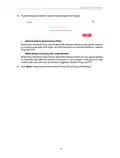
4. Specify the Profile Name, Username and Password. Select the PDP Type, APN
Type and Authentication Type according to your ISP.
30
| General | Details |
|---|---|
| Name | MERCUSYS MB112-4G 300Mbps Wireless N 4G LTE Router User Guide |
| Make | MERCUSYS |
| Language | English |
| Filetype | PDF (Download) |
| File size | 1.1 MB |
If you have any questions regarding MERCUSYS MB112-4G 300Mbps Wireless N 4G LTE Router User Guide, please ask here and describe the problem in detail.

MERCUSYS MR90X Dual Band 8 Stream Wi-Fi 6 Router User Guide

MERCUSYS AC12G Wireless Router Installation Guide

MERCUSYS MB110-4G Mbps Wireless N 4G LTE Router Installation Guide

MERCUSYS MW301R Wireless Router Installation Guide

MERCUSYS MB230-4G Wireless 4G LTE Router Installation Guide

MERCUSYS BE3600 Dual-Band Wi-Fi 7 Router Installation Guide

MERCUSYS 300Mbps Enhanced Wireless N Router MW325R User Manual

MERCUSYS MB110-4G LTE Router User Guide

MERCUSYS MB110-4G 300 Mbps Wireless N 4G LTE Router Installation Guide

MERCUSYS EU2_16 Wireless Router Installation Guide


xiaomi BE3600-2.5G Router User Manual

Tenda AC5 Wi-Fi 5 Router Installation Guide

UniFi WiFi 6 Router User Manual

ALTA LABS ROUTE10 High Performance 10 Gbps Router User Guide

TP-Link Archer AX6000 8-Stream Wi-Fi 6 Router Installation Guide

ASUS EBR63 Wireless AX3000 Dual Band Router User Guide

Cudy X6 AX1800 1800mbps Dual Band Wi-Fi 6 Router Installation Guide

Cudy LT500 Wi-Fi 4G Router Installation Guide

inseego FG2000e PRO 5G Router User Guide

D-Link G530 5G Router Instructions
Table of Contents
- 1. The Html Code Provided Does Not Contain Any Subheadings Rela... →
- 2. Ce Mark Warning - Eu Declaration Of Conformity →
- 3. 安全諮詢及注意事項 - 裝電源 →
- 4. Safety Information - Operating Temperature →
- 5. Explanation Of The Symbols On The Product Label - Explanatio... →
- 6. Stand-by - 'on'/'off' (push-push) →
- 7. Conventions - Chapter 2. Quick Setup →
- 8. Product Overview - Panel Layout →
- 9. Introduction - Set Up The Router In Wireless Router Mode →
- 10. Quick Setup - Position Your Router →
- 11. Quick Setup - Set Up The Router In Wireless Router Mode →
- 12. Quick Setup - G/4g Backup →
- 13. Log In To The Router - Set Up The Tcp/ip Protocol →
- 14. Register A Mercusys Id - Mercusys Cloud Service →
- 15. Manage The User Mercusys Ids - Add Mercusys Id To Manage The... →
- 16. Mercusys Cloud Service - Managing The Router →
- 17. Protect The Network From Cyber Attacks - Service Filtering →
- 18. Network Security - Access Control →
- 19. Network Security - To Block Specific Device(s) →
- 20. Network Security - Ip & Mac Binding →
- 21. Network Security - Ip & Mac Binding →
- 22. Parental Controls - Control The Time Of Day My Children Or O... →
- 23. Parental Controls - Effective Time →
- 24. Parental Controls - Whitelist →
- 25. View Messages - Edit And Send A New Message →
- 26. Sms Settings - View Sent Messages →
- 27. Go Toadvanced>sms>sms Settingspage And Enablemessage Center. →
- 28. Create A Network For Guests - Customize Guest Network Option... →
- 29. Guest Network - Customize Guest Network Options According To... →
- 30. Nat Forwarding - Translate Address And Port By Alg →
- 31. Nat Forwarding - L2tp Pass-through →
- 32. Nat Forwarding - Assign A Static Ip Address To Your Pc →
- 33. Nat Forwarding - Set Up A Dynamic Dns Service Account →
- 34. Nat Forwarding - Dmz Host Ip Address →
- 35. Nat Forwarding - Lan →
- 36. Chapter 10 Specify Your Network Settings - Create A Connecti... →
- 37. Specifyyournetworkse... - Upgradeyourispinform... →
- 38. Chapter 10 Specifyyournetworksettings - Create Aconnectionpr... →
- 39. Chapter 10 Specify Your Network Settings - Data Settings →
- 40. Chapter 10 Specify Your Network Settings - Lan Settings →
- 41. Chapter 10 Specifyyournetworksettings - Selectdhcptoenableth... →
- 42. Specify Your Network Settings - Wireless Settings →
- 43. Chapter 10 Specify Your Network Settings - Enable The Wirele... →
- 44. Chapter 10 Specify Your Network Settings - Use Wps For Wirel... →
- 45. Specifyyournetworksettings - Entertherouterspinonyourclientd... →
- 46. Specifyyournetworkse... - Setsystemtime →
- 47. Chapter 10 Specify Your Network Settings - Advanced Wireless... →
- 48. Specifyyournetworkse... - Setupadynamicdnsserv... →
- 49. Specifyyournetworkse... - Createstaticroutes →
- 50. Chapter 10 Specify Your Network Settings - Advanced > Networ... →
- 51. Specifyyournetworkse... - Ipv6tunnel →
- 52. Chapter 10 Specify Your Network Settings →
- 53. Set System Time - Configure The System Time Using The Follow... →
- 54. Administrateyournetw... - Controlleds →
- 55. Administrate Your Network - Test Internet Connectivity →
- 56. Online Upgrade - Local Upgrade →
- 57. Administrate Your Network - Backup & Restore →
- 58. Administrate Your Network - Reboot Manually →
- 59. Administrateyournetw... - Accountmanagement →
- 60. Administrate Your Network - Remote Management →
- 61. Administrate Your Network - Icmp Ping →
- 62. Administrate Your Network - To View The System Logs →
- 63. Administrate Your Network - Cwmp →
- 64. Determine Whether To Display Soap Messages On Serial Console... →
- 65. Restore Router To Factory Default Settings - Web Management ... →
- 66. Lan Settings - Advanced →
- 67. Reset The Router To Factory Default Settings - Verify That Y... →
- 68. Check The Pin Settings - Check The Data Limit →
- 69. Wireless Zero Configuration - Properties →
- 70. Connect To Wireless Network - Advanced Wireless Settings →
- 71. Connecting Using A Security Key Instead - Confirm The Wirele... →