
MERCUSYS MB112-4G 300Mbps Wireless N 4G LTE Router User Guide






Chapter 10 Specify Your Network Settings
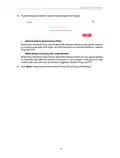
Enable the Wireless Network 2.4GHz. If you don’t want to use the wireless function,
just uncheck the box. If you disable the wireless function, all the wireless settings
won’t be effective.
¾
To change the wireless network name (SSID) and wireless password:
Enter a new SSID. The default SSID is Mercusys_XXXX and the value is case-sensitive.
Note:
If you use a wireless device to change the wireless settings, you will be disconnected when the settings are effective.
Please write down the new SSID and password for future use.
¾
To hide SSID:
Select Hide SSID, and your SSID will not broadcast. Your SSID won’t display when you
scan for local wireless network list on your wireless device and you need to manually
join the network.
¾
To change the mode or channel:
Go to Advanced > Wireless > Wireless Settings page.
• Mode - Select the desired mode.
•
•
802.11n only - Select only if all of your wireless clients are 802.11n devices.
802.11g/n mixed - Select if you are using both 802.11g and 802.11n wireless
clients.
•
802.11b/g/n mixed - Select if you are using a mix of 802.11b, 11g, and 11n
wireless clients.
Note:
When 802.11n only mode is selected, only 802.11n wireless stations can connect to the router. It is strongly
recommended that you select 802.11bgn mixed, and all of 802.11b, 802.11g, and 802.11n wireless clients can
connect to the router.
• Channel - Select the channel you want to use from the drop-down list. This field
determines which operating frequency will be used. It is not necessary to change
the wireless channel unless you notice interference problems with another nearby
access point.
• Channel Width - Select the channel width from the drop-down list. The default
setting is Auto, which can adjust the channel width for your clients automatically.
• Transmit Power - Select either High, Middle, or Low to specify the data transmit
power. The default and recommended setting is High.
¾
To change the security option:
1. Go to Advanced > Wireless > Wireless Settings page.
2. Select an option from the Security drop-down list. The router provides four
options, None, WPA/WPA2 Personal (Recommended), WPA/WPA2 Enterprise,
37

| General | Details |
|---|---|
| Name | MERCUSYS MB112-4G 300Mbps Wireless N 4G LTE Router User Guide |
| Make | MERCUSYS |
| Language | English |
| Filetype | PDF (Download) |
| File size | 1.1 MB |
 (1 votes, average: 5.00 out of 5)
 Loading...
If you have any questions regarding MERCUSYS MB112-4G 300Mbps Wireless N 4G LTE Router User Guide, please ask here and describe the problem in detail.

MERCUSYS MR90X Dual Band 8 Stream Wi-Fi 6 Router User Guide

MERCUSYS AC12G Wireless Router Installation Guide

MERCUSYS MB110-4G Mbps Wireless N 4G LTE Router Installation Guide

MERCUSYS MW301R Wireless Router Installation Guide

MERCUSYS MB230-4G Wireless 4G LTE Router Installation Guide

MERCUSYS BE3600 Dual-Band Wi-Fi 7 Router Installation Guide

MERCUSYS 300Mbps Enhanced Wireless N Router MW325R User Manual

MERCUSYS MB110-4G LTE Router User Guide

MERCUSYS MB110-4G 300 Mbps Wireless N 4G LTE Router Installation Guide

MERCUSYS EU2_16 Wireless Router Installation Guide


QNAP QMiroPlus-201W Router Installation Guide

ARRIS M6 Wireless Router User Manual

ASUS EBM68 Tri Band WiFi Router User Guide

TP-Link TL-MR3420 3G and 4G Wireless Router Installation Guide

LINKSYS E900 Wi-Fi Router User Manual

TELTONIKA Networks TCR100 4G WiFi Router User Guide

devolo 3600 5G LTE Wi-Fi 6 Router User Manual

zpe Nodegrid Virtual Services Router Owner’s Manual

D-Link DIR-X1860 AX1800 Wifi 6 Router Installation Guide

oppo AX5400 WiFi 6 Router User Guide