×
- 1. The Html Code Provided Does Not Contain Any Subheadings Related To Installation/setup/configuration. Therefore, I Will Take The First Senten… (User Guide 300mbps Wireless N 4g Lte Router Mb112-4g 2023 Mercusys 1910080117 Rev1.0.0)
- 2. Ce Mark Warning (Eu Declaration Of Conformity → Rf Exposure Information → Uk Declaration Of Conformity → Korea Warning Statements)
- 3. 安全諮詢及注意事項 (裝電源 → 限用物質含有情況標示聲明書 → 注意 → 請勿將本產品置放於靠近熱源的地方 → 請勿私自拆開機殼或自行維修 → 請使用原)
- 4. Safety Information (Operating Temperature)
- 5. Explanation Of The Symbols On The Product Label (Explanation → Operators Manual)
- 6. Stand-by ('on'/'off' (push-push) → Fuse → Disconnection, All Power Plugs → Switch Of Mini-gap Construction → Switch Of Micro-gap Construction (for Us Version) → Switch Without Contact Gap (semiconductor Switching Device))
- 7. Conventions (Chapter 2. Quick Setup → Position Your Router → Plug & Play With Sim Card → Set Up The Router In Wireless Router Mode → Chapter 3. Log In To The Router → Chapter 5. Network Security)
- 8. Product Overview (Panel Layout → Front Panel)
- 9. Introduction (Set Up The Router In Wireless Router Mode → Wps/reset Button → Ethernet Port 1 → Ethernet Port 2 → Power Socket → Nano Sim Card Slot)
- 10. Quick Setup (Position Your Router → Plug & Play With Sim Card)
- 11. Quick Setup (Set Up The Router In Wireless Router Mode)
- 12. Quick Setup (G/4g Backup)
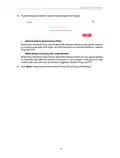
- 13. Log In To The Router (Set Up The Tcp/ip Protocol → Visit Http://mwlogin.net → Create A Password For Future Logins → If The Login Window Does Not Appear)
- 14. Register A Mercusys Id (Mercusys Cloud Service → Accessing Mercusys Cloud Settings → Initial Setup → Logging In → Activating Mercusys Id → Managing Mercusys Devices)
- 15. Manage The User Mercusys Ids (Add Mercusys Id To Manage The Router)
- 16. Mercusys Cloud Service (Managing The Router → Remove Mercusys Id(s) → Bound Accounts → Settings)
- 17. Protect The Network From Cyber Attacks (Service Filtering)
- 18. Network Security (Access Control)
- 19. Network Security (To Block Specific Device(s))
- 20. Network Security (Ip & Mac Binding)
- 21. Network Security (Ip & Mac Binding → Bind The Connected Device(s) → Bind The Unconnected Device)
- 22. Parental Controls (Control The Time Of Day My Children Or Other Home Network Users Are Allowed To Access The Internet → Enable Parental Controls → Add)
- 23. Parental Controls (Effective Time → Description → Enable Entry → Restriction Type → Blacklist)
- 24. Parental Controls (Whitelist → Add A New Keyword → Enter A Web Address → Block All Internet Browsing Access → Save → Control Your Childrens Internet Access)
- 25. View Messages (Edit And Send A New Message)
- 26. Sms Settings (View Sent Messages → View Drafts)
- 27. Go Toadvanced>sms>sms Settingspage And Enablemessage Center.
- 28. Create A Network For Guests (Customize Guest Network Options)
- 29. Guest Network (Customize Guest Network Options According To Your Needs. → Allow Guests To Access Each Other → Allow Guests To Access My Local Network → Click Save)
- 30. Nat Forwarding (Translate Address And Port By Alg → Pptp Pass-through)
- 31. Nat Forwarding (L2tp Pass-through → Ipsec Pass-through → Ftp Alg → Tftp Alg → H323 Alg → Sip Alg)
- 32. Nat Forwarding (Assign A Static Ip Address To Your Pc → Visit Http://mwlogin.net → Go To Advanced > Nat Forwarding > Virtual Servers → Click Save To Save The Settings)
- 33. Nat Forwarding (Set Up A Dynamic Dns Service Account → Open Ports Dynamically By Port Triggering)
- 34. Nat Forwarding (Dmz Host Ip Address → Make Xbox Online Games Run Smoothly By Upnp → Upnp (universal Plug And Play) → Enable Upnp → Configure External Ports → Save Settings)
- 35. Nat Forwarding (Lan → Wan → Xbox → G Lte Router → Upnp)
- 36. Chapter 10 Specify Your Network Settings (Create A Connection Profile)
- 37. Specifyyournetworksettings (Upgradeyourispinformation)
- 38. Chapter 10 Specifyyournetworksettings (Create Aconnectionprofile → Pin Management)
- 39. Chapter 10 Specify Your Network Settings (Data Settings → Data Limit → Usage Alert → Monthly Data Statistics → Start Date)
- 40. Chapter 10 Specify Your Network Settings (Lan Settings → Change The Lan Ip Address → Use The 4g Lte Router As A Dhcp Server)
- 41. Chapter 10 Specifyyournetworksettings (Selectdhcptoenablethedhcpfunction → Specifytheipaddresspool → Enteravaluefortheaddressleasetime → Reservelanipaddresses)
- 42. Specify Your Network Settings (Wireless Settings → Specify Basic Wireless Settings)
- 43. Chapter 10 Specify Your Network Settings (Enable The Wireless Network 2.4ghz → To Change The Wireless Network Name (ssid) And Wireless Password → To Hide Ssid → To Change The Mode Or Channel → To Change The Security Option)
- 44. Chapter 10 Specify Your Network Settings (Use Wps For Wireless Connection → Method 1 Use The Wps Button → Method 2 Enter The Client Devices Pin On The Router)
- 45. Specifyyournetworksettings (Entertherouterspinonyourclientdevice → Scheduleyourwirelessfunction)
- 46. Specifyyournetworksettings (Setsystemtime → Viewwirelessinformation)
- 47. Chapter 10 Specify Your Network Settings (Advanced Wireless Settings)
- 48. Specifyyournetworksettings (Setupadynamicdnsserviceaccount → Dtiminterval → Groupkeyupdateperiod → Wmm → Shortgi → Apisolation)
- 49. Specifyyournetworksettings (Createstaticroutes)
- 50. Chapter 10 Specify Your Network Settings (Advanced > Network > Static Routing → Network Destination → Subnet Mask → Gateway → Interface)
- 51. Specifyyournetworksettings (Ipv6tunnel → Enableipv6tunnel → Specifyatunnelingmechanism → Savethesettings → Ussd → Gotoadvanced>network>ussd)
- 52. Chapter 10 Specify Your Network Settings
- 53. Set System Time (Configure The System Time Using The Following Methods → Manually → Get From Pc → Get From The Internet → Click Save To Make Your Settings Effective)
- 54. Administrateyournetwork (Controlleds → Daylightsaving → Ledcontrol → Nightmode → Advancedsystemtools → Save)
- 55. Administrate Your Network (Test Internet Connectivity → Update The Firmware)
- 56. Online Upgrade (Local Upgrade → Back Up And Restore Configuration Settings)
- 57. Administrate Your Network (Backup & Restore → Restore Configuration Settings → Reset The Router To Factory Default Settings → Reboot The Router)
- 58. Administrate Your Network (Reboot Manually → Reboot Automatically → Change The Administrator Account)
- 59. Administrateyournetwork (Accountmanagement → Localmanagement → Localmanagementfeature → Advanced>systemtools>administration → Enablelocalmanagementviahttps → Savesettings)
- 60. Administrate Your Network (Remote Management → Enable Remote Management → Enable Remote Management Via Https → Only Allow The Following Ip/mac Address → Click Save To Make The Settings Effective → Set Up A Dynamic Dns Service Account)
- 61. Administrate Your Network (Icmp Ping → System Log)
- 62. Administrate Your Network (To View The System Logs → To Save The System Logs → Save Locally → Save Remotely)
- 63. Administrate Your Network (Cwmp → Enable Cwmp → Inform Message Configuration → Acs Url Configuration → Tr-069 Client Interface Selection)
- 64. Determine Whether To Display Soap Messages On Serial Console Or Not. (Select The Checkbox Connection Request Authentication To Enable Authentication For The Connection Request. → Enter The Username And Password For The Acs Server To Log Into The Router. → Enter The Path, Port, And Url That Connects To The Acs Server. → Click Get Rpc Methods To Get The Methods That Support Cwm P. → Save The Settings.)
- 65. Restore Router To Factory Default Settings (Web Management Page Password → Wireless Network Password → Accessing The Web Management Page → Computer Connection To Router → Ip Address Configuration → Internet Options Settings)
- 66. Lan Settings (Advanced → Restore Advanced Settings)
- 67. Reset The Router To Factory Default Settings (Verify That Your Sim Card Is An Lte Or Wcdma Card → Verify That Your Sim Card Is In Your Isps Service Area → Verify That Your Sim Card Has Sufficient Credit → Check The Lan Connection → Check Your Isp Parameters)
- 68. Check The Pin Settings (Check The Data Limit → Check The Mobile Data → Check The Data Roaming)
- 69. Wireless Zero Configuration (Properties → Startup Type → Automatic → Service Status → Started → Ok)
- 70. Connect To Wireless Network (Advanced Wireless Settings → Wireless Network Name → Ssid Is Not Hided → Authenticating Problem → Password Mismatch → Pin Number For Connection)
- 71. Connecting Using A Security Key Instead (Confirm The Wireless Password On Your Wireless Router/modem → Connect To Wireless Network)
×
MERCUSYS MB112-4G 300Mbps Wireless N 4G LTE Router User Guide
Chapter 1 Introduction
Chapter 1. Introduction
1. 1. Product Overview
The 4G LTE Router shares the latest generation 4G LTE network with multiple Wi-Fi
devices, anywhere you want.
Working as a 4G router, the MB112-4G uses 4G LTE technology to achieve super
fast speeds up to 150 Mbps download and 50 Mbps upload. It can also share a Wi-Fi
network with maximum speed of 300 Mbps on 2.4 GHz for gaming, streaming, and
more.
1. 2. Panel Layout
1. 2. 1.
Front Panel
The router’s LEDs are located on the side panel. You can check the router’s working
status by following the LED Explanation table.
LED
Status
Indication
The router is starting up, upgrading firmware, or establishing WPS
connection.
Blinking Green
Solid Green
Solid Orange
Off
The router is working properly.
Wi-Fi is off.
Power is off.
02
| General | Details |
|---|---|
| Name | MERCUSYS MB112-4G 300Mbps Wireless N 4G LTE Router User Guide |
| Make | MERCUSYS |
| Language | English |
| Filetype | PDF (Download) |
| File size | 1.1 MB |
If you have any questions regarding MERCUSYS MB112-4G 300Mbps Wireless N 4G LTE Router User Guide, please ask here and describe the problem in detail.

MERCUSYS MR90X Dual Band 8 Stream Wi-Fi 6 Router User Guide

MERCUSYS AC12G Wireless Router Installation Guide

MERCUSYS MB110-4G Mbps Wireless N 4G LTE Router Installation Guide

MERCUSYS MW301R Wireless Router Installation Guide

MERCUSYS MB230-4G Wireless 4G LTE Router Installation Guide

MERCUSYS BE3600 Dual-Band Wi-Fi 7 Router Installation Guide

MERCUSYS 300Mbps Enhanced Wireless N Router MW325R User Manual

MERCUSYS MB110-4G LTE Router User Guide

MERCUSYS MB110-4G 300 Mbps Wireless N 4G LTE Router Installation Guide

MERCUSYS EU2_16 Wireless Router Installation Guide


GUDE OF 1200 E Router Instructions

HUAWEI 5G CPE Pro 2 WiFi 6 Router User Guide

hitron ARIA2513 Wifi Router Installation Guide

ASUS RT-AX57 Go AX3000 Dual Band Wi-Fi 6 Router User Guide

TELTONIKA RUTM30 Compact 5G Router User Guide

ASUS BE6500 Dual Band Wi-Fi 7 Router User Guide

TAIKO AUDIO TAP0016 Extreme Router User Guide

UBIQUITI NETWORKS ER-12 10 Port Gigabit Router User Guide

wis network WIS-N300-LTE 4G LTE Router User Guide

Cudy GP1200V xPON Wi-Fi Router Installation Guide
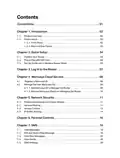
Table of Contents
- 1. The Html Code Provided Does Not Contain Any Subheadings Rela... →
- 2. Ce Mark Warning - Eu Declaration Of Conformity →
- 3. 安全諮詢及注意事項 - 裝電源 →
- 4. Safety Information - Operating Temperature →
- 5. Explanation Of The Symbols On The Product Label - Explanatio... →
- 6. Stand-by - 'on'/'off' (push-push) →
- 7. Conventions - Chapter 2. Quick Setup →
- 8. Product Overview - Panel Layout →
- 9. Introduction - Set Up The Router In Wireless Router Mode →
- 10. Quick Setup - Position Your Router →
- 11. Quick Setup - Set Up The Router In Wireless Router Mode →
- 12. Quick Setup - G/4g Backup →
- 13. Log In To The Router - Set Up The Tcp/ip Protocol →
- 14. Register A Mercusys Id - Mercusys Cloud Service →
- 15. Manage The User Mercusys Ids - Add Mercusys Id To Manage The... →
- 16. Mercusys Cloud Service - Managing The Router →
- 17. Protect The Network From Cyber Attacks - Service Filtering →
- 18. Network Security - Access Control →
- 19. Network Security - To Block Specific Device(s) →
- 20. Network Security - Ip & Mac Binding →
- 21. Network Security - Ip & Mac Binding →
- 22. Parental Controls - Control The Time Of Day My Children Or O... →
- 23. Parental Controls - Effective Time →
- 24. Parental Controls - Whitelist →
- 25. View Messages - Edit And Send A New Message →
- 26. Sms Settings - View Sent Messages →
- 27. Go Toadvanced>sms>sms Settingspage And Enablemessage Center. →
- 28. Create A Network For Guests - Customize Guest Network Option... →
- 29. Guest Network - Customize Guest Network Options According To... →
- 30. Nat Forwarding - Translate Address And Port By Alg →
- 31. Nat Forwarding - L2tp Pass-through →
- 32. Nat Forwarding - Assign A Static Ip Address To Your Pc →
- 33. Nat Forwarding - Set Up A Dynamic Dns Service Account →
- 34. Nat Forwarding - Dmz Host Ip Address →
- 35. Nat Forwarding - Lan →
- 36. Chapter 10 Specify Your Network Settings - Create A Connecti... →
- 37. Specifyyournetworkse... - Upgradeyourispinform... →
- 38. Chapter 10 Specifyyournetworksettings - Create Aconnectionpr... →
- 39. Chapter 10 Specify Your Network Settings - Data Settings →
- 40. Chapter 10 Specify Your Network Settings - Lan Settings →
- 41. Chapter 10 Specifyyournetworksettings - Selectdhcptoenableth... →
- 42. Specify Your Network Settings - Wireless Settings →
- 43. Chapter 10 Specify Your Network Settings - Enable The Wirele... →
- 44. Chapter 10 Specify Your Network Settings - Use Wps For Wirel... →
- 45. Specifyyournetworksettings - Entertherouterspinonyourclientd... →
- 46. Specifyyournetworkse... - Setsystemtime →
- 47. Chapter 10 Specify Your Network Settings - Advanced Wireless... →
- 48. Specifyyournetworkse... - Setupadynamicdnsserv... →
- 49. Specifyyournetworkse... - Createstaticroutes →
- 50. Chapter 10 Specify Your Network Settings - Advanced > Networ... →
- 51. Specifyyournetworkse... - Ipv6tunnel →
- 52. Chapter 10 Specify Your Network Settings →
- 53. Set System Time - Configure The System Time Using The Follow... →
- 54. Administrateyournetw... - Controlleds →
- 55. Administrate Your Network - Test Internet Connectivity →
- 56. Online Upgrade - Local Upgrade →
- 57. Administrate Your Network - Backup & Restore →
- 58. Administrate Your Network - Reboot Manually →
- 59. Administrateyournetw... - Accountmanagement →
- 60. Administrate Your Network - Remote Management →
- 61. Administrate Your Network - Icmp Ping →
- 62. Administrate Your Network - To View The System Logs →
- 63. Administrate Your Network - Cwmp →
- 64. Determine Whether To Display Soap Messages On Serial Console... →
- 65. Restore Router To Factory Default Settings - Web Management ... →
- 66. Lan Settings - Advanced →
- 67. Reset The Router To Factory Default Settings - Verify That Y... →
- 68. Check The Pin Settings - Check The Data Limit →
- 69. Wireless Zero Configuration - Properties →
- 70. Connect To Wireless Network - Advanced Wireless Settings →
- 71. Connecting Using A Security Key Instead - Confirm The Wirele... →