
ASUS GT-AX6000 Dual Band WiFi 6 Extendable Gaming Router User Guide

















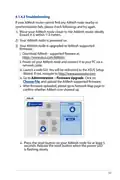


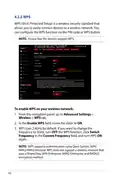


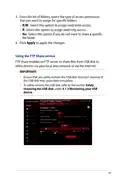


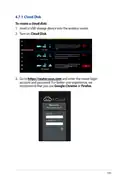



















Internet is not accessible.
•
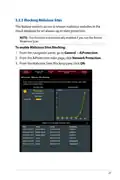
Check if your router can connect to your ISP’s WAN IP address.
To do this, launch the web GUI and go to Advanced Settings>
Network Map, and check the Internet Status.
•
If your router cannot connect to your ISP’s WAN IP address,
try restarting your network as described in the section
Restart your network in following sequence under Basic
Troubleshooting.
•
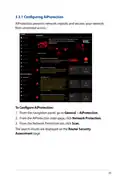
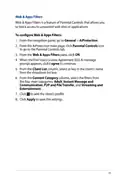
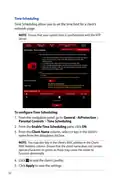
The device has been blocked via the Parental Control function.
Go to General > AiProtection > Parental Controls tab and
see if the device is in the list. If the device is listed under Client
Name, remove the device using the Delete button or adjust
the Time Management Settings.
•
•
If there is still no Internet access, try to reboot your computer
and verify the network’s IP address and gateway address.
Check the status indicators on the ADSL modem and the
wireless router. If the WAN LED on the wireless router is not ON,
check if all cables are plugged properly.
You forgot the SSID (network name) or network password
•
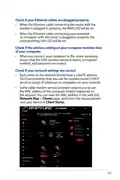
Setup a new SSID and encryption key via a wired connection
(Ethernet cable). Launch the web GUI, go to Network Map,
click the router icon, enter a new SSID and encryption key, and
then click Apply.
•
Reset your router to the default settings. Launch the web GUI,
go to Administration > Restore/Save/Upload Setting, and
click Restore. The default login account and password are both
“admin”.
137

| General | Details |
|---|---|
| Name | ASUS GT-AX6000 Dual Band WiFi 6 Extendable Gaming Router User Guide |
| Make | Asus |
| Language | English |
| Filetype | PDF (Download) |
| File size | 2.19 MB |
 (1 votes, average: 5.00 out of 5)
 Loading...
If you have any questions regarding ASUS GT-AX6000 Dual Band WiFi 6 Extendable Gaming Router User Guide, please ask here and describe the problem in detail.

ASUS RT-AC86U AC2900 WiFi Gaming Router User Guide

ASUS AC1750 WiFi Dual Band Wireless Internet Router User Guide

ASUS TUF-AX5400 Dual Band WiFi 6 Router User Guide

ASUS ET12 ZenWiFi Pro AXE11000 Tri Band Router User Guide

ASUS RT-AX82U V2 AX5400 Dual Band WiFi Router User Guide

ASUS TUF-AX4200 Dual Band WiFi Router User Guide

ASUS RT-N10U 150 mbps Wireless Router Instructions

ASUS RT-BE96U Tri Band WiFi Router User Guide

ASUS RT-BE88U Dual Band WiFi Router User Guide

ASUS RT-BE7200 Dual Band Wi-Fi Router User Guide


Cudy GP1200 AC1200 Pon Wi-Fi Router Installation Guide

TELTONIKA RUT300 Router User Guide

TP-Link BE5000 Outdoor/ Mesh Wi-Fi 7 Router User Guide

Taiko TAP0016 Audio Extreme Router User Manual

ioGiant MR1 4G LTE AC1200 Dual Band Wi-Fi Router User Guide

CEDARouter C3 5G Aggregation Router User Guide

Juniper NETWORKS SSR120 Router User Guide

TELTONIKA RUT360100100 DIN Rail Router User Guide

TP-Link TL-WR841N Wireless N Router Installation Guide

robustel R5020 Lite 5G Router Instruction Manual