
ASUS GT-AX6000 Dual Band WiFi 6 Extendable Gaming Router User Guide





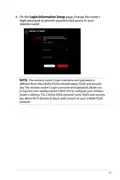










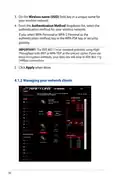


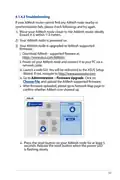


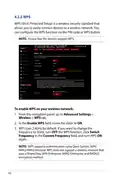


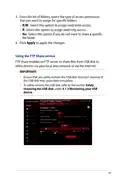


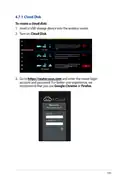



















4. Assign a unique name containing up to 32 characters for your
SSID (Service Set Identifier) or network name to identify your
wireless network. Wi-Fi devices can identify and connect to
the wireless network via your assigned SSID. The SSIDs on the
information banner are updated once new SSIDs are saved to
the settings.
NOTE: You can assign unique SSIDs for the 2.4 GHz and 5GHz
frequency bands.
5. In the Hide SSID field, select Yes to prevent wireless devices
from detecting your SSID. When this function is enabled, you
would need to enter the SSID manually on the wireless device
to access the wireless network.
6. Select any of these wireless mode options to determine the
types of wireless devices that can connect to your wireless
router:
• Auto: Select Auto to allow 802.11ac, 802.11n, 802.11g, and
802.11b devices to connect to the wireless router.
• N only: Select N only to maximize wireless N performance.
This setting prevents 802.11g and 802.11b devices from
connecting to the wireless router.
• Legacy: Select Legacy to allow 802.11b/g/n devices to
connect to the wireless router. Hardware that supports
802.11n natively, however, will only run at a maximum speed
of 54Mbps.
7. Select the operating/control channel for your wireless router.
Select Auto to allow the wireless router to automatically select
the channel that has the least amount of interference.
8. Select the channel bandwidth to accommodate higher
transmission speeds.
9. Select the authentication method.
10.When done, click Apply.
61

| General | Details |
|---|---|
| Name | ASUS GT-AX6000 Dual Band WiFi 6 Extendable Gaming Router User Guide |
| Make | Asus |
| Language | English |
| Filetype | PDF (Download) |
| File size | 2.19 MB |
 (1 votes, average: 5.00 out of 5)
 Loading...
If you have any questions regarding ASUS GT-AX6000 Dual Band WiFi 6 Extendable Gaming Router User Guide, please ask here and describe the problem in detail.

ASUS RT-AC86U AC2900 WiFi Gaming Router User Guide

ASUS AC1750 WiFi Dual Band Wireless Internet Router User Guide

ASUS TUF-AX5400 Dual Band WiFi 6 Router User Guide

ASUS ET12 ZenWiFi Pro AXE11000 Tri Band Router User Guide

ASUS RT-AX82U V2 AX5400 Dual Band WiFi Router User Guide

ASUS TUF-AX4200 Dual Band WiFi Router User Guide

ASUS RT-N10U 150 mbps Wireless Router Instructions

ASUS RT-BE96U Tri Band WiFi Router User Guide

ASUS RT-BE88U Dual Band WiFi Router User Guide

ASUS RT-BE7200 Dual Band Wi-Fi Router User Guide


TP-Link Archer C80 Wi-Fi 5 Router Instructions

ASUS RT-AC67P Dual Band AC Wi-Fi Router User Guide

JUNIPER SSR1400 Session Smart Router User Guide

Inseego FX2000 5G Router User Guide

STARLINK 02633101 Gen 3 Wi-Fi Router User Guide

TELTONIKA Router User Guide

TELTONIKA QSG RUT142 RS232 Router User Manual

alhua DH-AX18 Wireless Router User Manual
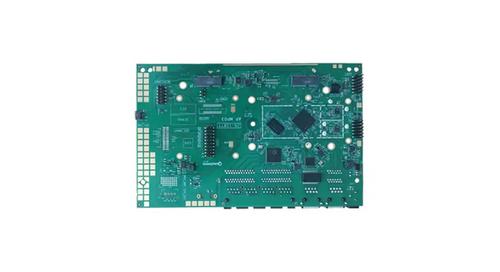
WALLYS DR5018 Router Board User Manual

TP-Link Archer MR200 Wireless Dual Band 4G LTE Router User Guide