
×
- 1. Gt-ax6000 (Rog Rapture Dual Band Gaming Router)
- 2. Copyright 2023 Asustek Computer Inc. All Rights Reserved. (Product Warranty Or Service Will Not Be Extended If: → Asus Provides This Manual 'as Is' Without Warranty Of Any Kind → Specifications And Information Contained In This Manual Are Furnished For Informational Use Only)
- 3. Getting To Know Your Wireless Router (Getting Started → Configuring The General Settings Of Rog → Logging Into The Web Gui → Aiprotection → Game Acceleration → Open Nat & Game Profile)
- 4. Advanced Troubleshooting (Vpn → Configuring The Advanced Settings → Using The Network Map → Creating A Guest Network → Lan → Wan)
- 5. Nat (Using The Usb Application → Using Aicloud 2.0 → Firewall → Administration → System Log → Utilities)
- 6. Download Master (Configuring Bit Torrent Download Settings → Nzb Settings → Troubleshooting → Basic Troubleshooting → Frequently Asked Questions (faqs) → Appendices)
- 7. Getting To Know Your Wireless Router (Welcome! → Package Contents)
- 8. Your Wireless Router (Power Led → 4ghz Led → Ghz Led → 5g Wan Led → 5g Lan Led → Lan Led)
- 9. Usb 3.2 Gen 1 Port (Lan 1~4 Ports → 5g / 1g Wan Port → 5g / 1g Lan Port → Reset Button → Power Switch → Power (dcin) Port)
- 10. Positioning Your Router (Keep The Device Away From Metal Obstructions → Always Update To The Latest Firmware → Orient The Four Detachable Antennas)
- 11. Setup (Requirements)
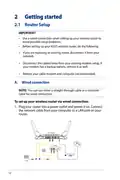
- 12. Getting Started (Router Setup → Important! → Wired Connection)
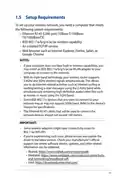
- 13. The Web Gui Launches Automatically When You Open A Web Browser. If It Does Not Auto-launch, Enter Http://www.asusrouter.com
- 14. 4g Wi-fi Name (ssid) (G Wi-fi Name (ssid) → Asus Router → Set Up A Password For Your Router → Setting Up The Wireless Security Settings)
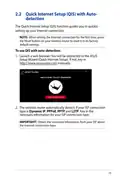
- 15. Quick Internet Setup (qis) With Auto-detection (To Use Qis With Auto-detection)
- 16. Notes (Assign The Wireless Network Name (ssid) And Security Key For Your 2.4ghz And 5 Ghz Wireless Connection.)
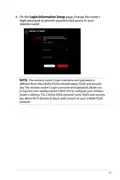
- 17. Login Information Setup (Note)
- 18. Connecting To Your Wireless Network
- 19. Configuring The General Settings Of Rog Gaming Center (Logging Into The Web Gui)
- 20. Top Command Buttons (Information → Qis - Smart → Connect → Wizard → Navigation)
- 21. Dash Board
- 22. Game Radar
- 23. Aura Rgb
- 24. Aiprotection
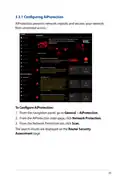
- 25. Configuring Aiprotection (Aiprotection Prevents Network Exploits And Secures Your Network → Network Protection → Router Security Assessment)
- 26. Important (Router Security Assessment → Manually Configure The Items → Configure And Make The Necessary Changes → Click Ok On The Confirmation Message)
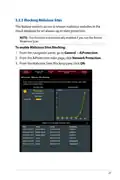
- 27. Blocking Malicious Sites (To Enable Malicious Sites Blocking)
- 28. Two-way Ips (To Enable Two-way Ips:)
- 29. Infected Device Prevention And Blocking (To Enable Infected Device Prevention And Blocking → To Configure Alert Preference)
- 30. Setting Up Parental Control (Enabling Two-way Ips)
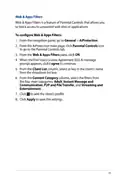
- 31. Web & Apps Filters (To Configure Web & Apps Filters → Content Category)
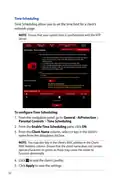
- 32. Time Scheduling (To Configure Time Scheduling: → Note: Ensure That Your System Time Is Synchronized With The Ntp Server. → Enable Time Scheduling → Client Name)
- 33. Game (Game Boost)
- 34. Qos (To Enable The Qos Function: → Note: Refer To The Qos Tab For The Definition Of The Qos Type. → Note: Get The Bandwidth Information From Your Isp.)
- 35. Gear Accelerator (To Configure Gear Accelerator: → Note: If You Want To Delete The Client Profile, Click.)
- 36. Open Nat (Nat & Game Profile → Connection Issues)
- 37. To Configure Open Nat
- 38. Game Radar
- 39. Check The Ping Status Of Each Server (For A Smooth Online Gaming Experience, Select A Game Server With Low Ping Status)
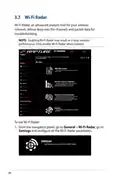
- 40. Wi-fi Radar (To Use Wi-fi Radar)
- 41. Start Data Collection (Submit → Wi-fi Site Survey)
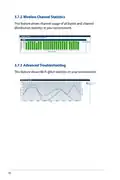
- 42. Wireless Channel Statistics (Advanced Troubleshooting)
- 43. Vpn (Note → Setting Up Access To A Vpn Server → Advanced Settings → Network Place (samba) Support)
- 44. Vpn Fusion (Benefits Of Vpn Fusion → Connecting Multiple Devices → Improving Gaming Experience)
- 45. To Start, Please Follow The Steps Below:
- 46. Instant Guard
- 47. Traffic Analyzer (To Configure The Traffic Analyzer)
- 48. Configuring The Advanced Settings (Using The Network Map)
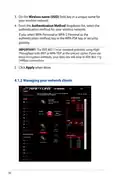
- 49. Setting Up The Wireless Security Settings (4ghz Security Settings → Ghz Security Settings)
- 50. Wireless Name (ssid) (Authentication Method → Managing Your Network Clients)
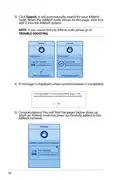
- 51. To Manage Your Network Clients
- 52. Monitoring Your Usb Device (Using The Usb Application → Using Aicloud 2.0)
- 53. To Monitor Your Usb Device: (Safely Removing The Usb Disk → Important!)
- 54. Asus Aimesh (Before Setting → Aimesh Setup Steps)
- 55. Aimesh Router (Quick Start Guide → Logout/reboot → Aimesh Router → Network Map Page)
- 56. Trouble Shooting
- 57. Troubleshooting (Aimesh Node Setup → Firmware Upgrade)
- 58. Relocation (The Best Performance → Faqs (frequently Asked Questions))
- 59. Follow The Setup Steps To Establish A Connection Between The Aimesh Router And Node Via Wi-fi First.
- 60. Wireless (General)
- 61. Assign A Unique Name For Your Ssid (Hide Ssid → Wireless Mode Options → Select The Operating/control Channel → Select The Channel Bandwidth → Select The Authentication Method → Click Apply)
- 62. Wps (To Enable Wps On Your Wireless Network: → Note: Wps Supports Authentication Using Open System, Wpa/wpa2/wpa3-personal.)
- 63. In The Wps Method Field, Select Push Button Or Client Pin Code. If You Select Push Button, Go To Step 5. If You Select Client Pin Code, Go T…
- 64. Bridge (To Set Up The Wireless Bridge:)
- 65. Ap Mode Options (Connect To Aps In List → Control Channel → Remote Ap List)
- 66. Wireless Mac Filter (To Set Up The Wireless Mac Filter: → Mac Filter Mode)
- 67. Radius Setting (To Set Up Wireless Radius Settings: → Advanced Settings → Wireless → Server Ip Address → Server Port → Connection Secret)
- 68. Professional Settings (Band → Enable Radio → Enable Wireless Scheduler → Date To Enable Radio (weekdays))
- 69. Time Of Day To Enable Radio (Date To Enable Radio (weekend) → Set Ap Isolated → Roaming Assistant → Enable Igmp Snooping → Multicast Rate (mbps) → Preamble Type)
- 70. Dtim Interval (Beacon Interval → Enable Tx Bursting → Enable Wmm Apsd → Optimize Ampdu Aggregation → Turbo Qam → Airtime Fairness)
- 71. Universal Beamforming
- 72. Creating A Guest Network (Guest Network Features)
- 73. To Change A Guests Settings, Click The Guest Settings You Want To Modify. Click Remove To Delete The Guests Settings.
- 74. Lan (Lan Ip)
- 75. Dhcp Server (Configuring The Dhcp Server)
- 76. Lease Time (Dns And Server Settings → Enable Manual Assignment)
- 77. Route (Note → To Configure The Lan Routing Table)
- 78. Iptv
- 79. Wan (Internet Connection)
- 80. Enable Wan (Enable Nat → Enable Upnp → Connect To Dns Server Automatically → Authentication → Host Name)
- 81. Mac Address (Dhcp Query Frequency)
- 82. Dual Wan (Failover Mode → Load Balance Mode)
- 83. Port Trigger (To Set Up Port Trigger)
- 84. Trigger Port (Protocol → Incoming Port → Add Port Trigger Information → Port Trigger Notes)
- 85. Virtual Server/port Forwarding (Setting Up Port Forwarding → Enable Port Forwarding → Famous Server List → Famous Game List)
- 86. Port Forwarding List (Service Name → Port Range → Local Ip → Local Port → Protocol)
- 87. To Check If Port Forwarding Has Been Configured Successfully: (Differences Between Port Trigger And Port Forwarding:)
- 88. Dmz (Setting Up Dmz On A Network → To Set Up Dmz: → To Remove Dmz:)
- 89. Ddns (Setting Up Ddns → To Set Up Ddns → Enable The Ddns Client → Server And Host Name → Enable Wildcard)
- 90. Notes: Ddns Service Will Not Work Under These Conditions: When The Wireless Router Is Using A Private Wan Ip Address (192.168.x.x, 10.x.x.x,…
- 91. Using The Usb Application (Important!)
- 92. Using Aidisk (Aidisk Overview → Setting Up Asus Ddns → Setting Up An Ftp Server)
- 93. Create Your Domain Name Via The Asus Ddns Services (Access The Ftp Site That You Created)
- 94. Using Servers Center (Using Media Server)
- 95. Using Network Place (samba) Share (To Use Samba Share)
- 96. Follow The Steps Below To Add, Delete, Or Modify An Account. (To Create A New Account: → To Delete An Existing Account: → To Add A Folder:)
- 97. From The List Of Folders, Select The Type Of Access Permission That You Want To Assign For Specific Folders: (Using The Ftp Share Service → Important!)
- 98. To Use Ftp Share Service: (Note: → Ensure That You Have Set Up Your Ftp Server Through → Aidisk. → Advanced Settings → Usb Application → Ftp Share Tab → Allow Anonymous Login → Maximum Number Of Concurrent Connections → Apply)
- 99. G/4g Usb Modems (Set Up 3g/4g Internet Access → Enable Usb Modem → Location → Isp → Apn (access Point Name) Service → Username / Password)
- 100. Using Aicloud 2.0 (To Use Aicloud)
- 101. Cloud Disk
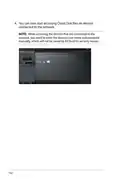
- 102. You Can Now Start Accessing Cloud Disk Files On Devices Connected To The Network.
- 103. Smart Access (Notes)
- 104. Aicloud Sync
- 105. Ipv6 (To Set Up Ipv6)
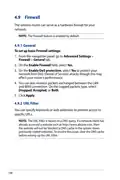
- 106. Firewall (General → Url Filter)
- 107. To Set Up A Url Filter: (Keyword Filter)
- 108. Keyword Filter (Network Services Filter)
- 109. To Set Up A Network Service Filter: (Ipv6 Firewall)
- 110. Administration (Operation Mode)
- 111. Aimesh Node (System)
- 112. Firmware Upgrade (Restore/save/upload Setting)
- 113. System Log (To View Your System Log: → Tabs:)
- 114. Smart Connect (Setting Up Smart Connect)
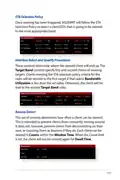
- 115. Smart Connect Rule (Steering Trigger Condition → Sta Selection Policy → Interface Select And Qualify Procedures → Bounce Detect)
- 116. Steering Trigger Condition (Bandwidth Utilization → Enable Load Balance → Rssi → Phy Rate Less / Phy Rate Greater → Vht)
- 117. Sta Selection Policy (Interface Select And Qualify Procedures → Target Band → Bounce Detect)
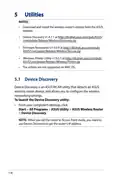
- 118. Utilites (Device Discovery)
- 119. Firmware Restoration (Important → Note)
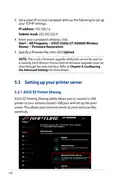
- 120. Set A Static Ip On Your Computer And Use The Following To Set Up Your Tcp/ip Settings (Firmware Restoration → Setting Up Your Printer Server → Asus Ez Printer Sharing)
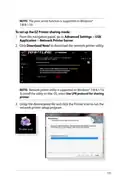
- 121. Note: The Print Server Function Is Supported On Windows 7/8/8.1/10.
- 122. Follow The Onscreen Instructions To Set Up Your Hardware, Then Click Next. Wait A Few Minutes For The Initial Setup To Finish. Click Next. C…
- 123. Follow The Windows Os Instructions To Install The Printer Driver. (After The Printers Driver Installation Is Complete, Network Clients Can Now Use The Printer.)
- 124. Using Lpr To Share Printer (Sharing Your Lpr Printer)
- 125. Create A New Port (Type Of Port → Tcp/ip Port → Hostname Or Ip Address)
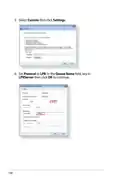
- 126. Select Custom Then Click Settings (Set Protocol To Lpr → Queue Name Field, Key In Lprserver Then Click Ok To Continue)
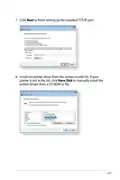
- 127. Click Next To Finish Setting Up The Standard Tcp/ip Port. (Install The Printer Driver From The Vendor-model List.)
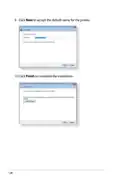
- 128. Click Next To Accept The Default Name For The Printer. Click Finish To Complete The Installation.
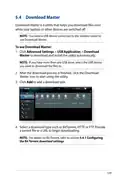
- 129. Download Master (To Use Download Master: → Add A Download Task → Select A Download Type Such As Bittorrent, Http, Or Ftp)
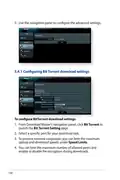
- 130. Use (Configuring Bit Torrent Download Settings → Speed Limits)
- 131. Nzb Settings
- 132. Troubleshooting (Basic Troubleshooting)
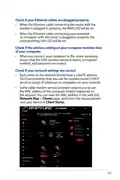
- 133. Check If Your Ethernet Cables Are Plugged Properly. (Check If The Wireless Setting On Your Computer Matches That Of Your Computer. → Check If Your Network Settings Are Correct.)
- 134. Frequently Asked Questions (faqs) (I Cannot Access The Router Gui Using A Web Browser)
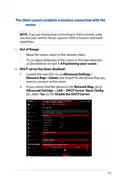
- 135. The Client Cannot Establish A Wireless Connection With The Router. (Out Of Range: → Dhcp Server Has Been Disabled: → Positioning Your Router → Advanced Settings)
- 136. Advanced Settings (Wireless → General → Control Channel → Wireless Lan Adapter → Factory Default Settings → Administration)
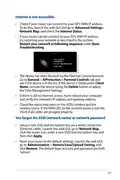
- 137. Internet Is Not Accessible. (Check If Your Router Can Connect To Your Isps Wan Ip Address. → Restart Your Network In Following Sequence Under Basic Troubleshooting. → Parental Control Function. → Setup A New Ssid And Encryption Key Via A Wired Connection. → Reset Your Router To The Default Settings.)
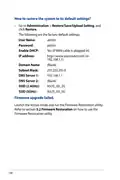
- 138. How To Restore The System To Its Default Settings? (The Following Are The Factory Default Settings: → Firmware Upgrade Failed.)
- 139. Cannot Access Web Gui (Before Configuring Your Wireless Router, Do The Steps Described In This Section For Your Host Computer And Network Clients.)
- 140. Mac Os (Windows)
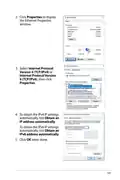
- 141. Ethernet Properties (Internet Protocol Version 4 (tcp/ipv4) → Internet Protocol Version 6 (tcp/ipv6) → Obtain An Ip Address Automatically → Obtain An Ipv6 Address Automatically)
- 142. Mac Os (Windows)
- 143. Gnu General Public License (Licensing Information → Preamble)
- 144. When We Speak Of Free Software, We Are Referring To Freedom, Not Price. Our General Public Licenses Are Designed To Make Sure That You Have …
- 145. Terms & Conditions For Copying, Distribution, & Modification (License Applicability → Definition Of The Program → Scope Of Activities Covered By The License → Copying And Distribution Rights)
- 146. You May Charge A Fee For The Physical Act Of Transferring A Copy, And You May At Your Option Offer Warranty Protection In Exchange For A Fee…
- 147. These Requirements Apply To The Modified Work As A Whole. (You May Copy And Distribute The Program (or A Work Based On It, Under Section 2) In Object Code Or Executable Form Under The Terms Of Sections 1 And 2 Above Provided That You Also Do One Of The Following:)
- 148. Accompany (The Source Code For A Work Means The Preferred Form Of The Work For Making Modifications To It. → You May Not Copy, Modify, Sublicense, Or Distribute The Program Except As Expressly Provided Under This License. → You Are Not Required To Accept This License, Since You Have Not Signed It.)
- 149. Therefore, By Modifying Or Distributing The Program (or Any Work Based On The Program), You Indicate Your Acceptance Of This License To Do S…
- 150. Distribution Limitations (Revised Versions Of The License → Incorporating Parts Of The Program)
- 151. No Warranty (End Of Terms And Conditions)
- 152. Service And Support
×
ASUS GT-AX6000 Dual Band WiFi 6 Extendable Gaming Router User Guide










































Top command buttons
Information
banner
QIS - Smart
Connect
Wizard
Navigation
panel
NOTE: If you are logging into the Web GUI for the first time, you will
be directed to the Quick Internet Setup (QIS) page automatically.
20

| General | Details |
|---|---|
| Name | ASUS GT-AX6000 Dual Band WiFi 6 Extendable Gaming Router User Guide |
| Make | Asus |
| Language | English |
| Filetype | PDF (Download) |
| File size | 2.19 MB |
 (1 votes, average: 5.00 out of 5)
 Loading...
If you have any questions regarding ASUS GT-AX6000 Dual Band WiFi 6 Extendable Gaming Router User Guide, please ask here and describe the problem in detail.

ASUS RT-AC86U AC2900 WiFi Gaming Router User Guide

ASUS AC1750 WiFi Dual Band Wireless Internet Router User Guide

ASUS TUF-AX5400 Dual Band WiFi 6 Router User Guide

ASUS ET12 ZenWiFi Pro AXE11000 Tri Band Router User Guide

ASUS RT-AX82U V2 AX5400 Dual Band WiFi Router User Guide

ASUS TUF-AX4200 Dual Band WiFi Router User Guide

ASUS RT-N10U 150 mbps Wireless Router Instructions

ASUS RT-BE96U Tri Band WiFi Router User Guide

ASUS RT-BE88U Dual Band WiFi Router User Guide

ASUS RT-BE7200 Dual Band Wi-Fi Router User Guide


NETGEAR MR6450 5G Mobiler Router Instruction Manual

NETGEAR MR6110 M6 5G WiFi 6 Mobile Router User Manual

verizon CR1000 Access Point Router Instructions

caravansplus RV WI-FI Dishydock Router User Guide

Ridgid R860443 18-VOLT CORDLESS COMPACT ROUTER User Guide

D-Link DIR-2660 AC2600 Mesh Wifi Router Installation Guide

COMFAST WR619AC V2 1200Mbps Wireless Router User Manual

Peplink SDX Pro 24Gbps Modular Enterprise Branch Router User Guide

Tenda RE6L Pro Wi-Fi 7 Router Installation Guide
ASUS RT-BE7200 Dual Band Wi-Fi Router User Guide
Table of Contents
- 1. Gt-ax6000 - Rog Rapture Dual Band Gaming Router →
- 2. Copyright 2023 Asustek Computer Inc. All Rights Reserved. - ... →
- 3. Getting To Know Your Wireless Router - Getting Started →
- 4. Advanced Troubleshooting - Vpn →
- 5. Nat - Using The Usb Application →
- 6. Download Master - Configuring Bit Torrent Download Settings →
- 7. Getting To Know Your Wireless Router - Welcome! →
- 8. Your Wireless Router - Power Led →
- 9. Usb 3.2 Gen 1 Port - Lan 1~4 Ports →
- 10. Positioning Your Router - Keep The Device Away From Metal Ob... →
- 11. Setup - Requirements →
- 12. Getting Started - Router Setup →
- 13. The Web Gui Launches Automatically When You Open A Web Brows... →
- 14. 4g Wi-fi Name (ssid) - G Wi-fi Name (ssid) →
- 15. Quick Internet Setup (qis) With Auto-detection - To Use Qis ... →
- 16. Notes - Assign The Wireless Network Name (ssid) And Security... →
- 17. Login Information Setup - Note →
- 18. Connecting To Your Wireless Network →
- 19. Configuring The General Settings Of Rog Gaming Center - Loggi... →
- 20. Top Command Buttons - Information →
- 21. Dash Board →
- 22. Game Radar →
- 23. Aura Rgb →
- 24. Aiprotection →
- 25. Configuring Aiprotection - Aiprotection Prevents Network Expl... →
- 26. Important - Router Security Assessment →
- 27. Blocking Malicious Sites - To Enable Malicious Sites Blockin... →
- 28. Two-way Ips - To Enable Two-way Ips: →
- 29. Infected Device Prevention And Blocking - To Enable Infected... →
- 30. Setting Up Parental Control - Enabling Two-way Ips →
- 31. Web & Apps Filters - To Configure Web & Apps Filters →
- 32. Time Scheduling - To Configure Time Scheduling: →
- 33. Game - Game Boost →
- 34. Qos - To Enable The Qos Function: →
- 35. Gear Accelerator - To Configure Gear Accelerator: →
- 36. Open Nat - Nat & Game Profile →
- 37. To Configure Open Nat →
- 38. Game Radar →
- 39. Check The Ping Status Of Each Server - For A Smooth Online G... →
- 40. Wi-fi Radar - To Use Wi-fi Radar →
- 41. Start Data Collection - Submit →
- 42. Wireless Channel Statistics - Advanced Troubleshooting →
- 43. Vpn - Note →
- 44. Vpn Fusion - Benefits Of Vpn Fusion →
- 45. To Start, Please Follow The Steps Below: →
- 46. Instant Guard →
- 47. Traffic Analyzer - To Configure The Traffic Analyzer →
- 48. Configuring The Advanced Settings - Using The Network Map →
- 49. Setting Up The Wireless Security Settings - 4ghz Security Se... →
- 50. Wireless Name (ssid) - Authentication Method →
- 51. To Manage Your Network Clients →
- 52. Monitoring Your Usb Device - Using The Usb Application →
- 53. To Monitor Your Usb Device: - Safely Removing The Usb Disk →
- 54. Asus Aimesh - Before Setting →
- 55. Aimesh Router - Quick Start Guide →
- 56. Trouble Shooting →
- 57. Troubleshooting - Aimesh Node Setup →
- 58. Relocation - The Best Performance →
- 59. Follow The Setup Steps To Establish A Connection Between The... →
- 60. Wireless - General →
- 61. Assign A Unique Name For Your Ssid - Hide Ssid →
- 62. Wps - To Enable Wps On Your Wireless Network: →
- 63. In The Wps Method Field, Select Push Button Or Client Pin Co... →
- 64. Bridge - To Set Up The Wireless Bridge: →
- 65. Ap Mode Options - Connect To Aps In List →
- 66. Wireless Mac Filter - To Set Up The Wireless Mac Filter: →
- 67. Radius Setting - To Set Up Wireless Radius Settings: →
- 68. Professional Settings - Band →
- 69. Time Of Day To Enable Radio - Date To Enable Radio (weekend) →
- 70. Dtim Interval - Beacon Interval →
- 71. Universal Beamforming →
- 72. Creating A Guest Network - Guest Network Features →
- 73. To Change A Guests Settings, Click The Guest Settings You Wa... →
- 74. Lan - Lan Ip →
- 75. Dhcp Server - Configuring The Dhcp Server →
- 76. Lease Time - Dns And Server Settings →
- 77. Route - Note →
- 78. Iptv →
- 79. Wan - Internet Connection →
- 80. Enable Wan - Enable Nat →
- 81. Mac Address - Dhcp Query Frequency →
- 82. Dual Wan - Failover Mode →
- 83. Port Trigger - To Set Up Port Trigger →
- 84. Trigger Port - Protocol →
- 85. Virtual Server/port Forwarding - Setting Up Port Forwarding →
- 86. Port Forwarding List - Service Name →
- 87. To Check If Port Forwarding Has Been Configured Successfully... →
- 88. Dmz - Setting Up Dmz On A Network →
- 89. Ddns - Setting Up Ddns →
- 90. Notes: Ddns Service Will Not Work Under These Conditions: Wh... →
- 91. Using The Usb Application - Important! →
- 92. Using Aidisk - Aidisk Overview →
- 93. Create Your Domain Name Via The Asus Ddns Services - Access ... →
- 94. Using Servers Center - Using Media Server →
- 95. Using Network Place (samba) Share - To Use Samba Share →
- 96. Follow The Steps Below To Add, Delete, Or Modify An Account.... →
- 97. From The List Of Folders, Select The Type Of Access Permissi... →
- 98. To Use Ftp Share Service: - Note: →
- 99. G/4g Usb Modems - Set Up 3g/4g Internet Access →
- 100. Using Aicloud 2.0 - To Use Aicloud →
- 101. Cloud Disk →
- 102. You Can Now Start Accessing Cloud Disk Files On Devices Conn... →
- 103. Smart Access - Notes →
- 104. Aicloud Sync →
- 105. Ipv6 - To Set Up Ipv6 →
- 106. Firewall - General →
- 107. To Set Up A Url Filter: - Keyword Filter →
- 108. Keyword Filter - Network Services Filter →
- 109. To Set Up A Network Service Filter: - Ipv6 Firewall →
- 110. Administration - Operation Mode →
- 111. Aimesh Node - System →
- 112. Firmware Upgrade - Restore/save/upload Setting →
- 113. System Log - To View Your System Log: →
- 114. Smart Connect - Setting Up Smart Connect →
- 115. Smart Connect Rule - Steering Trigger Condition →
- 116. Steering Trigger Condition - Bandwidth Utilization →
- 117. Sta Selection Policy - Interface Select And Qualify Procedur... →
- 118. Utilites - Device Discovery →
- 119. Firmware Restoration - Important →
- 120. Set A Static Ip On Your Computer And Use The Following To Se... →
- 121. Note: The Print Server Function Is Supported On Windows 7/8/... →
- 122. Follow The Onscreen Instructions To Set Up Your Hardware, Th... →
- 123. Follow The Windows Os Instructions To Install The Printer Dr... →
- 124. Using Lpr To Share Printer - Sharing Your Lpr Printer →
- 125. Create A New Port - Type Of Port →
- 126. Select Custom Then Click Settings - Set Protocol To Lpr →
- 127. Click Next To Finish Setting Up The Standard Tcp/ip Port. - ... →
- 128. Click Next To Accept The Default Name For The Printer. Click... →
- 129. Download Master - To Use Download Master: →
- 130. Use - Configuring Bit Torrent Download Settings →
- 131. Nzb Settings →
- 132. Troubleshooting - Basic Troubleshooting →
- 133. Check If Your Ethernet Cables Are Plugged Properly. - Check ... →
- 134. Frequently Asked Questions (faqs) - I Cannot Access The Rout... →
- 135. The Client Cannot Establish A Wireless Connection With The R... →
- 136. Advanced Settings - Wireless →
- 137. Internet Is Not Accessible. - Check If Your Router Can Conne... →
- 138. How To Restore The System To Its Default Settings? - The Fol... →
- 139. Cannot Access Web Gui - Before Configuring Your Wireless Rou... →
- 140. Mac Os - Windows →
- 141. Ethernet Properties - Internet Protocol Version 4 (tcp/ipv4) →
- 142. Mac Os - Windows →
- 143. Gnu General Public License - Licensing Information →
- 144. When We Speak Of Free Software, We Are Referring To Freedom,... →
- 145. Terms & Conditions For Copying, Distribution, & Modification... →
- 146. You May Charge A Fee For The Physical Act Of Transferring A ... →
- 147. These Requirements Apply To The Modified Work As A Whole. - ... →
- 148. Accompany - The Source Code For A Work Means The Preferred F... →
- 149. Therefore, By Modifying Or Distributing The Program (or Any ... →
- 150. Distribution Limitations - Revised Versions Of The License →
- 151. No Warranty - End Of Terms And Conditions →
- 152. Service And Support →