Home > Comcast Business > COMCAST CGA4332COM Advanced WiFi Gateway Router User Guide
×
- 1. Comcast Business Router V2 (Setup And User Guide)
- 2. Safety Instructions And Regulatory Notices
- 3. Rf-exposure Statement (Restricted Frequency Band)
- 4. Getting Started (Features At A Glance → Introduction)
- 5. Getting To Know The Gateway (Front Panel → Top Panel → Back Panel → Bottom Panel)
- 6. Cbr2 Cga4332com- User Guide (Top Panel → Led Legend: → State → Description)
- 7. Power/battery Status Led (Gbps - Ethernet 1 To Ethernet 6 Leds → 5 Gbps - Ethernet 5 And Ethernet 6 Leds → Online Led)
- 8. Wifi Led - White (Us/ds Led - White → Tel 1 Tel8 Led - White → Back Panel → Telephone Ports → Ethernet Ports)
- 9. Ethernet Ports On The Gateway (Led Status Indicators → Cable Port → Power Inlet)
- 10. Bottom Panel (Battery Compartment (optional) → Product Label)
- 11. Preparing For Installation (Setup → Optional Configuration → Connect The Gateway To The Comcast Network)
- 12. To Connect Gateway To An Epon Device Proceed As Follows:
- 13. Connect Your Wired Devices (Requirements → Procedure → How To Connect Your Phone)
- 14. How To Install The Battery
- 15. Angle (Insert → Admin Tool → Accessing The Admin Tool)
- 16. Cbr2 Cga4332com- User Guide (The Admin Tool)
- 17. Components (Menu → Gateway → Connected Devices → Content Filtering → Advanced → Troubleshooting)
- 18. The Status Of The Internet Interface (The Status Of The Wireless Interface → Wi-fi Configuration → Bridge Mode → How To Change The Default Admin Tool Password)
- 19. How To Back Up Or Restore A Configuration (Backing Up Your Configuration → Restoring A Previously Saved Configuration)
- 20. Battery Status (Accessing The Admin Tool → Battery Condition → Battery Life → Total Capacity → Remaining Charge → Remaining Time)
- 21. The Gateway Wireless Access Point (Wireless Access Point → Wireless Client → Configuring Your Wireless Clients → Connect Your Wireless Devices → Requirements → Procedure)
- 22. Network Name (ssid) (Password (key) → To Configure These Settings On: → Windows 10 → Windows 8 → Mac Os X)
- 23. How To Connect Your Computer On Windows 10 (How To Connect Your Computer On Windows 8)
- 24. Windows (How To Connect Your Computer On Mac Os X → Product Label (item B))
- 25. How To Configure The Wireless Settings (Accessing The Admin Tool)
- 26. Wireless Network (Network Name (ssid) → Mode → Security Mode → Channel Selection → Channel → Network Password)
- 27. Broadcast Network Name (ssid) (Prevent Devices From Accessing Your Wireless Network → Mac Address → Mac Filtering → How To Set Up Mac Filtering)
- 28. Internet Security (Content Filtering → Managed Sites → Managed Services → Managed Devices → Firewall)
- 29. How To Access The Managed Sites Page (How To Block A Specific Website)
- 30. How To Block Websites Based On Keywords (Mark Computers As Trusted For All Websites → Managed Services)
- 31. How To Create A Service Rule (Mark Computers As Trusted For All Services → Managed Devices)
- 32. Access Type (Adding Allowed Devices → Adding Blocked Devices → Reports)
- 33. Report Filters (Firewall → Predefined Security Levels → Changing The Security Level)
- 34. Advanced Configuration (Port Configuration For Applications And Services → Assigning A Reserved Ip Address To A Device)
- 35. Solutions (Upnp → Enabling Upnp On The Gateway)
- 36. Port Forwarding (Use A Reserved Ip Address → Procedure)
- 37. Cbr2 Cga4332com- User Guide (Service Type → Starting Port → End Port → Server Ipv4 Address → Server Ipv6 Address → Port Triggering)
- 38. Enable Port Triggering (Add Port Trigger → Port Management)
- 39. Port Management (Enable Port Management → Add Rule → Application Name → Protocol → Start True Static Ip → End True Static Ip)
- 40. Port Management (Remote Management → To Configure Remote Management)
- 41. Configure A Dmz Host (How To Configure A Device As Dmz Host → Nat → To Configure Nat)
- 42. Add Nat (Static Routing → Assigning A Reserved Ip Address To A Device)
- 43. How To Assign A Reserved Ip Address (Accessing The Admin Tool → Connected Devices → Edit Device → Add Device)
- 44. Support (Wireless Connection Troubleshooting → Network Diagnostic Tools → Gateway Reset And Restore Options)
- 45. Network Diagnostic Tools (How To Access The Network Diagnostic Tools → Gateway Reset And Restore Options)
- 46. Methods (Performing A Reset (restart)/restore Via The Admin Tool → Reset/restore The Gateway Via The Reset Button)
×
COMCAST CGA4332COM Advanced WiFi Gateway Router User Guide
CBR2 CGA4332COM- User Guide
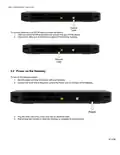
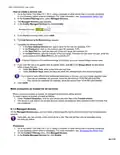
To connect Gateway to an EPON device proceed as follows:
1. Take one end of the Ethernet cable and connect it to your EPON device.
2. Connect the other end of the Ethernet cable to Port 6 of the Gateway.
3.2 Power on the Gateway
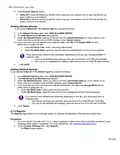
To turn on the Gateway power:
1. Use the power cord that is included with your Gateway.
2. Connect the small end of the power cord to the Power port on the back of theGateway.
3. Plug the other end of the power cord into an electrical outlet.
4. Wait at least two minutes to allow the Gateway to complete its startup phase.
17 of 51
| General | Details |
|---|---|
| Name | COMCAST CGA4332COM Advanced WiFi Gateway Router User Guide |
| Make | Comcast Business |
| Language | English |
| Filetype | PDF (Download) |
| File size | 0.88 MB |
If you have any questions regarding COMCAST CGA4332COM Advanced WiFi Gateway Router User Guide, please ask here and describe the problem in detail.


JUNIPER SSR1400 Session Smart Router User Guide

NETGEAR RS700S Nighthawk Tri-Band WiFi 7 Router User Guide
Asustek Computer RT-AX57 Wireless AX3000 Dual Band Gigabit Router User Guide

Heimgard Hub 4G LTE Mobile Broadband Router User Guide

JuniPer Cloud-Ready SSR1500 Session Router User Guide

Tenda N300 Wi-Fi 4G LTE Router User Guide
ASUS RT-BE88U Dual Band WiFi Router User Guide

DrayTek Vigor2927 Dual-WAN VPN Firewall Router User Manual

Firstnum C401 CPE Router User Manual

GL TECHNOLOGIES GL-A1300 AC1300 Gigabit Wireless Router User Manual
Table of Contents
- 1. Comcast Business Router V2 - Setup And User Guide →
- 2. Safety Instructions And Regulatory Notices →
- 3. Rf-exposure Statement - Restricted Frequency Band →
- 4. Getting Started - Features At A Glance →
- 5. Getting To Know The Gateway - Front Panel →
- 6. Cbr2 Cga4332com- User Guide - Top Panel →
- 7. Power/battery Status Led - Gbps - Ethernet 1 To Ethernet 6 L... →
- 8. Wifi Led - White - Us/ds Led - White →
- 9. Ethernet Ports On The Gateway - Led Status Indicators →
- 10. Bottom Panel - Battery Compartment (optional) →
- 11. Preparing For Installation - Setup →
- 12. To Connect Gateway To An Epon Device Proceed As Follows: →
- 13. Connect Your Wired Devices - Requirements →
- 14. How To Install The Battery →
- 15. Angle - Insert →
- 16. Cbr2 Cga4332com- User Guide - The Admin Tool →
- 17. Components - Menu →
- 18. The Status Of The Internet Interface - The Status Of The Wir... →
- 19. How To Back Up Or Restore A Configuration - Backing Up Your ... →
- 20. Battery Status - Accessing The Admin Tool →
- 21. The Gateway Wireless Access Point - Wireless Access Point →
- 22. Network Name (ssid) - Password (key) →
- 23. How To Connect Your Computer On Windows 10 - How To Connect ... →
- 24. Windows - How To Connect Your Computer On Mac Os X →
- 25. How To Configure The Wireless Settings - Accessing The Admin... →
- 26. Wireless Network - Network Name (ssid) →
- 27. Broadcast Network Name (ssid) - Prevent Devices From Accessi... →
- 28. Internet Security - Content Filtering →
- 29. How To Access The Managed Sites Page - How To Block A Specif... →
- 30. How To Block Websites Based On Keywords - Mark Computers As ... →
- 31. How To Create A Service Rule - Mark Computers As Trusted For... →
- 32. Access Type - Adding Allowed Devices →
- 33. Report Filters - Firewall →
- 34. Advanced Configuration - Port Configuration For Applications... →
- 35. Solutions - Upnp →
- 36. Port Forwarding - Use A Reserved Ip Address →
- 37. Cbr2 Cga4332com- User Guide - Service Type →
- 38. Enable Port Triggering - Add Port Trigger →
- 39. Port Management - Enable Port Management →
- 40. Port Management - Remote Management →
- 41. Configure A Dmz Host - How To Configure A Device As Dmz Host →
- 42. Add Nat - Static Routing →
- 43. How To Assign A Reserved Ip Address - Accessing The Admin To... →
- 44. Support - Wireless Connection Troubleshooting →
- 45. Network Diagnostic Tools - How To Access The Network Diagnos... →
- 46. Methods - Performing A Reset (restart)/restore Via The Admin... →