
Home > Comcast Business > COMCAST CGA4332COM Advanced WiFi Gateway Router User Guide
COMCAST CGA4332COM Advanced WiFi Gateway Router User Guide
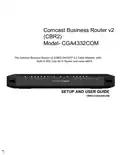


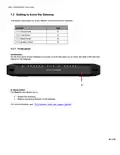


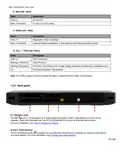


















CBR2 CGA4332COM - User Guide
2 This device must accept any interference received, including interference
that may cause undesired operation.
RF-exposure statement
When the product is equipped with a wireless interface, then it becomes a
mobile or fixed mounted modular transmitter and must have a separation
distance of at least 20 cm (8 inches) between the antenna and the body of
the user or nearby persons. In practice, this means that the user or nearby
persons must have a distance of at least 20 cm (8 inches) from the modem
and must not lean on the modem in case it is wall mounted. With a separation
distance of 20 cm (8 inches) or more, the M(aximum)
P(ermissible) E(xposure) limits are well above the potential this module is
capable to produce. For operation within 5.15 ~ 5.25GHz frequency range, it
is restricted to indoor environment. This device meets all the other
requirements specified in Part 15E, Section 15.407 of the FCCRules.
This transmitter must not be co-located or operating in conjunction with any
other antenna or transmitter.
Restricted frequency band
This product is equipped with an IEEE802.11b/IEEE802.11g/IEEE802.11n
wireless transceiver and may only use channels 1 to 11 (2412 to 2462 MHz)
on U.S.A. territory.
4 of 51
CBR2 CGA4332COM - User Guide
Copyright
Copyright ©2021 Technicolor. All rights reserved.
Distribution and copying of this document, use and communication of its contents is not permitted without written authorization from
Technicolor. The content of this document is furnished for informational use only, may be subject to change without notice, and should
not be construed as a commitment by Technicolor. Technicolor assumes no responsibility or liability for any errors or inaccuracies
that may appear in this document.
4855 Peachtree Industrial Blvd,
Suite 200
Norcross, GA 30092
USA
Trademarks
The following trademarks may be used in this document
•
•
AutoWAN sensing™ is a trademark of Technicolor.
Adobe®, the Adobe logo, Acrobat® and Adobe Reader® are trademarks or registered trademarks of Adobe Systems,
Incorporated, registered in the United States and/or other countries.
•
Apple® and Mac OS® are registered trademarks of Apple Computer, Incorporated, registered in the United States and other
countries.
•
•
CableLabs® and DOCSIS® are registered trademarks of CableLabs, Inc.
DLNA® is a registered trademark, DLNA disc logo is a service mark, and DLNA Certified™ is a trademark of the Digital Living
Network Alliance. Digital Living Network Alliance is a service mark of the Digital Living Network Alliance.
•
•
•
•
Ethernet™ is a trademark of the Xerox Corporation.
EuroDOCSIS™, EuroPacketCable™ and PacketCable™ are trademarks of CableLabs, Inc.
Linux™ is a trademark of Linus Torvalds.
Microsoft®, MS-DOS®, Windows®, Windows NT® and Windows Vista® are either registered trademarks or trademarks of the
Microsoft Corporation in the United States and/or other countries.
•
•
•
UNIX® is a registered trademark of UNIX System Laboratories, Incorporated.
UPnP™ is a certification mark of the UPnP Implementers Corporation.
Wi-Fi Alliance®, Wi-Fi®, WMM® and the Wi-Fi logo are registered trademarks of the Wi-Fi Alliance. Wi-Fi CERTIFIED™, Wi-Fi
ZONE™, Wi-Fi Protected Access™, Wi-Fi Multimedia™, Wi-Fi Protected Setup™, WPA™, WPA2™ and their respective logos
are trademarks of the WiFi Alliance.
Other brands and product names may be trademarks or registered trademarks of their respective holders. All other logos,
trademarks and service marks are the property of their respective owners, where marked or not.
Document Information
Status: v1.0 (June 2021)
Reference: CBR2 Data Sheet 06012021
COMCAST Title: Setup and User Guide CBR2
CGA4332COM
5 of 51
CBR2 CGA4332COM - User Guide
Table of Contents
Contents
SETUP AND USER GUIDE...................................................................................................................................................1
About this Setup and User Guide..........................................................................................................................................8
In this Setup and User Guide.............................................................................................................................................8
Used symbols.....................................................................................................................................................................8
Terminology .......................................................................................................................................................................8
Typographical conventions ................................................................................................................................................8
1
Getting Started................................................................................................................................................................9
Introduction ........................................................................................................................................................................9
1.1
Features at a glance..............................................................................................................................................9
Introduction.......................................................................................................................................................................9
1.2
Getting to know the Gateway...............................................................................................................................10
1.2.1 Front panel........................................................................................................................................................... 10
1.2.2 Back panel........................................................................................................................................................... 13
1.2.3 Bottom panel........................................................................................................................................................15
Preparing for installation...............................................................................................................................................16
2
Local connection requirements............................................................................................................................................16
Setup ............................................................................................................................................................................16
Setup procedure ..................................................................................................................................................................16
3.1 Connect the Gateway to the Comcast network ...................................................................................................16
Connecting the cables .....................................................................................................................................................16
3
3.2
Power on the Gateway ........................................................................................................................................17
Connect your wired devices................................................................................................................................. 18
How to connect your phone................................................................................................................................. 18
How to Install the Battery.....................................................................................................................................19
Admin Tool....................................................................................................................................................................20
Components ........................................................................................................................................................22
How to Change the Default Admin Tool Password .............................................................................................23
How to Back Up or Restore a Configuration........................................................................................................ 24
Battery Status ......................................................................................................................................................25
The Gateway Wireless Access Point ...........................................................................................................................26
Connect your wireless devices ............................................................................................................................26
How to Configure the Wireless Settings..............................................................................................................30
Prevent Devices from Accessing Your Wireless Network...................................................................................32
Internet Security ........................................................................................................................................................... 33
Content Filtering ..................................................................................................................................................33
3.3
3.4
3.5
4
4.1
4.2
4.3
4.4
5
5.1
5.2
5.3
6
6.1
Managed sites..................................................................................................................................................................33
How to access the Managed Sites page .........................................................................................................................34
How to block a specific website .......................................................................................................................................34
How to block websites based on keywords .....................................................................................................................35
Mark computers as trusted for all websites .....................................................................................................................35
Managed services............................................................................................................................................................ 35
Mark computers as trusted for all services ......................................................................................................................36
Managed devices............................................................................................................................................................. 36
Adding allowed devices ...................................................................................................................................................37
Adding blocked devices ...................................................................................................................................................37
Reports.............................................................................................................................................................................37
6.2
Firewall................................................................................................................................................................. 38
Predefined security levels................................................................................................................................................38
Advanced configuration................................................................................................................................................39
7
7.1
Port Configuration for Applications and Services ................................................................................................39
6 of 51
CBR2 CGA4332COM - User Guide
7.1.1. UPnP....................................................................................................................................................................40
7.1.2. Port forwarding ....................................................................................................................................................41
7.1.3. Port triggering ......................................................................................................................................................42
7.1.4. Port Management ................................................................................................................................................43
7.1.5. Remote Management ..........................................................................................................................................45
7.1.6. Configure a DMZ Host.........................................................................................................................................46
7.1.7. NAT......................................................................................................................................................................46
7.1.8. Static Routing ......................................................................................................................................................47
7.2
8
8.1
8.2
8.3
Assigning a Reserved IP Address to a Device....................................................................................................47
Support.........................................................................................................................................................................49
Wireless Connection Troubleshooting.................................................................................................................49
Network diagnostic tools......................................................................................................................................50
Gateway reset and restore options......................................................................................................................50
7 of 51

CBR2 CGA4332COM - User Guide
About this Setup and User Guide
In this Setup and User Guide
The goal of this Setup and User Guide is to:
•
•
Set up your Gateway and local network.
Configure and use the main features of your Gateway.
Used symbols
The danger symbol indicates that there may be a possibility of physical injury.
The warning symbol indicates that there may be a possibility ofequipment damage.
The caution symbol indicates that there may be a possibility of serviceinterruption.
The note symbol indicates that the text provides additional information about a topic.
Terminology
Generally, the CBR2 CGA4332COM will be referred to as the Gateway in this Setup and User Guide.
Typographical conventions
The following typographical conventions are used throughout this manual:
•
This sample text indicates a hyperlink to a website.
Example: If you want to know more about the guide, see About_this_Setup_and_User_Guide.
This sample text indicates an important content-related word.
•
Example: To enter the network, you must authenticateyourself.
Example: On the File menu, click Open to open a file.
8 of 51

| General | Details |
|---|---|
| Name | COMCAST CGA4332COM Advanced WiFi Gateway Router User Guide |
| Make | Comcast Business |
| Language | English |
| Filetype | PDF (Download) |
| File size | 0.88 MB |
 (1 votes, average: 5.00 out of 5)
 Loading...


TP-Link Archer AX20 Dual-Band Wi-Fi 6 Gaming Router Installation Guide

TP-Link Archer AX72 AX5400 Wi-Fi 6 Router Installation Guide

TELTONIKA RUTM31 Router User Guide

ASUS GT-AX11000 Pro ROG Rapture Tri-band Gaming Router User Guide

TP-Link EC223-G5 Aginet AC1200 MU-MIMO Wi-Fi Router User Manual

PROSCEND M330 Series Cellular Router Installation Guide
eero Outdoor 7 Dual Band Mesh Wi-fi Router Installation Guide

GL iNet GL-MT3000 Beryl AX AX3000 Wifi 6 Router User Manual
LINOVISION IOT-R32W Unlocked 4G LTE Router User Manual

Draytek Vigor2767 Series Security Router User Guide