
Home > Comcast Business > COMCAST CGA4332COM Advanced WiFi Gateway Router User Guide
COMCAST CGA4332COM Advanced WiFi Gateway Router User Guide






















CBR2 CGA4332COM- User Guide
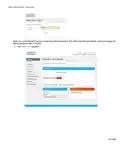
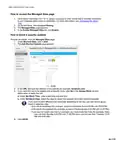
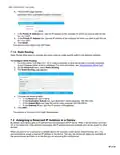
How to assign a reserved IP Address
to your Gateway (either wired or wirelessly). For more information, see “Accessing the AdminTool”.
2. On the left menu, select Connected Devices.
3. The Devices page appears.
.
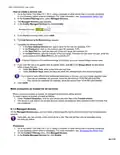
If your device is already listed in one of the tables, proceed as follows:
o
o
Click Edit.
The Edit Device page appears.
o
o
In the Configuration list, click Reserved IP.
If needed, change the value in the Reserved IP Address box 3.
.
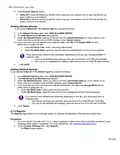
If your device is not listed, proceed as follows:
On the Device, click ADD DEVICE WITH RESERVED IP.
The Add Device page appears.
o
o
o
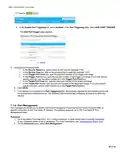
Enter the settings of your choice.
4. Click Save.
48 of 51

| General | Details |
|---|---|
| Name | COMCAST CGA4332COM Advanced WiFi Gateway Router User Guide |
| Make | Comcast Business |
| Language | English |
| Filetype | PDF (Download) |
| File size | 0.88 MB |
 (1 votes, average: 5.00 out of 5)
 Loading...
If you have any questions regarding COMCAST CGA4332COM Advanced WiFi Gateway Router User Guide, please ask here and describe the problem in detail.


xiaomi R4AC 4A Mi Router User Manual

MERCUSYS MW301R Wireless Router Installation Guide

Sagemcom Fast 5298 Fiber Wireless Router User Guide

WALLYS DR6018-S High Power Radio AP Router User Manual

IQ WiFi 6 Router Installation Guide

NETGEAR RS100 Wi-Fi 7 Router Instructions

Cudy WR1500 WiFi 6 Trådløs Router Installation Guide

TP-Link NX200 5G CPE Router Installation Guide

TELTONIKA Networks RUT956 4G LTE Router User Guide

UBIQUITI ER-X-SFP Edge Router User Guide