Home > Comcast Business > COMCAST CGA4332COM Advanced WiFi Gateway Router User Guide
×
- 1. Comcast Business Router V2 (Setup And User Guide)
- 2. Safety Instructions And Regulatory Notices
- 3. Rf-exposure Statement (Restricted Frequency Band)
- 4. Getting Started (Features At A Glance → Introduction)
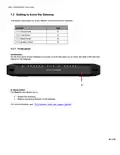
- 5. Getting To Know The Gateway (Front Panel → Top Panel → Back Panel → Bottom Panel)
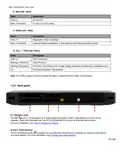
- 6. Cbr2 Cga4332com- User Guide (Top Panel → Led Legend: → State → Description)
- 7. Power/battery Status Led (Gbps - Ethernet 1 To Ethernet 6 Leds → 5 Gbps - Ethernet 5 And Ethernet 6 Leds → Online Led)
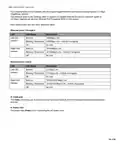
- 8. Wifi Led - White (Us/ds Led - White → Tel 1 Tel8 Led - White → Back Panel → Telephone Ports → Ethernet Ports)
- 9. Ethernet Ports On The Gateway (Led Status Indicators → Cable Port → Power Inlet)
- 10. Bottom Panel (Battery Compartment (optional) → Product Label)
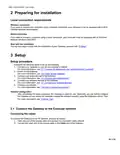
- 11. Preparing For Installation (Setup → Optional Configuration → Connect The Gateway To The Comcast Network)
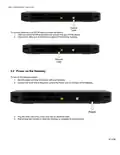
- 12. To Connect Gateway To An Epon Device Proceed As Follows:
- 13. Connect Your Wired Devices (Requirements → Procedure → How To Connect Your Phone)
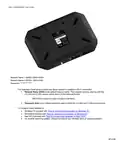
- 14. How To Install The Battery
- 15. Angle (Insert → Admin Tool → Accessing The Admin Tool)
- 16. Cbr2 Cga4332com- User Guide (The Admin Tool)
- 17. Components (Menu → Gateway → Connected Devices → Content Filtering → Advanced → Troubleshooting)
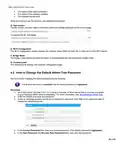
- 18. The Status Of The Internet Interface (The Status Of The Wireless Interface → Wi-fi Configuration → Bridge Mode → How To Change The Default Admin Tool Password)
- 19. How To Back Up Or Restore A Configuration (Backing Up Your Configuration → Restoring A Previously Saved Configuration)
- 20. Battery Status (Accessing The Admin Tool → Battery Condition → Battery Life → Total Capacity → Remaining Charge → Remaining Time)
- 21. The Gateway Wireless Access Point (Wireless Access Point → Wireless Client → Configuring Your Wireless Clients → Connect Your Wireless Devices → Requirements → Procedure)
- 22. Network Name (ssid) (Password (key) → To Configure These Settings On: → Windows 10 → Windows 8 → Mac Os X)
- 23. How To Connect Your Computer On Windows 10 (How To Connect Your Computer On Windows 8)
- 24. Windows (How To Connect Your Computer On Mac Os X → Product Label (item B))
- 25. How To Configure The Wireless Settings (Accessing The Admin Tool)
- 26. Wireless Network (Network Name (ssid) → Mode → Security Mode → Channel Selection → Channel → Network Password)
- 27. Broadcast Network Name (ssid) (Prevent Devices From Accessing Your Wireless Network → Mac Address → Mac Filtering → How To Set Up Mac Filtering)
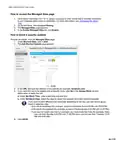
- 28. Internet Security (Content Filtering → Managed Sites → Managed Services → Managed Devices → Firewall)
- 29. How To Access The Managed Sites Page (How To Block A Specific Website)
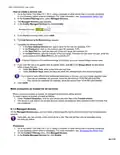
- 30. How To Block Websites Based On Keywords (Mark Computers As Trusted For All Websites → Managed Services)
- 31. How To Create A Service Rule (Mark Computers As Trusted For All Services → Managed Devices)
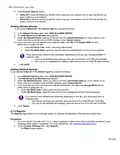
- 32. Access Type (Adding Allowed Devices → Adding Blocked Devices → Reports)
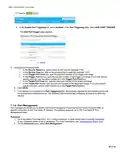
- 33. Report Filters (Firewall → Predefined Security Levels → Changing The Security Level)
- 34. Advanced Configuration (Port Configuration For Applications And Services → Assigning A Reserved Ip Address To A Device)
- 35. Solutions (Upnp → Enabling Upnp On The Gateway)
- 36. Port Forwarding (Use A Reserved Ip Address → Procedure)
- 37. Cbr2 Cga4332com- User Guide (Service Type → Starting Port → End Port → Server Ipv4 Address → Server Ipv6 Address → Port Triggering)
- 38. Enable Port Triggering (Add Port Trigger → Port Management)
- 39. Port Management (Enable Port Management → Add Rule → Application Name → Protocol → Start True Static Ip → End True Static Ip)
- 40. Port Management (Remote Management → To Configure Remote Management)
- 41. Configure A Dmz Host (How To Configure A Device As Dmz Host → Nat → To Configure Nat)
- 42. Add Nat (Static Routing → Assigning A Reserved Ip Address To A Device)
- 43. How To Assign A Reserved Ip Address (Accessing The Admin Tool → Connected Devices → Edit Device → Add Device)
- 44. Support (Wireless Connection Troubleshooting → Network Diagnostic Tools → Gateway Reset And Restore Options)
- 45. Network Diagnostic Tools (How To Access The Network Diagnostic Tools → Gateway Reset And Restore Options)
- 46. Methods (Performing A Reset (restart)/restore Via The Admin Tool → Reset/restore The Gateway Via The Reset Button)
×
COMCAST CGA4332COM Advanced WiFi Gateway Router User Guide
| General | Details |
|---|---|
| Name | COMCAST CGA4332COM Advanced WiFi Gateway Router User Guide |
| Make | Comcast Business |
| Language | English |
| Filetype | PDF (Download) |
| File size | 0.88 MB |
If you have any questions regarding COMCAST CGA4332COM Advanced WiFi Gateway Router User Guide, please ask here and describe the problem in detail.


Pix-Link AX02 Wi-Fi 6 Router Installation Guide

Tenda AC8 Dual-band Gigabit Wireless Router Installation Guide

TP-Link AX5400 Multi Gigabit Wi-Fi Router User Guide

DrayTek Vigor2765 Wired VDSL and Ethernet SoHo Router User Guide

hitron CGNM-2250 Cable Modem Router User Guide

WATER WORLD AC1200M Wireless Dual Frequency Router User Guide
CP PLUS CP-XR-DE21-S 4G Router Installation Guide

Cudy LT 700E Cat 6 AC1200 WiFi Router Installation Guide

EnGenius XG60-FIT FitXpress 4 port Gigabit PoE plus VPV Router Owner’s Manual

PROSCEND M330 Series Cellular Router Installation Guide
Table of Contents
- 1. Comcast Business Router V2 - Setup And User Guide →
- 2. Safety Instructions And Regulatory Notices →
- 3. Rf-exposure Statement - Restricted Frequency Band →
- 4. Getting Started - Features At A Glance →
- 5. Getting To Know The Gateway - Front Panel →
- 6. Cbr2 Cga4332com- User Guide - Top Panel →
- 7. Power/battery Status Led - Gbps - Ethernet 1 To Ethernet 6 L... →
- 8. Wifi Led - White - Us/ds Led - White →
- 9. Ethernet Ports On The Gateway - Led Status Indicators →
- 10. Bottom Panel - Battery Compartment (optional) →
- 11. Preparing For Installation - Setup →
- 12. To Connect Gateway To An Epon Device Proceed As Follows: →
- 13. Connect Your Wired Devices - Requirements →
- 14. How To Install The Battery →
- 15. Angle - Insert →
- 16. Cbr2 Cga4332com- User Guide - The Admin Tool →
- 17. Components - Menu →
- 18. The Status Of The Internet Interface - The Status Of The Wir... →
- 19. How To Back Up Or Restore A Configuration - Backing Up Your ... →
- 20. Battery Status - Accessing The Admin Tool →
- 21. The Gateway Wireless Access Point - Wireless Access Point →
- 22. Network Name (ssid) - Password (key) →
- 23. How To Connect Your Computer On Windows 10 - How To Connect ... →
- 24. Windows - How To Connect Your Computer On Mac Os X →
- 25. How To Configure The Wireless Settings - Accessing The Admin... →
- 26. Wireless Network - Network Name (ssid) →
- 27. Broadcast Network Name (ssid) - Prevent Devices From Accessi... →
- 28. Internet Security - Content Filtering →
- 29. How To Access The Managed Sites Page - How To Block A Specif... →
- 30. How To Block Websites Based On Keywords - Mark Computers As ... →
- 31. How To Create A Service Rule - Mark Computers As Trusted For... →
- 32. Access Type - Adding Allowed Devices →
- 33. Report Filters - Firewall →
- 34. Advanced Configuration - Port Configuration For Applications... →
- 35. Solutions - Upnp →
- 36. Port Forwarding - Use A Reserved Ip Address →
- 37. Cbr2 Cga4332com- User Guide - Service Type →
- 38. Enable Port Triggering - Add Port Trigger →
- 39. Port Management - Enable Port Management →
- 40. Port Management - Remote Management →
- 41. Configure A Dmz Host - How To Configure A Device As Dmz Host →
- 42. Add Nat - Static Routing →
- 43. How To Assign A Reserved Ip Address - Accessing The Admin To... →
- 44. Support - Wireless Connection Troubleshooting →
- 45. Network Diagnostic Tools - How To Access The Network Diagnos... →
- 46. Methods - Performing A Reset (restart)/restore Via The Admin... →