
Home > Comcast Business > COMCAST CGA4332COM Advanced WiFi Gateway Router User Guide
COMCAST CGA4332COM Advanced WiFi Gateway Router User Guide
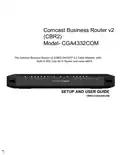


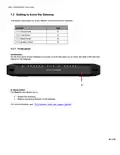


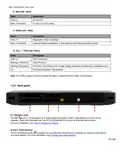


















CBR2 CGA4332COM- User Guide
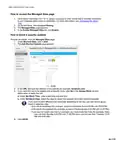
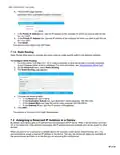
How to connect your computer on Windows 10
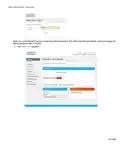
1. Click the wireless network icon ( ) in the notification area.
2. A list of available wireless networks appears.
3. Double-click the Gateway’s Network Name (SSID).
•
Use the Gateway’s Network Name (SSID) as printed on the bottom panel label.
4. Windows prompts you to enter the security key.
5. Type the Password (Key) from the Gateway's bottom panel label in the Enter the network securitykey
box and click Next.
6. A Windows prompt asks you if it should turn on sharing. Click Yes.
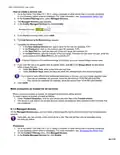
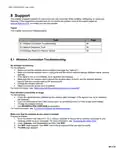
How to connect your computer on Windows 8
1. Click the wireless network icon ( ) in the notification area.
2. A list of available wireless networks appears.
3. Double-click the Gateway’s Network Name (SSID).
Use the Gateway Network Name as listed on the Gateway's back panel label. For more
information, see “Product label (item B)”.
28 of 51

| General | Details |
|---|---|
| Name | COMCAST CGA4332COM Advanced WiFi Gateway Router User Guide |
| Make | Comcast Business |
| Language | English |
| Filetype | PDF (Download) |
| File size | 0.88 MB |
 (1 votes, average: 5.00 out of 5)
 Loading...
If you have any questions regarding COMCAST CGA4332COM Advanced WiFi Gateway Router User Guide, please ask here and describe the problem in detail.


TP-Link G36 Gigabit VPN Router Installation Guide

ZYXEL NR5103EV2 5G NR Router User Guide

MobileMark TX54-A106 LTE Advanced Cellular Router User Manual

VEVOR 0700C Wood Router User Manual

TP-Link TL-MR3420 3G and 4G Wireless Router Installation Guide

NETGEAR NIGHTHAWK BE6500 Tri Band Wi-Fi 7 Router User Guide

Digital Alert Systems R232 Multi Port RF Router Installation Guide

HUAWEI B628-265 4G Router User Guide

NetComm CF40 Wi-Fi 6 Router User Guide

Shanghai Notion Information Technology M271T LTE Wireless Router User Guide