
Home > Comcast Business > COMCAST CGA4332COM Advanced WiFi Gateway Router User Guide
COMCAST CGA4332COM Advanced WiFi Gateway Router User Guide
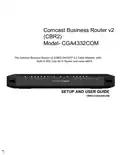


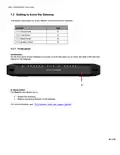


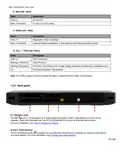


















CBR2 CGA4332COM- User Guide
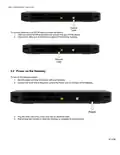
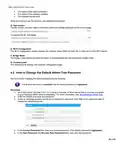
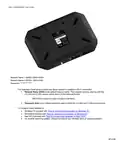
3. Angle the new battery/compartment door such that the guides in the bay and aligns with the slots on the battery
and insert the battery into the compartment.
4. Insert and tighten the screw above the battery compartment door.
4
Admin Tool
The Admin Tool allows you to configure the settings of your Gateway via your web browser, using a computer or
other device that is currently connected to your Gateway (either wired or wirelessly).
Note: The admin tool is only available when the device is connected to AC power.
Accessing the Admin Tool
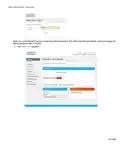
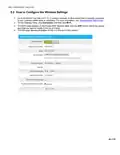
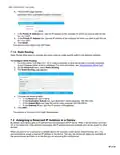
1. Open your web browser and go to http://10.1.10.1, using a computer or other device that is currently
connected to your Gateway (either wired or wirelessly).
On Windows, it is also possible to access the Admin Tool using UPnP. For more information, see
“7.1.1 UPnP”.
10.1.10.1 is the default IP address of the Gateway. If, at some point, you changed the IP address
of the Gateway, use that IP address instead.
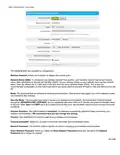
2. The Gateway prompts you to enter a username and password. Enter your username (default:
cusadmin) and password (default: highspeed) and click OK.
20 of 51

| General | Details |
|---|---|
| Name | COMCAST CGA4332COM Advanced WiFi Gateway Router User Guide |
| Make | Comcast Business |
| Language | English |
| Filetype | PDF (Download) |
| File size | 0.88 MB |
 (1 votes, average: 5.00 out of 5)
 Loading...
If you have any questions regarding COMCAST CGA4332COM Advanced WiFi Gateway Router User Guide, please ask here and describe the problem in detail.


TP-Link TL-WR3002X Portable Router Installation Guide

UBIQUITI ER-6P EdgeRouter 6P Gigabit Router User Guide

Tenda F3 300Mbps Wireless Router User Guide

xiaomi RA70 Mi Home Router User Guide

NIGHTHAWK RAX5 4 Stream AX1600 Dual Band WiFi 6 Router User Guide

ADVANTECH ICR-2701 Engineering Portal Cellular Router User Guide

Juniper NETWORKS ACX7024 Cloud Metro Router User Guide

peplink MAX Transit Pro Router User Manual

inseego 5G Router FX2000e User Guide

Adtran 854-(v)6 Service Delivery Gateway WiFi 6 2.5G Router User Guide