
Home > Comcast Business > COMCAST CGA4332COM Advanced WiFi Gateway Router User Guide
COMCAST CGA4332COM Advanced WiFi Gateway Router User Guide






















CBR2 CGA4332COM- User Guide
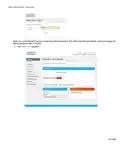
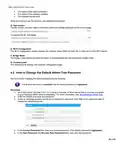
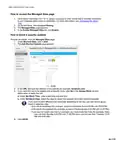
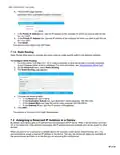
4. Windows prompts you to enter the security key.
5. Type the Password (Key) from the Gateway's bottom panel label in the Enter the network security key box and
click Next.
6. A Windows prompt asks you if it should turn on sharing. Click Yes.
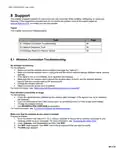
How to connect your computer on Mac OS X
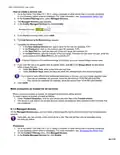
1. Click the Wi-Fi icon on the menu bar.
2. A list of available wireless networks appears.
3. Double-click the Gateway’s Network Name (SSID).
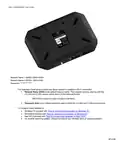
The Gateway’s Network Name (SSID) is printed on the Gateway's side or back panel label. For more
information, see “Product label (item B)”.
4. The Wi-Fi window prompts you to enter your WPA password.
5. In the Password box, type the Password (Key) which is printed on the Gateway's bottom panel label, then select
the Remember this network box and click OK.
6. You are now connected to the Gateway network.
29 of 51

| General | Details |
|---|---|
| Name | COMCAST CGA4332COM Advanced WiFi Gateway Router User Guide |
| Make | Comcast Business |
| Language | English |
| Filetype | PDF (Download) |
| File size | 0.88 MB |
 (1 votes, average: 5.00 out of 5)
 Loading...
If you have any questions regarding COMCAST CGA4332COM Advanced WiFi Gateway Router User Guide, please ask here and describe the problem in detail.


NETGEAR M5 Nighthawk 5G Mobile Router User Guide

OzSpy HAIX1RT2MP Hidden Camera Router User Manual

Intesis INBACRTR0320000 BACnet MS-TP to BACnet-IP Router Owner’s Manual

WAVLINK AC1200 WiFi Router Instructions
REYEE RG-E4 Networking Router Installation Guide

caravansplus RV WI-FI Dishydock Router User Guide

mafell LO 55 Hand Router Instruction Manual

ADVANTECH SL302 SmartStart LTE Router User Manual

Tenda N300 WiFi VDSL/ADSL Modem Router V300 Installation Guide

TP-Link X50-5G Whole Home Mesh Wi-Fi 6 Router User Guide