×
- 1. User Guide: Datto Dse641t & Dse641tl
- 2. Model Differences (Mounting And Installation Instructions → Creating A Network On Network Manager → Configuring A Network → Monitoring, Management And Troubleshooting → Additional Resources → Appendix A: Fcc Statement)
- 3. Wifi Transfer Rate (Wifi Supported Frequency Range → Wifi Antenna → Lte Supported Bands → Installation Environment → Mounting → Warranty)
- 4. Product Overview
- 5. Included Accessories
- 6. Mounting And Installation Instructions (Caution → Ensure That Protective Earth Grounding Is Available For The Device → Step 1, Connect Wifi And Lte Antennas)
- 7. Step 2, Plug In Ethernet Cable From The Isp Into Ethernet Wan Port 0 (Step 3, Plug In The 54v Dc Power Supply)
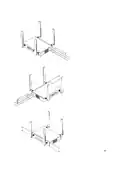
- 8. How To Mount Device On Desktop (How To Assemble Unit For Rackmounting Using Rack Ears → Rack Orientation 1 (ethernet Ports In The Rear))
- 9.
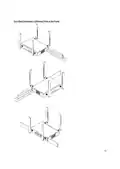
- 10. Rack Orientation 2 (ethernet Ports In The Front)
- 11. Creating A Network (Overview: What Were Doing → Log Into Your Datto Partner Portal → Well Create A New Network On Network Manager → Well Add Access Points To The Network → Well Physically Install The Access Points)
- 12. What Youll Need (Terminology)
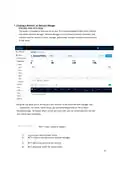
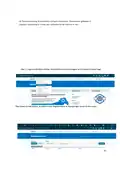
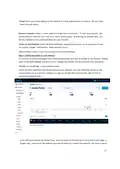
- 13. Step 1: Log Into The Datto Partner Portal And Navigate To The Network Status Page (Select To Add Device)
- 14. Create A New Network (Setting Up A New Network)
- 15. Network Name (Password)
- 16. Email (Network Location → Email For Notifications → Step 3: Add Access Points To Your Network)
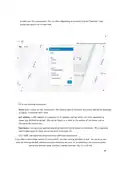
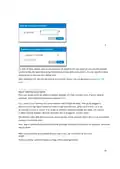
- 17. Fill In The Following Information: (Name: → Mac Address: → Description: → Click 'add' And Repeat The Process For Each Additional Access Point. → Add A Large Number Of Access Points → Uploading A List Of Access Points)
- 18. Step 4: Install The Access Points (Warning: The Ethernet Cable (poe Device) Must Be Connected Only To Poe Networks That Is Selv Circuit And Without Routing To The Outside Plant. → First, Connect Your Gateway Unit To The Internet With An Ethernet Cable. → Next, Plug In Additional Access Points As Either Gateways (connected To Ethernet) Or Repeaters, Connected Only To Power. → When Mounting Datto Access Points Directly Onto A Wall, Use A Minimum 30 Mm Screw Length. → To Ensure Strong, Consistent Signal Coverage, Follow These Guidelines:)
- 19. Place Your Gateway In The Center Of The Network (Configuring A Network → General Settings → Location → Network Name → Time Zone → Password)
- 20. Disablelimitedview (Email → Notificationemail → Emailalerts → Networknotes → Commonsettings → Authentication)
- 21. Availability (Schedule Wifi → Advanced Settings → Band Steering → 11r → Access Control List → Bridge To Lan)
- 22. Troubleshooting With Your Device With Lights (Common States (gateway And Repeater) → Additional Resources → Appendix A: Fcc Statements)
- 23. Fcc Radiation Exposure Statement (Fcc Caution → Installation Of The Equipment Must Comply With Local And National Electrical Codes → Only Trained And Qualified Professionals Should Be Allowed To Install, Replace Or Service This Equipment → This Device Complies With Part 15 Of The Fcc Rules → Reorient Or Relocate The Receiving Antenna → Increase The Separation Between The Equipment And Receiver)
- 24. Caution (Radiation Exposure Statement)
- 25. External Antenna List (Professional Installation Instruction → Installation Personal → Installation Location)
- 26. External Antenna (Installation Procedure → Warning → Installation → Emplacement D'installation → Avertissement)
- 27. Wifi Frequency And Maximum Transmitted Power (Wwan Frequency And Maximum Transmitted Power → Indoor Use Restrictions)
- 28. Simplified Eu Declaration Of Conformity (Compliance With Directive 2014/53/eu)
- 29. Installation (Setup → Configuration → Compliance → Requirements → Wireless Access Point → User Manual)
×
Datto DSE641T 2×2 WiFi 6 Router User Guide
| General | Details |
|---|---|
| Name | Datto DSE641T 2×2 WiFi 6 Router User Guide |
| Make | datto |
| Language | English |
| Filetype | PDF (Download) |
| File size | 0.7 MB |
If you have any questions regarding Datto DSE641T 2×2 WiFi 6 Router User Guide, please ask here and describe the problem in detail.


SEALEY CP20VTR 20V SV20 Series Cordless Trimming Router Instructions

DrayTek Vigor2865 Router User Guide

Imou AX3000 300 Mbps Wi-Fi 4G LTE Router User Guide

ASUS TUF-AX3000 V2 TUF Gaming AX3000 V2 Dual Band WiFi 6 Router User Guide
WEWINS M46Q 5G Mobile Router User Manual

ioGiant AX1800 Wi-Fi Router Smart Wireless Router Installation Guide

BELKIN F9K1001 N150 Wireless Router User Manual

Spectrum IP6442B WiFi 6E Router User Manual

TP-Link AX3000 WiFi 6 One Mesh Router Instruction Manual

GL iNet GL-A1300 AC1300 Gigabit Wireless Router User Guide
Table of Contents
- 1. User Guide: Datto Dse641t & Dse641tl →
- 2. Model Differences - Mounting And Installation Instructions →
- 3. Wifi Transfer Rate - Wifi Supported Frequency Range →
- 4. Product Overview →
- 5. Included Accessories →
- 6. Mounting And Installation Instructions - Caution →
- 7. Step 2, Plug In Ethernet Cable From The Isp Into Ethernet Wa... →
- 8. How To Mount Device On Desktop - How To Assemble Unit For Ra... →
- 9. Page 9 →
- 10. Rack Orientation 2 (ethernet Ports In The Front) →
- 11. Creating A Network - Overview: What Were Doing →
- 12. What Youll Need - Terminology →
- 13. Step 1: Log Into The Datto Partner Portal And Navigate To Th... →
- 14. Create A New Network - Setting Up A New Network →
- 15. Network Name - Password →
- 16. Email - Network Location →
- 17. Fill In The Following Information: - Name: →
- 18. Step 4: Install The Access Points - Warning: The Ethernet Ca... →
- 19. Place Your Gateway In The Center Of The Network - Configurin... →
- 20. Disablelimitedview - Email →
- 21. Availability - Schedule Wifi →
- 22. Troubleshooting With Your Device With Lights - Common States... →
- 23. Fcc Radiation Exposure Statement - Fcc Caution →
- 24. Caution - Radiation Exposure Statement →
- 25. External Antenna List - Professional Installation Instructio... →
- 26. External Antenna - Installation Procedure →
- 27. Wifi Frequency And Maximum Transmitted Power - Wwan Frequenc... →
- 28. Simplified Eu Declaration Of Conformity - Compliance With Di... →
- 29. Installation - Setup →