×
- 1. User Guide: Datto Dse641t & Dse641tl
- 2. Model Differences (Mounting And Installation Instructions → Creating A Network On Network Manager → Configuring A Network → Monitoring, Management And Troubleshooting → Additional Resources → Appendix A: Fcc Statement)
- 3. Wifi Transfer Rate (Wifi Supported Frequency Range → Wifi Antenna → Lte Supported Bands → Installation Environment → Mounting → Warranty)
- 4. Product Overview
- 5. Included Accessories
- 6. Mounting And Installation Instructions (Caution → Ensure That Protective Earth Grounding Is Available For The Device → Step 1, Connect Wifi And Lte Antennas)
- 7. Step 2, Plug In Ethernet Cable From The Isp Into Ethernet Wan Port 0 (Step 3, Plug In The 54v Dc Power Supply)
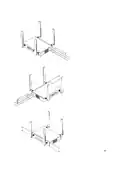
- 8. How To Mount Device On Desktop (How To Assemble Unit For Rackmounting Using Rack Ears → Rack Orientation 1 (ethernet Ports In The Rear))
- 9.
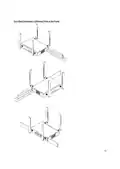
- 10. Rack Orientation 2 (ethernet Ports In The Front)
- 11. Creating A Network (Overview: What Were Doing → Log Into Your Datto Partner Portal → Well Create A New Network On Network Manager → Well Add Access Points To The Network → Well Physically Install The Access Points)
- 12. What Youll Need (Terminology)
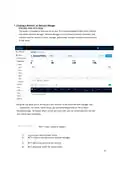
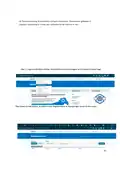
- 13. Step 1: Log Into The Datto Partner Portal And Navigate To The Network Status Page (Select To Add Device)
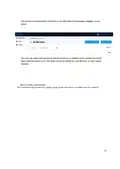
- 14. Create A New Network (Setting Up A New Network)
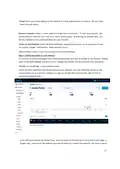
- 15. Network Name (Password)
- 16. Email (Network Location → Email For Notifications → Step 3: Add Access Points To Your Network)
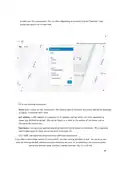
- 17. Fill In The Following Information: (Name: → Mac Address: → Description: → Click 'add' And Repeat The Process For Each Additional Access Point. → Add A Large Number Of Access Points → Uploading A List Of Access Points)
- 18. Step 4: Install The Access Points (Warning: The Ethernet Cable (poe Device) Must Be Connected Only To Poe Networks That Is Selv Circuit And Without Routing To The Outside Plant. → First, Connect Your Gateway Unit To The Internet With An Ethernet Cable. → Next, Plug In Additional Access Points As Either Gateways (connected To Ethernet) Or Repeaters, Connected Only To Power. → When Mounting Datto Access Points Directly Onto A Wall, Use A Minimum 30 Mm Screw Length. → To Ensure Strong, Consistent Signal Coverage, Follow These Guidelines:)
- 19. Place Your Gateway In The Center Of The Network (Configuring A Network → General Settings → Location → Network Name → Time Zone → Password)
- 20. Disablelimitedview (Email → Notificationemail → Emailalerts → Networknotes → Commonsettings → Authentication)
- 21. Availability (Schedule Wifi → Advanced Settings → Band Steering → 11r → Access Control List → Bridge To Lan)
- 22. Troubleshooting With Your Device With Lights (Common States (gateway And Repeater) → Additional Resources → Appendix A: Fcc Statements)
- 23. Fcc Radiation Exposure Statement (Fcc Caution → Installation Of The Equipment Must Comply With Local And National Electrical Codes → Only Trained And Qualified Professionals Should Be Allowed To Install, Replace Or Service This Equipment → This Device Complies With Part 15 Of The Fcc Rules → Reorient Or Relocate The Receiving Antenna → Increase The Separation Between The Equipment And Receiver)
- 24. Caution (Radiation Exposure Statement)
- 25. External Antenna List (Professional Installation Instruction → Installation Personal → Installation Location)
- 26. External Antenna (Installation Procedure → Warning → Installation → Emplacement D'installation → Avertissement)
- 27. Wifi Frequency And Maximum Transmitted Power (Wwan Frequency And Maximum Transmitted Power → Indoor Use Restrictions)
- 28. Simplified Eu Declaration Of Conformity (Compliance With Directive 2014/53/eu)
- 29. Installation (Setup → Configuration → Compliance → Requirements → Wireless Access Point → User Manual)
×
Datto DSE641T 2×2 WiFi 6 Router User Guide
| General | Details |
|---|---|
| Name | Datto DSE641T 2×2 WiFi 6 Router User Guide |
| Make | datto |
| Language | English |
| Filetype | PDF (Download) |
| File size | 0.7 MB |
If you have any questions regarding Datto DSE641T 2×2 WiFi 6 Router User Guide, please ask here and describe the problem in detail.


Smawave SRG821 Ruggedized Router User Guide

Cisco Router RV345/RV345P User Guide

TP-Link 7106511948 Outdoor Router Installation Guide

sunhans eSunFi SHFiEL40 eSIM 4G Portable Router User Manual

TP-Link AX6000 Stream Wi-Fi 6 Router Installation Guide

Ridgid R860443 18-VOLT CORDLESS COMPACT ROUTER User Guide

NETGEAR PR60X Pro 10G Multi Gigabit Dual WAN Pro Router Installation Guide

NORDIC M1R-DH2-12 Corded Router User Manual

CISCO RV320 Gigabit Dual WAN VPN Router User Guide
DrayTek Vigor2766 Series Fast Security Router User Guide
Table of Contents
- 1. User Guide: Datto Dse641t & Dse641tl →
- 2. Model Differences - Mounting And Installation Instructions →
- 3. Wifi Transfer Rate - Wifi Supported Frequency Range →
- 4. Product Overview →
- 5. Included Accessories →
- 6. Mounting And Installation Instructions - Caution →
- 7. Step 2, Plug In Ethernet Cable From The Isp Into Ethernet Wa... →
- 8. How To Mount Device On Desktop - How To Assemble Unit For Ra... →
- 9. Page 9 →
- 10. Rack Orientation 2 (ethernet Ports In The Front) →
- 11. Creating A Network - Overview: What Were Doing →
- 12. What Youll Need - Terminology →
- 13. Step 1: Log Into The Datto Partner Portal And Navigate To Th... →
- 14. Create A New Network - Setting Up A New Network →
- 15. Network Name - Password →
- 16. Email - Network Location →
- 17. Fill In The Following Information: - Name: →
- 18. Step 4: Install The Access Points - Warning: The Ethernet Ca... →
- 19. Place Your Gateway In The Center Of The Network - Configurin... →
- 20. Disablelimitedview - Email →
- 21. Availability - Schedule Wifi →
- 22. Troubleshooting With Your Device With Lights - Common States... →
- 23. Fcc Radiation Exposure Statement - Fcc Caution →
- 24. Caution - Radiation Exposure Statement →
- 25. External Antenna List - Professional Installation Instructio... →
- 26. External Antenna - Installation Procedure →
- 27. Wifi Frequency And Maximum Transmitted Power - Wwan Frequenc... →
- 28. Simplified Eu Declaration Of Conformity - Compliance With Di... →
- 29. Installation - Setup →