
Home > DIGITAL DEEP SEA > DIGITAL DEEP SEA 5G Xtream 5G/4G Router Instruction Manual
DIGITAL DEEP SEA 5G Xtream 5G/4G Router Instruction Manual
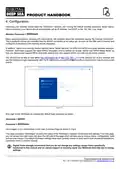
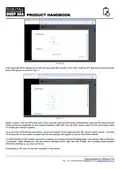
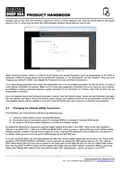


settings, click on the “Edit” icon (Pencil) in either the 2.4GHz or 5GHz network’s row. Now you will be taken to the screen
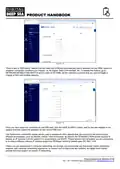
shown in Fig 14, where you can enter the SSID (Wireless Network Name) that you wish to use.
Figure 14
When choosing network names, it is best to avoid spaces and special characters (such as apostrophes) in the SSID or
password. Instead of using a space, use the underscore character, i.e. for “My Network” use “My_Network”. Once you have
changed your network’s SSID, now change the Password (must be more than 8 characters).
Try to use a strong password with at least one capital letter and a mix of numbers and letters. As with the SSID, it is best to
avoid special characters and spaces. Make sure to record your password somewhere secure but easy for you to access,
as resetting a wireless password requires a wired connection to the 5GXtream or a factory reset, both of which are not
always easy or practical.
Once the Network Name and Password have been entered, click the “Save & Apply” button and the 5GXtream will apply
the new settings and reboot. Due to the network name change, your wireless device will be dis-connected, so wait for the
new wireless network name to appear in your Wi-Fi scan list (50-60 secs) and connect to it using the new password.
4.3
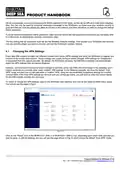
Changing the Internet (WAN) Connection
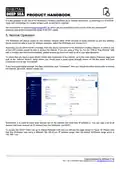
The 5GXtream can connect to the internet in the following ways:
1) Using the mobile network of the inserted SIM card(s)
2) Via another internet connection device, for example Starlink, connected to its wired WAN socket
3) By using one of its two wireless adaptors to connect to a wireless hotspot
By default the 5GXtream is designed to use the mobile network of the SIM in slot “SIM1” which in the web interface is
referred to as MOB1S1A1. It also has a SIM2 slot (MOB1S2A1) which can have a second SIM card, from another mobile
network operator, inserted. You will need to setup the Auto or Manual APN settings for each of SIM card, see section 4.1
for details, making sure to enter the correct APN settings for the right SIM card.
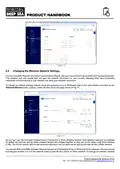
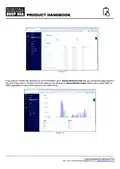
If you are using two SIMs, you will need to select the SIM card, whose mobile network you would like to use. This is done
by going to NETWORK>MOBILE>GENERAL and you will see the settings for SIM1 appear (see Fig 15). The “Default
SIM” switch will be ON and if you wish to switch to use SIM2, click on the SIM2 tab and turn ON the “Default SIM” switch.
Now click the SAVE & APPLY button and the modem will restart using the SIM2 network. Whichever SIM you set as the
default, the “Default SIM” switch of the other SIM will switch OFF automatically – you do not have to turn it OFF.
Product Handbook for 5GXtream V1.00

| General | Details |
|---|---|
| Name | DIGITAL DEEP SEA 5G Xtream 5G/4G Router Instruction Manual |
| Make | DIGITAL DEEP SEA |
| Language | English |
| Filetype | PDF (Download) |
| File size | 0.45 MB |
 (1 votes, average: 5.00 out of 5)
 Loading...
If you have any questions regarding DIGITAL DEEP SEA 5G Xtream 5G/4G Router Instruction Manual, please ask here and describe the problem in detail.


Tenda AC1200 Wi-Fi Modem Router Instruction Manual

CSG m212 Dual SIM Wi-Fi 6 Router User Guide

TP-Link Archer VR600 Wireless DSL Modem Router Installation Guide

TP-Link TL-WR940N Wireless N Router Installation Guide

TELTONIKA Networks RUT906 E-Mark 4G Router Owner’s Manual

BELKIN F9K1001 N150 Wireless Router User Manual

COMFAST CF-WR631AX Wireless Router Installation Guide

Cudy LT500D 4G AC1200 Wi-Fi Router Installation Guide

Juniper NETWORKS ACX Series Paragon Automation Router User Guide

NET MODULE NB1601 Router User Manual