
Home > DIGITAL YACHT > Digital Yacht NeXuX Connect WiFi Router Installation Guide
Digital Yacht NeXuX Connect WiFi Router Installation Guide


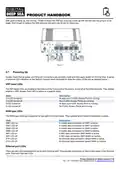


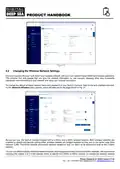


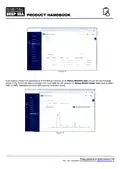


Figure 15
There is also a “SIM Switch” feature that will make the NeXuX Connect automatically switch between the two SIMs,
based on whatever connection conditions you choose, i.e. No Signal, Data Limit reached, etc. To enable this feature, go
to NETWORK>MOBILE>SIM SWITCH and for each of the SIMs, set the switching condition that you wish to trigger a
change of SIM card (mobile network).
Figure 16
Once you have setup the conditions for one SIM card, click the SAVE & APPLY button, wait for the new settings to be
applied and then repeat the operation for the second SIM card.
The NeXuX Connect’s wired WAN socket can be used to interface to other devices that can connect to the internet using
different technologies, such as Starlink, Iridium, VSat or Inmarsat. By default, the NeXuX Connect’s WAN socket expects
to receive an IP address from the system it is connecting to (via DHCP). Please ensure that the system you are
connecting to is using a different network IP address range than NeXuX Connect which by default uses 192.168.1.1/24
Unless you are experienced in computer networking, we strongly recommend that you find a local marine electronics
engineer with computer networking experience, to connect and configure the two systems, as Digital Yacht cannot
provide technical support on custom IT networking.
Product Handbook for NeXuX Connect V1.00

| General | Details |
|---|---|
| Name | Digital Yacht NeXuX Connect WiFi Router Installation Guide |
| Make | DIGITAL YACHT |
| Language | English |
| Filetype | PDF (Download) |
| File size | 0.3 MB |
 (1 votes, average: 5.00 out of 5)
 Loading...
If you have any questions regarding Digital Yacht NeXuX Connect WiFi Router Installation Guide, please ask here and describe the problem in detail.

DIGITAL YACHT 4GXtream NMEA 2000 3G or 4G Router Instruction Manual

DIGITAL YACHT 4GXtream NMEA 0183 3G or 4G Router Instruction Manual

DIGITAL YACHT Littoral Link 4G Router Instruction Manual


Carrier TV-ISO-E2 TruVu Isolated Network Router User Guide

Tenda 4G06 N300 WiFi 4G VoLTE Router Installation Guide

JUNIPER SSR1400 Session Router User Guide

Zyxel Nebula FWA510 5G LTE Modem Router User Guide

NETGEAR RS600 Nighthawk WiFi 7 Tri-Band Router User Manual

Asiatelco ATEL 5G CPE Accurate Router User Manual

ioGiant AX1800 Wi-Fi Router Smart Wireless Router Installation Guide

Tenda 4G185 4G/3G Portable Mobile Hotspot Router User Guide

MikroTik RBwAPG-5HacD2HnD Wireless Router User Guide

EnGenius XG60-FIT FitXpress 4 port Gigabit PoE plus VPV Router Owner’s Manual