
Home > DIGITAL YACHT > Digital Yacht NeXuX Connect WiFi Router Installation Guide
Digital Yacht NeXuX Connect WiFi Router Installation Guide




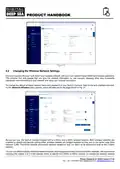


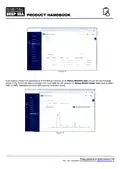


Figure 10
If the automatic APN settings do not work for your data SIM, turn the “Auto APN” mode to OFF and then some extra entry
boxes will appear as shown in Fig.11.
Figure 11
Select “Custom” from the APN drop down menu and then type the APN name, authentication type and the Username and
Password that are applicable for your network operator’s data SIM. You will either need to search for this information online
or contact your network operator.
Once all of the APN settings are entered, scroll to the bottom of the page and click the “Save & Apply” button. It will take
10-20 seconds for the modem to restart with the new settings and register on the on the mobile network
To check that the 4G/5G mobile connection is working, go to Status>Network>Mobile page. It should say Data Connection
“Connected”, State “Registered” with the network operator shown, SIM Card Info “Ready” and the Bytes Received/Sent
should be counting up, as shown in Fig.12.
If everything is OK, you will now be connected to the internet.
Product Handbook for NeXuX Connect V1.00

| General | Details |
|---|---|
| Name | Digital Yacht NeXuX Connect WiFi Router Installation Guide |
| Make | DIGITAL YACHT |
| Language | English |
| Filetype | PDF (Download) |
| File size | 0.3 MB |
 (1 votes, average: 5.00 out of 5)
 Loading...
If you have any questions regarding Digital Yacht NeXuX Connect WiFi Router Installation Guide, please ask here and describe the problem in detail.

DIGITAL YACHT 4GXtream NMEA 2000 3G or 4G Router Instruction Manual

DIGITAL YACHT 4GXtream NMEA 0183 3G or 4G Router Instruction Manual

DIGITAL YACHT Littoral Link 4G Router Instruction Manual


Promethean OPS-A Router Installation Guide

ASUS RT-BE88U Dual Band WiFi 7 Gaming Router User Guide

DrayTek Vigor2927 Dual-WAN VPN Firewall Router User Manual

Cudy WR1300 Wi-Fi Router Installation Guide

Mercury Asus RT-AC66-88U Fiber Dual-Band Wireless AC1750 Gigabit Router User Guide

TP-Link BE5000 Outdoor/ Mesh Wi-Fi 7 Router User Guide

LINOVISION IOT-R41 Mini 4G LTE Router User Manual

TP-Link Archer C7 Dual Band Gigabit Wireless Cable Router User Guide

TP-Link TL-WR841N 300Mbps Wireless N Router Installation Guide

TP-LINK AX1500 Dual Band Wi-Fi 6 Router Installation Guide