
Home > DIGITAL YACHT > Digital Yacht NeXuX Connect WiFi Router Installation Guide
Digital Yacht NeXuX Connect WiFi Router Installation Guide








We do not generally recommend changing the Admin password of the router, as this can be difficult to reset when forgotten.
Also, this can only be used by someone wirelessly connected to the NeXuX Connect, so make sure your wireless security
is good and that you trust the people you allow to connect to the network and there should be no need to change the
default Admin password.
If you do decide to change the Admin password, make sure you record the new password somewhere you can easily refer
to in the future, as resetting this involves a full factory reset.
The key setting that all customers must set are the Wireless Network settings. This secures your NeXuX Connect and
ensures only you and the people you want to connect, can join the NeXuX Connect wireless network.
4.1
Changing the APN Settings
Every data SIM network provider has different Access Point Name (APN) settings that allow the NeXuX Connect to
register and connect to the mobile data network. These settings can usually be found online (Google “APN settings for
Vodaphone”) or requested from the network provider. By default, the NeXuX Connect will query the SIM that is installed
and automatically select the APN settings from its internal database.
However, we have found that due to recent changes in services, some new SIMs are not included in the database and it
maybe necessary to manually enter some “custom” SIM settings. In the following example, we show the default “Auto
APN” mode and also how to manually enter a “custom” APN, using the recommended Vodaphone settings for monthly
contract SIMs. If the Auto APN settings do not work and you cannot get online, you will need to enter the correct details
for the SIM network provider you are using.
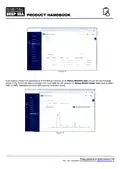
To check or change the APN settings, login to the NeXuX Connect web interface and click on the Network>WAN menu
option. You should see the page in Fig.9.
Figure 9
Click on the “Pencil” icon of the MOB1S1A1 (SIM 1) or MOB1S2A1 (SIM 2) row, depending upon which SIM card slot you
wish to setup, to edit the settings and you will see the page shown in Fig.10 which shows the default “Auto APN” mode.
Product Handbook for NeXuX Connect V1.00

| General | Details |
|---|---|
| Name | Digital Yacht NeXuX Connect WiFi Router Installation Guide |
| Make | DIGITAL YACHT |
| Language | English |
| Filetype | PDF (Download) |
| File size | 0.3 MB |
 (1 votes, average: 5.00 out of 5)
 Loading...
If you have any questions regarding Digital Yacht NeXuX Connect WiFi Router Installation Guide, please ask here and describe the problem in detail.

DIGITAL YACHT 4GXtream NMEA 0183 3G or 4G Router Instruction Manual

DIGITAL YACHT 4GXtream NMEA 2000 3G or 4G Router Instruction Manual

DIGITAL YACHT Littoral Link 4G Router Instruction Manual


TP-Link Archer MR400 4G LTE 300 Mbps Router Installation Guide

FALCON 150 Mbps 4G LTE Portable Router User Manual

UniFi WiFi 6 Router User Manual

Cudy LT500 4G LTE AC1200 Dual Band WiFi Router User Guide

Qolsys IQ WiFi 6 Router Instruction Manual

D-Link DIR-615 Wireless Router User Manual

Beijer CloudVPN Gateway Router User Guide

AIR DVW-642 WiFi Router User Guide

ENDY ESG610 Cloud Managed VPN Router User Guide

ASUS RT-AC86U AC2900 WiFi Gaming Router User Guide