
Home > intwine connected > intwine connected ICG-150 Gateway 150 Cellular Router User Guide
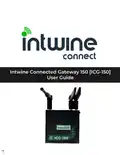
intwine connected ICG-150 Gateway 150 Cellular Router User Guide




ICG-150 USER GUIDE
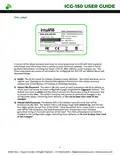
Default Settings
Out of the box, the ICG-150 is configured as a Wi-Fi/Ethernet LAN to Ethernet WAN/4G LTE
failover router.
All default usernames and passwords are printed on the label that can be seen on the
botom of the ICG-150. Devices can be connected to the router to access the Internet using
these Wi-Fi credentals or by plugging in via Ethernet LAN2. If you have an existng ISP or
primary Internet connecton please connect that via Ethernet to the WAN/LAN1 port. The
ICG-150 will then atempt to obtain a DHCP lease from the connected service.
When the ICG-150 detects that lack of an actve Internet connecton on the WAN/LAN1
Ethernet port it will automatcally switch to using cellular as the Internet connecton. This
may result in a short (<30 second) interrupton in service.
Changing Passwords
To change the administrator password hover over System and select Admin Access
To change the administrator password enter the old password and the new password twice,
then press the Apply buton at the botom of the page.
NETWORK CONFIGURATION
Wi-Fi
By default the Wi-Fi is configured as an Access Point (AP). To change to a client (also called
staton or STA), hover over Network then select Switch WLAN Mode.
11
©2022 Rev 1. Intwine Connect. All Rights Reserved. | +1(216)314-2922 | info@intwineconnect.com | intwineconnect.com

| General | Details |
|---|---|
| Name | intwine connected ICG-150 Gateway 150 Cellular Router User Guide |
| Make | intwine connected |
| Language | English |
| Filetype | PDF (Download) |
| File size | 0.51 MB |
 (1 votes, average: 5.00 out of 5)
 Loading...
If you have any questions regarding intwine connected ICG-150 Gateway 150 Cellular Router User Guide, please ask here and describe the problem in detail.


THREE CJB74V0HWAAC 4G Plus MiFi Mobile WiFi Router User Guide

westermo Merlin 4700 Series VDSL Cellular Router User Guide

cradlepoint E100 Enterprise Router Endpoints User Guide

Netcomm NF18MESH Upgraded WiFi Router User Guide

ASUS RT-AX82U V2 AX5400 Dual Band WiFi Router User Guide

TP-Link C5400X Wireless Router Installation Guide

NETGEAR RAX36 Nighthawk AX4 4-Stream AX3000 Wi-Fi Router Owner’s Manual

inseego 5G Router FX2000e User Guide

Amlogic S905W Android 7.0 TV Box y WiFi Router User Guide

cradlepoint CTR35 Wireless Router User Guide