
TP-Link Archer MR500 AC1200 Wireless Dual Band Gigabit Router User Guide
















Chapter 10
NAT Forwarding
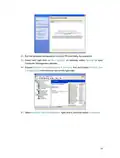
3 Click View Existing Applications, and select the desired application. The triggering
port and protocol, the external port and protocol will be auto-populated. Here we
take application MSN Gaming Zone as an example.
4 Click Save to apply the settings.
Tips:
1. You can add multiple port triggering rules according to your network need.
2. If the application you need is not listed in the Existing Applications list, please enter the parameters manually. You
should verify the external ports the application uses first and enter them into External Port field according to the
format the page displays.
10 4 Make Applications Free from Port Restriction
by DMZ
When a PC is set to be a DMZ (Demilitarized Zone) host in the local network, it is totally
exposed to the internet, which can realize the unlimited bidirectional communication
between internal hosts and external hosts. The DMZ host becomes a virtual server with
all ports opened. When you are not clear about which ports to open in some special
applications, like IP camera and database software, you can set the PC to be a DMZ
host.
Note:
DMZ is more applicable in the situation that users are not clear about which ports to open. When it is enabled, the DMZ
host is totally exposed to the internet, which may bring some potential safety hazard. If DMZ is not in use, please disable
it in time.
I want to:
Make the home PC join the internet online game without port restriction.
For example, due to some port restriction, when playing the online games, you can log
in normally but cannot join a team with other players. To solve this problem, set your PC
as a DMZ with all ports opened.
How can I do that?
1 Assign a static IP address to your PC, for example 192.168.1.100.
2 Visit http://tplinkmodem.net, and log in with the password or your TP-Link ID.
3 Go to Advanced > NAT Forwarding > DMZ and select the checkbox to enable DMZ.
4 Enter the IP address 192.168.1.100 in the DMZ Host IP Address filed.
43

| General | Details |
|---|---|
| Name | TP-Link Archer MR500 AC1200 Wireless Dual Band Gigabit Router User Guide |
| Make | TP-Link |
| Language | English |
| Filetype | PDF (Download) |
| File size | 1.32 MB |
 (1 votes, average: 5.00 out of 5)
 Loading...
If you have any questions regarding TP-Link Archer MR500 AC1200 Wireless Dual Band Gigabit Router User Guide, please ask here and describe the problem in detail.

TP-Link VR300 Archer Modem Router User Guide

TP-Link T150500-2-DT WiFi Router Instruction Manual

TP-Link Archer AX55 Wi-Fi 6 Router Installation Guide

TP-Link Omada ER8411 VPN Router Instructions

TP-Link Configure VDSL Router User Guide

TP-Link Archer BE805 BE19000 Tri-Band Wi-Fi 7 Router User Manual

TP-Link VR600 Wireless DSL Modem Router Installation Guide

TP-Link AX58 Dual Band Gigabit Wi-Fi 6 Router Installation Guide

TP-Link AC750 Wireless Dual Band Router Owner’s Manual

TP-Link AX6000 8-Stream Wi-Fi 6 Router Installation Guide


STARLINK LJ439RBIV3M5 Mini Router Installation Guide

NETGEAR R6700AX Wi-Fi 6 Router Instructions

ASUS RT-AX53U Dual Band Wi-Fi Router User Guide

LANCOM VPN 1793VAW Router Installation Guide

HITACHI M 12SA2 Bit Machine Molding Router Instruction Manual

TP-Link Archer A7 Wireless Dual Band Gigabit Router User Guide

DrayTek Vigor3910 Series Multi-WAN Security Router User Guide

MikroTik wAP ac Wireless Router User Manual

triton TMNRTR Electric Router Instruction Manual
TP-Link AX58 Dual Band Gigabit Wi-Fi 6 Router Installation Guide