
TP-Link Archer MR500 AC1200 Wireless Dual Band Gigabit Router User Guide
















Chapter 11
Specify Your Network Settings
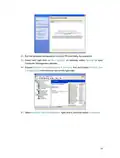
4 Enter the client device’s PIN in the field, then click Connect.
5 Connect successfully will appear on the above screen, which means the client
device has successfully connected to the router.
Method 3 Enter the router’s PIN on your client device
Use this method if your client device asks for the router’s PIN.
1 Visit http://tplinkmodem.net, and log in with the password or your TP-Link ID.
2 Go to Advanced > Wireless > WPS page.
3 Take a note of the Current PIN of the router. You can also click the Generate button
to get a new PIN.
4 On the client device, enter the router’s PIN. (The default PIN is also labeled on the
bottom of the router.)
5 The Wi-Fi LED flashes for about two minutes during the WPS process.
6 When the Wi-Fi LED is on, the client device has successfully connected to the
router.
Note:
1. The Wi-Fi LED on the router will light on for no more than five minutes if the device has been successfully added to
the network.
2. The WPS function cannot be configured if the wireless function of the router is disabled. Please make sure the
wireless function is enabled before configuring the WPS.
11 5 3 Schedule Your Wireless Function
You can automatically turn off your wireless network at time when you do not need the
wireless connection.
1 Visit http://tplinkmodem.net, and log in with the password or your TP-Link ID.
2 Go to Advanced > Wireless > Wireless Schedule page.
3 Toggle on the button to enable the Wireless Schedule feature.
55

| General | Details |
|---|---|
| Name | TP-Link Archer MR500 AC1200 Wireless Dual Band Gigabit Router User Guide |
| Make | TP-Link |
| Language | English |
| Filetype | PDF (Download) |
| File size | 1.32 MB |
 (1 votes, average: 5.00 out of 5)
 Loading...
If you have any questions regarding TP-Link Archer MR500 AC1200 Wireless Dual Band Gigabit Router User Guide, please ask here and describe the problem in detail.

TP-Link VR300 Archer Modem Router User Guide

TP-Link T150500-2-DT WiFi Router Instruction Manual

TP-Link Archer AX55 Wi-Fi 6 Router Installation Guide

TP-Link Omada ER8411 VPN Router Instructions

TP-Link Configure VDSL Router User Guide

TP-Link Archer BE805 BE19000 Tri-Band Wi-Fi 7 Router User Manual

TP-Link VR600 Wireless DSL Modem Router Installation Guide

TP-Link AX58 Dual Band Gigabit Wi-Fi 6 Router Installation Guide

TP-Link AC750 Wireless Dual Band Router Owner’s Manual

TP-Link AX6000 8-Stream Wi-Fi 6 Router Installation Guide


hitron ARIA2513 Wifi Router Installation Guide
wildanet SDG 800 Series Broadband Router User Guide

TP-Link EC223-G5 Aginet AC1200 MU-MIMO Wi-Fi Router User Manual

U-speed N300 Wireless Router User Manual

TP-Link Omada Gigabit VPN Router with PoE+ Ports and Controller Ability Installation Guide

D-Link M60 AX6000 Wi-Fi 6 Smart Mesh Router Installation Guide

AntennaGear TX54 5G Dual Cellular Router Owner’s Manual

Cudy X6 AX1800 1800mbps Dual Band Wi-Fi 6 Router Installation Guide

UBIQUITI UISP Power Pro Router User Guide

ZYXEL SCR 50AXE Secure Cloud-Managed Router with AXE5400 Tri-Band Wifi 6E User Guide