
TP-Link Archer MR500 AC1200 Wireless Dual Band Gigabit Router User Guide
















Chapter 11
Specify Your Network Settings
• Group Key Update Period - Enter the number of seconds (minimum 30) to control the
time interval for the encryption key automatic renewal. The default is 0, indicating no
key renewal.
• WMM - This feature guarantees the packets with high-priority messages being
transmitted preferentially. WMM is enabled compulsively under 802.11n or 802.11ac
mode. It is strongly recommended to enable WMM.
• Short GI - This feature is enabled by default and recommended to increase the data
capacity by reducing the Guard Interval (GI) time.
• AP Isolation - Select this checkbox to enable the AP Isolation feature that allows you
to confine and restrict all wireless devices on your network from interacting with each
other, but still able to access the internet. AP isolation is disabled by default.
11 6 Set Up a Dynamic DNS Service Account
Most ISPs (internet service providers) assign a dynamic IP address to the router and
you can use this IP address to access your router remotely. However, the IP address
can change any time and you don’t know when it changes. In this case, you might need
the DDNS (Dynamic Domain Name Server) feature on the router to allow you and your
friends to access your router and local servers (FTP, HTTP, etc.) using domain name, in
no need of checking and remembering the IP address.
Note:
DDNS does not work if the ISP assigns a private WAN IP address (such as 192.168.1.x) to the router.
To set up DDNS, please follow the instructions below:
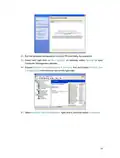
1 Visit http://tplinkmodem.net, and log in with the password or your TP-Link ID.
2 Go to Advanced > Network> Dynamic DNS.
3 Select the DDNS Service Provider: TP-Link, NO-IP or DynDNS. It is recommended
to select TP-Link so that you can enjoy TP-Link’s superior DDNS service. Otherwise,
please select NO-IP or DynDNS. If you don’t have a DDNS account, you have to
register first by clicking Go to register.
58

| General | Details |
|---|---|
| Name | TP-Link Archer MR500 AC1200 Wireless Dual Band Gigabit Router User Guide |
| Make | TP-Link |
| Language | English |
| Filetype | PDF (Download) |
| File size | 1.32 MB |
 (1 votes, average: 5.00 out of 5)
 Loading...
If you have any questions regarding TP-Link Archer MR500 AC1200 Wireless Dual Band Gigabit Router User Guide, please ask here and describe the problem in detail.

TP-Link VR300 Archer Modem Router User Guide

TP-Link T150500-2-DT WiFi Router Instruction Manual

TP-Link Archer AX55 Wi-Fi 6 Router Installation Guide

TP-Link Omada ER8411 VPN Router Instructions

TP-Link Configure VDSL Router User Guide

TP-Link Archer BE805 BE19000 Tri-Band Wi-Fi 7 Router User Manual

TP-Link VR600 Wireless DSL Modem Router Installation Guide

TP-Link AX58 Dual Band Gigabit Wi-Fi 6 Router Installation Guide

TP-Link AC750 Wireless Dual Band Router Owner’s Manual

TP-Link AX6000 8-Stream Wi-Fi 6 Router Installation Guide


Трохи зачекайте…

LANCOM SYSTEMS 1800EF-4G High Availability Networking Via Fiber Router Owner’s Manual

Gigastone R101 Mini Wireless Pack Travel Router Installation Guide

TP-Link Deco X50-PoE Router User Guide

HUAWEI EG8147X6-10 OptiXstar WiFi Router Instruction Manual

ASUS TUF-BE6500 TUF Gaming Dual Band WiFi 7 Router User Guide

CNCU DZB200 Easy Route CNC Router Instructions

ESR C4DM-ADAE-C0S0CCLEH-HCv1 4G Hybrid Router Installation Guide

HQTelecom HQ-3232B-911 Call Re Router Instruction Manual

CSG F219 5G Wi-Fi 6 Router User Guide