
TP-Link Archer MR500 AC1200 Wireless Dual Band Gigabit Router User Guide
















Chapter 11
Specify Your Network Settings
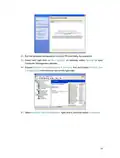
• Network Destination - The destination IP address that you want to assign to a static
route. This IP address cannot be on the same subnet with the WAN IP or LAN IP of the
router. In the example, the IP address of the company network is the destination IP
address, so here enters 172.30.30.1.
• Subnet Mask - Determines the destination network with the destination IP address.
If the destination is a single IP address, enter 255.255.255.255; otherwise, enter the
subnet mask of the corresponding network IP. In the example, the destination network
is a single IP, so here enters 255.255.255.255.
• Gateway - The IP address of the gateway device to which the data packets will be
sent. This IP address must be on the same subnet with the router’s IP which sends out
the data. In the example, the data packets will be sent to the LAN port of Router 2 and
then to the Server, so the gateway should be 192.168.1.2
• Interface - Determined by the port that sends out the data packets. In the example,
the data is sent to the gateway through the LAN port.
5 Select the checkbox to enable this entry.
6 Click Save to save the settings.
Done!
Open a web browser on your PC. Enter the company server’s IP address to visit the
company network.
11 8 Set up a VPN Connection
VPN (Virtual Private Network) is a private network established across the public network,
generally via the internet. However, the private network is a logical network without any
physical network lines, so it is called Virtual Private Network.
61

| General | Details |
|---|---|
| Name | TP-Link Archer MR500 AC1200 Wireless Dual Band Gigabit Router User Guide |
| Make | TP-Link |
| Language | English |
| Filetype | PDF (Download) |
| File size | 1.32 MB |
 (1 votes, average: 5.00 out of 5)
 Loading...
If you have any questions regarding TP-Link Archer MR500 AC1200 Wireless Dual Band Gigabit Router User Guide, please ask here and describe the problem in detail.

TP-Link VR300 Archer Modem Router User Guide

TP-Link T150500-2-DT WiFi Router Instruction Manual

TP-Link Archer AX55 Wi-Fi 6 Router Installation Guide

TP-Link Omada ER8411 VPN Router Instructions

TP-Link Configure VDSL Router User Guide

TP-Link Archer BE805 BE19000 Tri-Band Wi-Fi 7 Router User Manual

TP-Link VR600 Wireless DSL Modem Router Installation Guide

TP-Link AX58 Dual Band Gigabit Wi-Fi 6 Router Installation Guide

TP-Link AC750 Wireless Dual Band Router Owner’s Manual

TP-Link AX6000 8-Stream Wi-Fi 6 Router Installation Guide


HERCULES HE042 Compact Trim Router Owner’s Manual

TP-Link TD-W8951ND Wireless DSL Modem Router Installation Guide

Firstnum C401 CPE Router User Manual

TP-Link ER7212PC Omada Gigabit VPN Router with PoE+ Ports and Controller Ability Installation Guide

LANCOM SYSTEMS 1790-4G+ High-Performance VPN Router Installation Guide

Tenda 4G05 Wi-Fi 4G LTE Router Installation Guide

Newland NL-81 Router User Manual

TELTONIKA RUT955 LTE Router User Guide

U-speed N300 Wireless Router User Manual

HUAWEI WS880 802.11ac Wireless Router User Guide