
TP-Link Archer MR500 AC1200 Wireless Dual Band Gigabit Router User Guide
















Chapter 11
Specify Your Network Settings
2. You can also appoint IP addresses within a specified range to devices of the same type by using Condition Pool
feature. For example, you can assign IP addresses within the range (192.168.1.50 to192.168.1.80) to Camera devices,
thus facilitating the network management. Enable DHCP feature and configure the parameters according to your
actual situation on Advanced > Network > LAN Settings page.
11 4 3 Reserve LAN IP Addresses
You can view and add a reserved address for a client. When you specify an IP address
for a device on the LAN, that device will always receive the same IP address each time
when it accesses the DHCP server. If there are some devices in the LAN that require
permanent IP addresses, please configure Address Reservation on the router for the
purpose.
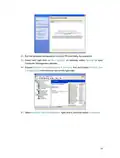
Follow the steps below to reserve an IP address for your device.
1 Visit http://tplinkmodem.net, and log in with the password or your TP-Link ID.
2 Go to Advanced > Network > LAN Settings page.
3 Scroll down to locate the Address Reservation table and click Add to add an address
reservation entry for your device.
4 Enter the MAC address of the device for which you want to reserve IP address.
5 Specify the IP address which will be reserved by the router.
6 Check Enable this entry and click Save to make the settings effective.
51

| General | Details |
|---|---|
| Name | TP-Link Archer MR500 AC1200 Wireless Dual Band Gigabit Router User Guide |
| Make | TP-Link |
| Language | English |
| Filetype | PDF (Download) |
| File size | 1.32 MB |
 (1 votes, average: 5.00 out of 5)
 Loading...
If you have any questions regarding TP-Link Archer MR500 AC1200 Wireless Dual Band Gigabit Router User Guide, please ask here and describe the problem in detail.

TP-Link VR300 Archer Modem Router User Guide

TP-Link T150500-2-DT WiFi Router Instruction Manual

TP-Link Archer AX55 Wi-Fi 6 Router Installation Guide

TP-Link Omada ER8411 VPN Router Instructions

TP-Link Configure VDSL Router User Guide

TP-Link Archer BE805 BE19000 Tri-Band Wi-Fi 7 Router User Manual

TP-Link VR600 Wireless DSL Modem Router Installation Guide

TP-Link AX58 Dual Band Gigabit Wi-Fi 6 Router Installation Guide

TP-Link AC750 Wireless Dual Band Router Owner’s Manual

TP-Link AX6000 8-Stream Wi-Fi 6 Router Installation Guide


NRadio Technologies C2000 4G LTE Router Installation Guide

TP-Link T120200-2B1 Omada Cat6 Gigabit VPN Router Instructions

TP-Link TL-WR1502X AX1500 WiFi 6 Travel Router Installation Guide
REYEE AX3000 Home Wi-Fi Router Instruction Manual

D-Link BE3600 Mesh Gigabit Wireless Router Installation Guide

AMTEL AMT5500 Router User Manual

STARLINK Mini Kit Dish With Built In Router User Guide

LINOVISION IOT-R32W Rugged and Versatile Cellular Router Instructions

ASUS ZenWiFi XT9 AX7800 Tri Band WiFi Router User Guide

wildanet Adtran Broadband Router User Guide