
TP-Link Archer MR500 AC1200 Wireless Dual Band Gigabit Router User Guide
















Chapter 12
Administrate Your Network
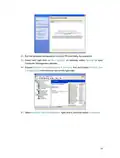
3. Focus on the Online Upgrade section, and click Upgrade.
4. Wait a few moments for the upgrading and rebooting.
12 4 2 Local Upgrade
1. Download the latest firmware file for the router from our website www.tp-link.com.
2. Visit http://tplinkmodem.net, and log in with the password or your TP-Link ID.
3. Go to Advanced > System Tools > Firmware Upgrade.
4. Focus on the Device Information section. Make sure the downloaded firmware file
matches with the Hardware Version.
5. Focus on the Local Upgrade section. Click Browse to locate the downloaded new
firmware file, and click Upgrade.
6. Wait a few moments for the upgrading and rebooting.
12 5 Back up and Restore Configuration Settings
The configuration settings are stored as a configuration file in the router. You can back
up the configuration file to your computer for future use and restore the router to a
previous settings from the backup file when needed. Moreover, if needed you can erase
the current settings and reset the router to the default factory settings.
•
To back up configuration settings:
1 Visit http://tplinkmodem.net, and log in with the password or your TP-Link ID.
2 Click Advanced > System Tools > Backup & Restore page.
3 Click Backup to save a copy of the current settings to your local computer. A conf.
bin file will be stored to your computer.
72

| General | Details |
|---|---|
| Name | TP-Link Archer MR500 AC1200 Wireless Dual Band Gigabit Router User Guide |
| Make | TP-Link |
| Language | English |
| Filetype | PDF (Download) |
| File size | 1.32 MB |
 (1 votes, average: 5.00 out of 5)
 Loading...
If you have any questions regarding TP-Link Archer MR500 AC1200 Wireless Dual Band Gigabit Router User Guide, please ask here and describe the problem in detail.

TP-Link VR300 Archer Modem Router User Guide

TP-Link T150500-2-DT WiFi Router Instruction Manual

TP-Link Archer AX55 Wi-Fi 6 Router Installation Guide

TP-Link Omada ER8411 VPN Router Instructions

TP-Link Configure VDSL Router User Guide

TP-Link Archer BE805 BE19000 Tri-Band Wi-Fi 7 Router User Manual

TP-Link AX6000 8-Stream Wi-Fi 6 Router Installation Guide

TP-Link VR600 Wireless DSL Modem Router Installation Guide

TP-Link AX58 Dual Band Gigabit Wi-Fi 6 Router Installation Guide

TP-Link AC750 Wireless Dual Band Router Owner’s Manual


DrayTek Vigor2135 Gigabit Broadband Router User Guide

Vantron Technology R105 Router User Manual
Cudy WR3000 AX3000 Wi-Fi 6 Mesh Router User Guide

LINKSYS AX3200 Dual-Band Gigabit Wi-Fi 6 Router User Guide

Kajeet 975 SmartSpot Network Router User Guide

Edge-core AS7926-40XKFB 100G Aggregation Router User Guide

Ruijie EG105GWT Wi-Fi 5 1267Mbps Wireless All-in-One Router User Manual

D-Link DSL-G604T Wireless ADSL Router Instruction Manual

Actiontec WF-815 Tri-Band Wi-Fi6E Router Owner’s Manual

WolfPack HDTVHDMX0808 4K 8×8 HDMI Matrix Router User Manual