
TP-Link Archer MR500 AC1200 Wireless Dual Band Gigabit Router User Guide
















Chapter 12
Administrate Your Network
12 4 Update the Firmware
TP-Link is dedicated to improving and richening the product features, giving you a
better network experience.
We will inform you through the web management page if there’s any update firmware
available for your router. Also, the latest firmware will be released at TP-Link official
website, you can download it from the Support page of our website www.tp-link.com
for free.
Note:
1. Make sure that you have a stable connection between the router and your computer. It is NOT recommended to
upgrade the firmware wirelessly.
2. Make sure you remove any USB storage device connected to the router before the firmware upgrade to prevent data
loss.
3. Back up your router configuration before upgrading the firmware.
4. Do NOT turn off the router during the firmware upgrade.
12 4 1 Online Upgrade
1. Visit http://tplinkmodem.net, and log in with the password or your TP-Link ID.
2. If there’s any firmware update available for your router, the update icon
will display
on the top-right corner of the page. Click the icon to go to the Firmware Upgrade
page. Alternatively, you can go to Advanced > System Tools > Firmware Upgrade, and
click Check for Upgrades to see if there’s any new firmware.
Tips:
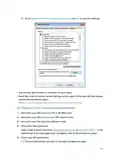
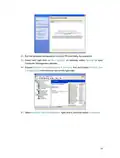
If there’s any new important firmware update for your router, you will see the notification (similar as shown below) on
your computer when open a new web page. Click Upgrade Now, and log in to the web management page. You will see
the Firmware Upgrade page.
71

| General | Details |
|---|---|
| Name | TP-Link Archer MR500 AC1200 Wireless Dual Band Gigabit Router User Guide |
| Make | TP-Link |
| Language | English |
| Filetype | PDF (Download) |
| File size | 1.32 MB |
 (1 votes, average: 5.00 out of 5)
 Loading...
If you have any questions regarding TP-Link Archer MR500 AC1200 Wireless Dual Band Gigabit Router User Guide, please ask here and describe the problem in detail.

TP-Link VR300 Archer Modem Router User Guide

TP-Link T150500-2-DT WiFi Router Instruction Manual

TP-Link Archer AX55 Wi-Fi 6 Router Installation Guide

TP-Link Omada ER8411 VPN Router Instructions

TP-Link Configure VDSL Router User Guide

TP-Link Archer BE805 BE19000 Tri-Band Wi-Fi 7 Router User Manual

TP-Link VR600 Wireless DSL Modem Router Installation Guide

TP-Link AX58 Dual Band Gigabit Wi-Fi 6 Router Installation Guide

TP-Link AC750 Wireless Dual Band Router Owner’s Manual

TP-Link AX6000 8-Stream Wi-Fi 6 Router Installation Guide


TP-Link AX1800 Wireless Router User Manual

LINKSYS WRT54G Wireless G Router Instructions

Shenzhen Xinfengweiye Technology U850 4G Wireless Router User Manual

NetComm NTC-500 5G IoT Router Instructions

Cudy LT500D Dual Band Unlocked 4G LTE Modem Router Installation Guide

ASUS RT-AX58U AX3000 Dual Band Wi-Fi Router User Guide

porodo PD-4GCPMF-BK 4G/LTE Home and Outdoor Portable Router Instruction Manual

TP-Link TL-WR802N N300 WLAN Nano Router User Guide

Ruijie RG-EG105GW-X Wi-Fi High Performance Router User Manual

CME H2MIDI PRO Compact USB Host MIDI Interface Plus Router User Manual