
TP-Link Archer MR500 AC1200 Wireless Dual Band Gigabit Router User Guide














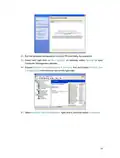


2 ) Go to Advanced > Network > Internet to verify the parameters (including the
APN, Username and Password) provided by your ISP are correctly entered. If the
parameters are incorrect, click Create Profile and enter the correct parameters,
then select the new profile from the Profile Name list.
6 Check the PIN settings:
1 ) Open a web browser and log in to the web management page.
2 ) Go to Advanced > Network > PIN Management to verify if PIN is required. If it is,
enter the correct PIN provided by your ISP or disable PIN Lock, and click Save.
7 Check the Data Limit:
1 ) Open a web browser and log in to the web management page.
2 ) Go to Advanced > Network > Data Settings to verify if the Total Used exceeds
the Total Allowance or if the Monthly Used exceeds the Monthly Allowance. If it
does, click Correct and set Total/Monthly Used to 0 (zero), or disable Data Limit.
8 Check the Mobile Data:
1 ) Open a web browser and log in to the web management page.
2 ) Go to Advanced > Network > Internet to verify that Mobile Data is enabled. If
not, toggle it On to access the internet.
9 Check the Data Roaming:
1 ) Confirm with your ISP if you are in a roaming service area. If you are, open a web
browser and log in to the web management page.
2 ) Go to Advanced > Network > Internet to verify that Data Roaming is enabled. If
not, toggle it On to access the internet.
Q5 What should I do if my internet speed is slow?
1 Make sure you are inside a network coverage area.
2 Relocate your router and your computer to have a better signal reception – you may
be in or near a structure that is blocking the signal. Obstacles (for example, walls,
ceilings, and furniture) between the router and other wireless devices decreases
the signal strength.
3 The 2.4GHz Wi-Fi network may be interfered. It is recommended to use the 5GHz
Wi-Fi network if your devices support it. Visit http://tplinkmodem.net, and log in with
the password or your TP-Link ID. Go to Basic > Wireless page and enable Wireless
Network 5GHz. Then you can search the SSID of your 5GHz wireless network on
your wireless devices and connect to it.
96

| General | Details |
|---|---|
| Name | TP-Link Archer MR500 AC1200 Wireless Dual Band Gigabit Router User Guide |
| Make | TP-Link |
| Language | English |
| Filetype | PDF (Download) |
| File size | 1.32 MB |
 (1 votes, average: 5.00 out of 5)
 Loading...
If you have any questions regarding TP-Link Archer MR500 AC1200 Wireless Dual Band Gigabit Router User Guide, please ask here and describe the problem in detail.

TP-Link VR300 Archer Modem Router User Guide

TP-Link T150500-2-DT WiFi Router Instruction Manual

TP-Link Archer AX55 Wi-Fi 6 Router Installation Guide

TP-Link Omada ER8411 VPN Router Instructions

TP-Link Configure VDSL Router User Guide

TP-Link Archer BE805 BE19000 Tri-Band Wi-Fi 7 Router User Manual

TP-Link AX6000 8-Stream Wi-Fi 6 Router Installation Guide

TP-Link VR600 Wireless DSL Modem Router Installation Guide

TP-Link AX58 Dual Band Gigabit Wi-Fi 6 Router Installation Guide

TP-Link AC750 Wireless Dual Band Router Owner’s Manual


cradlepoint CTR35 Wireless Router User Guide
Synology WRX560 Wifi Router User Manual
TP-Link T150500-2-DT WiFi Router Instruction Manual

Intesis INBACRTR0320000 BACnet MS-TP to BACnet-IP Router Owner’s Manual

ASUS ROG Rapture GT-BE98 Pro BE30000 Quad Band Gaming Router User Guide

ASUS GT-AX6000 Dual Band Gaming Router User Guide

TP-Link AC1200 Wireless Dual Band Gigabit Router Installation Guide
UniFi A3000 WiFi 6 Router User Manual

TP-Link Archer MR200 Wireless Dual Band 4G LTE Router User Guide

deco X50 Modem Unboxing Router User Guide