
Dynalink DL-WRX36 WiFi 6 AX3600 Router User Guide








DynalinkXDL-WRX36 | FAQ & Troubleshooting
reset.
For hardware reset, please use a pin or sharp-pointed pen to press and hold on the reset button till
the LED start to blink blue, you need to hold the reset roughly 10 seconds. Please note if you just punch the
reset button once, Dynalink Router will reboot, but not reset to default.
Please check the LED behavior carefully during hardware reset. The LED should first start to blink blue
for a few seconds, indicating it is doing reset to default. Then the LED will become solid red, indicating it is doing
power cycle. Then the LED will blink blue for about 45 seconds, and then become solid blue when system is ready.
If you do not observe the exact same LED behavior, maybe you did not press and hold the reset button long
enough, and you should try it again.
Features
What is DHCP normal mode? When should I use it?
In some regions, the ISP modem provides DHCP internet but the router will show Your “ISP's DHCP
does not function correctly,” sometimes it’s about the query time frequency of the router, by default, it’s aggressive
mode, however this mode will cause some ISP modem to not provide proper IP address to router.
Therefore, you can modify the DHCP query frequency to be in the normal mode.
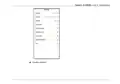
Go to WAN > INTERNET and find DHCP Query Frequency.
Select normal mode and hit Save button.

| General | Details |
|---|---|
| Name | Dynalink DL-WRX36 WiFi 6 AX3600 Router User Guide |
| Make | DynaLink |
| Language | English |
| Filetype | PDF (Download) |
| File size | 1.36 MB |
 (1 votes, average: 5.00 out of 5)
 Loading...
If you have any questions regarding Dynalink DL-WRX36 WiFi 6 AX3600 Router User Guide, please ask here and describe the problem in detail.

Dynalink AX3600 Stream WiFi Router User Guide


GL iNet XE2000 Dual SIM Wi-Fi 6 Router User Guide

TELTONIKA RUT976 5G Router User Guide

NETGEAR RAXE290S 8 Stream Tri Band WiFi 6E Router User Guide

NetComm CF40 Wi-Fi 6 Router User Guide

Spectrum 20240729 WiFi 6E Router User Guide

Doonink FW40-WIFI Wi-Fi Router User Manual

FALCON 1800 5G Ready Omni Directional Antenna Plus Router User Manual

Fiberhome Telecommunication Technologies Co Ltd SR1021F Wireless Router User Manual

devolo Giga Bridge Connecting ONT and Router Installation Guide

airlive XPON ONU Wifi6 MESH Router User Manual