
Dynalink DL-WRX36 WiFi 6 AX3600 Router User Guide








DynalinkXDL-WRX36 | FAQ & Troubleshooting
Cannot connect to the Wi-Fi network
The Wi-Fi signal strength affects the connection stability between your devices and router. Try the
following solutions to improve the Wi-Fi connection quality:
1. Move your devices closer to the router to boost Wi-Fi signal.
2. Avoid installing the router beside household appliances or physical barriers that may cause
interference, e.g. microwave ovens, radio transmitters, wireless devices that operate at 2.4/5GHz
like cordless phones or baby monitors, some types of material barrier that will weaken Wi-Fi signal
are metal, bulletproof glass, concrete, plaster, marble and brick objects.
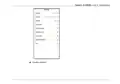
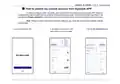
3. Verify the Wi-Fi network name (SSID) and password. For your convenience, Dynalink APP allows
you to scan the QR code located at the bottom of Router to establish Wi-Fi connection without
entering password. However, if the default SSID has been modified, you will need to operate
manually instead.
When choosing a custom Wi-Fi network name (SSID) and password, it is suggested to use a
combination of only English letters and numbers, avoid usage of special characters. Some home IoT devices
might not be able to handle special characters.
Why I cannot use login.dynalink to login to Dynalink WebGUI from
my PC? But 192.168.216.1(default Router IP) can work?
Dynalink Router listens to IPv4 DNS query from your PC. When it detects login.dynalink, it will return
its own IPv4 address (192.168.216.1 or new Router IP changed by user), so your PC know where to direct the
WebGUI requests. However, if you have manually set up remote DNS server on your PC/laptop, such as Google
DNS or Cloudflare DNS, then Dynalink Router will not detect the DNS request. Therefore, your PC/laptop cannot
connect to Dynalink Router.

| General | Details |
|---|---|
| Name | Dynalink DL-WRX36 WiFi 6 AX3600 Router User Guide |
| Make | DynaLink |
| Language | English |
| Filetype | PDF (Download) |
| File size | 1.36 MB |
 (1 votes, average: 5.00 out of 5)
 Loading...
If you have any questions regarding Dynalink DL-WRX36 WiFi 6 AX3600 Router User Guide, please ask here and describe the problem in detail.

Dynalink AX3600 Stream WiFi Router User Guide


TAIKO AUDIO TAP0016 Extreme Router User Guide

TP-Link Archer AX12 Dual Band Wi-Fi 6 Router Installation Guide

JUNIPER NETWORKS PTX10004 Packet Transport Router User Guide

ASUS ET12 AXE11000 Tri Band WiFi Router User Guide

dahua N300 Wireless Router User Guide

COMFAST CF-WR631AX Wireless Router Installation Guide

WALLYS DR6018-S High Power Radio AP Router User Manual

Zbtlink AX1800 Wi-Fi 6 4G LTE Router User Manual

araknis NETWORKS 520 Dual WAN Multi Gigabit VPN Router Instruction Manual

ASUS ExpertWiFi EBR63 Wireless AX3000 Dual-Band Router User Guide