
Dynalink DL-WRX36 WiFi 6 AX3600 Router User Guide








DynalinkXDL-WRX36 | FAQ & Troubleshooting
1. If you have a CenturyLink Modem/Router, you can connect Dynalink Router WAN port to
Centurylink Modem/Router’s LAN port and start to enjoy Wi-Fi 6 from Dynalink. You should turn off
the Wi-Fi on your Centurylink modem/Router to avoid interference, but do not need to change the
modem to bridge mode.
2. If you do not have a Centurylink Modem/Router and wish to connect Dynalink Router directly to
Centurylink ONT directly. This scenario does not supported.
Does Dynalink Wi-Fi support Verizon 5G Home Internet?
Yes, Dynalink Wi-Fi can work with Verizon 5G Home Internet service. You do not need to change any
setting on Verizon 5G Home gateway. For Dynalink Wi-Fi, use default WAN setting (DHCP). Simply use Ethernet
to connect Dynalink Wi-Fi’s WAN port to one of Verizon 5G gateway’s LAN port, and then you can start to enjoy
Verizon’s service with Dynalink Wi-Fi.
For best performance, you can also do the following:
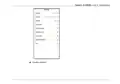
1. Change Dynalink Router WAN MTU to 1428, you can do so from WebGUI > Network > WAN >
DHCP.

| General | Details |
|---|---|
| Name | Dynalink DL-WRX36 WiFi 6 AX3600 Router User Guide |
| Make | DynaLink |
| Language | English |
| Filetype | PDF (Download) |
| File size | 1.36 MB |
 (1 votes, average: 5.00 out of 5)
 Loading...
If you have any questions regarding Dynalink DL-WRX36 WiFi 6 AX3600 Router User Guide, please ask here and describe the problem in detail.

Dynalink AX3600 Stream WiFi Router User Guide


D-Link AX3200 Router Owner’s Manual

TELTONIKA Networks RUT906 E-Mark 4G Router Owner’s Manual

TP-Link TL-MR6500v Wireless 4G LTE Telephony Router User Guide

CaptionCall CR3 Pcs Modem And Router User Manual

Queclink WR100 Cellular Router User Manual

Falcon FN-4G-300P 4G LTE Portable 300MBPS Router User Manual

KEENETIC Hero KN-1012 Mesh Wi-Fi 6 Multi-Gigabit Router User Guide

VOX FTTB Mikrotik Router Installation Guide

MOFI5500 AdvancedHigh Performance Router User Manual

HFCL 4XIHMR Home Mesh Router User Guide