
Dynalink DL-WRX36 WiFi 6 AX3600 Router User Guide








DynalinkXDL-WRX36 | FAQ & Troubleshooting
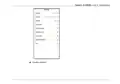
2. Launch the Dynalink APP, to click the device icon of DL-WRX36, go to Router information page.
What is format rule of Wi-Fi password?
At least 8 characters and less than 63 characters
Alphabetic and numeric characters are allowed
Special characters are allowed except “Space” and “&”
How to update the Router’s firmware to the latest version?
Launch a browser and log in to the web user interface. Navigate to System Settings > Firmware and
see the configuration settings of Upgrade from Internet. Use the Check button to inspect the latest firmware
version. An information prompt will help you to check if the router needs to be update or not. Then click the Update
button and proceed to firmware update process. This will cause the router to reboot in a few seconds. When all
the loading process is completed, log in to the web user interface again. You will see the firmware version is up to
date.
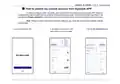
Dynalink WebGUI
Check the current firmware version

| General | Details |
|---|---|
| Name | Dynalink DL-WRX36 WiFi 6 AX3600 Router User Guide |
| Make | DynaLink |
| Language | English |
| Filetype | PDF (Download) |
| File size | 1.36 MB |
 (1 votes, average: 5.00 out of 5)
 Loading...
If you have any questions regarding Dynalink DL-WRX36 WiFi 6 AX3600 Router User Guide, please ask here and describe the problem in detail.

Dynalink AX3600 Stream WiFi Router User Guide


Cudy WR3000E Gigabit Mesh Wi-Fi 6 Router Installation Guide

Micronet Union Technology WWYLT18 AC1200 Gigabit Dual Band Wi-Fi Router User Guide

THOMSON TH4G300 4G LTE Router Instruction Manual

Cudy AX1800 WiFi 6 Mesh Router Instructions

Tenda AC19 Dual Band Gigabit WiFi Router Installation Guide

TP-Link WR3002X WiFi 6 Portable Router Installation Guide

acer 952483 WAVE 7 Wi-Fi Mesh Router User Guide

Juniper NETWORKS ACX Series Paragon Automation Router User Guide

TELTONIKA Networks TCR100 4G WiFi Router User Guide

Red Fox 2 CNC Router Installation Guide